
Visual Paradigm has evolved from a traditional diagramming tool into a holistic AI-powered visual modeling ecosystem. Unlike competitors that offer isolated “one-shot” generation tools, Visual Paradigm integrates AI deeply into four distinct workflows.
Below is a detailed review of the four pillars—VP Desktop, OpenDocs, AI Chatbot, and Web Apps Step-by-Step—including their unique value propositions, ideal use cases, and concrete examples.
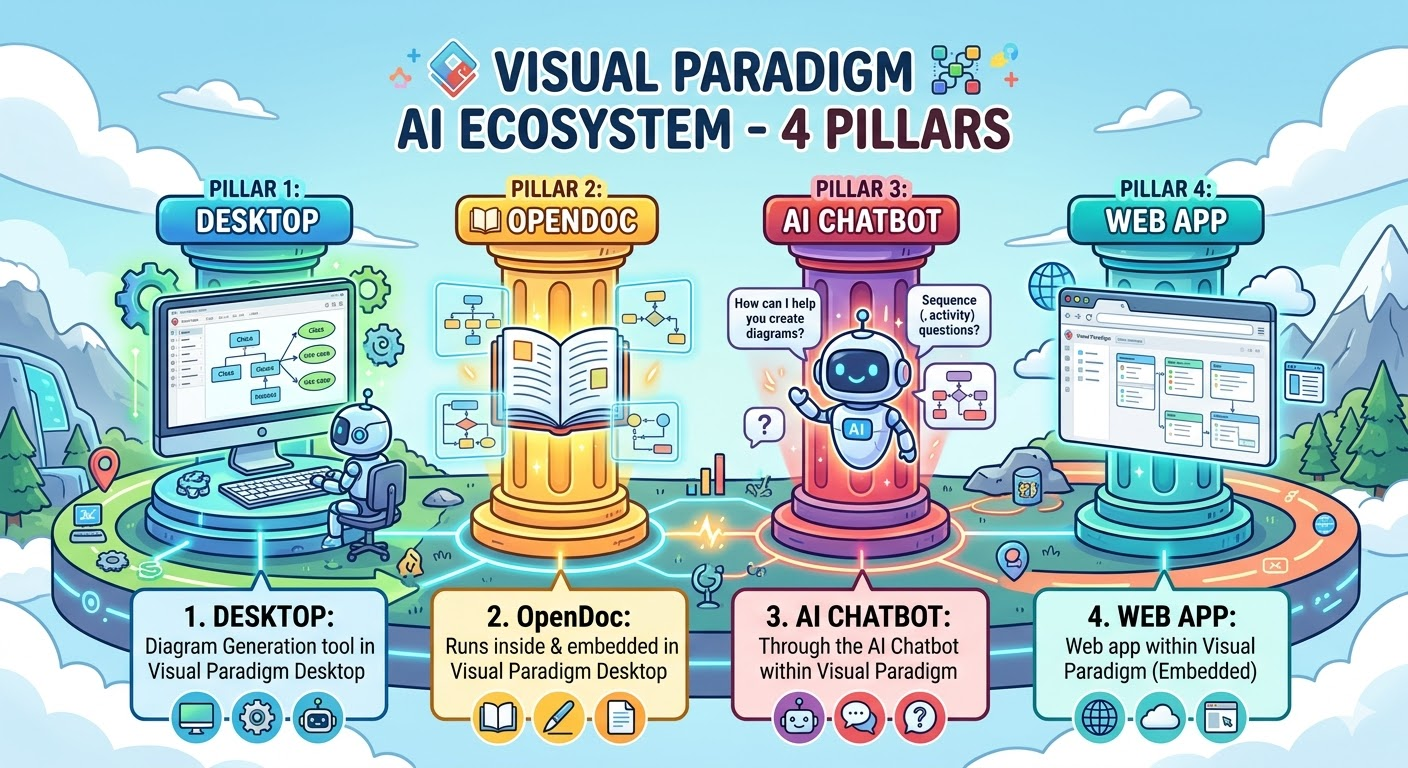
1. VP Desktop: The Enterprise Engineering Core
Visual Model (Desktop) remains the flagship for serious architectural work. It combines the power of traditional Enterprise Architect tools with cutting-edge GenAI capabilities.
🌟 Feature Review
-
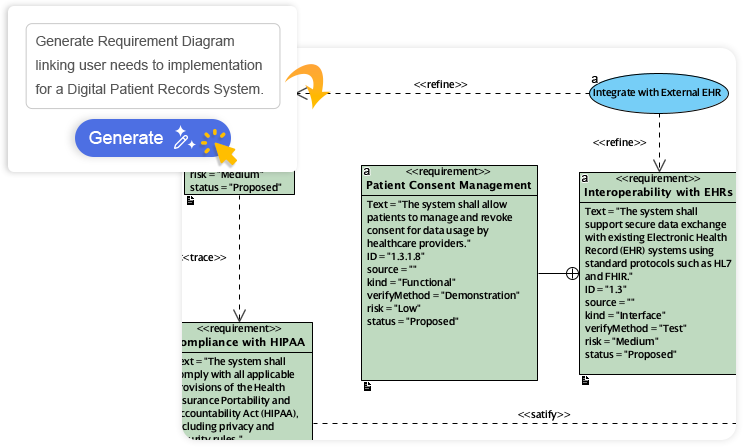
Seamless Desktop Integration: The AI isn’t a separate app; it lives inside the diagram you are currently editing. You can generate, refine, or reverse-engineer code directly on the canvas.
-
Production-Ready Outputs: Unlike chatbots that generate “text descriptions,” VP Desktop generates editable, semantic modeling tokens. These can be compiled into code, reports, and documentation automatically.
-
Code Engineering: Its unique capability is One-Way and Two-Way Code Generation. It can create UML models from existing codebases or write production-ready Java/C# code from a UML class diagram, complete with database scripts and API interfaces.
-
Traceability: It supports traceability threads, allowing you to link a high-level Business Process Diagram directly to a low-level Component Diagram and the specific source code implementing it.
💡 Ideal Use Cases
-
System Architecture Design: Designing complex C4 models, Microservice architectures, or Enterprise Architecture (ArchiMate) blueprints where consistency and traceability are critical.
-
Legacy Modernization: Reverse-engineering a monolithic codebase into modular components.
-
Code Refactoring: Taking a messy codebase, generating a cleaned-up UML model, and then dragging the model’s definition back into high-level code.
📝 Concrete Example: The “Ideal Architecture” Flow
Scenario: An architect needs to design a new e-commerce system and then generate the Java starter boilerplate.
-
Open VP Desktop.
-
Generate: Type in the definitions: “Create a System Context with ‘Customer Service’, ‘Inventory’, and ‘Payment’ subsystems. Connect them to a ‘Shop Front’ component.”
-
Refine: The tool generates the diagram. The architect drags and drops elements to fix connections (e.g., changing a sequence to a composite dependency).
-
Enhance: Use AI to “Add a use case for ‘Process Order’ and an activity diagram describing the transaction flow.”
-
Export: Click Generate Code. The tool creates a Maven project structure with Java classes, interfaces, and a SQL schema file based perfectly on the visual model.
-
Result: A production-ready repository skeleton in minutes.
-
💻 Quick Reference: VP Capabilities at a Glance
| Capability | Supported Diagrams | Key Strength |
|---|---|---|
| UML & SysML | All UML 2.x, SysML (Requirements, Blocks, Internal Block) | Full traceability between requirements, design, and code. |
| Architecture | C4 Models (Context, Container, Component, Dynamic) | Generates executable PlantUML from guided steps or natural language. |
| Code Engineering | Java, C#, C++, Python, etc. | Two-way synchronization: Code → Model and Model → Code. |
| Business Process | BPMN, EPC, Value Stream Mapping | Deep analysis of processes with AI suggestions for optimization. |
2. OpenDocs: The Collaborative Knowledge Hub
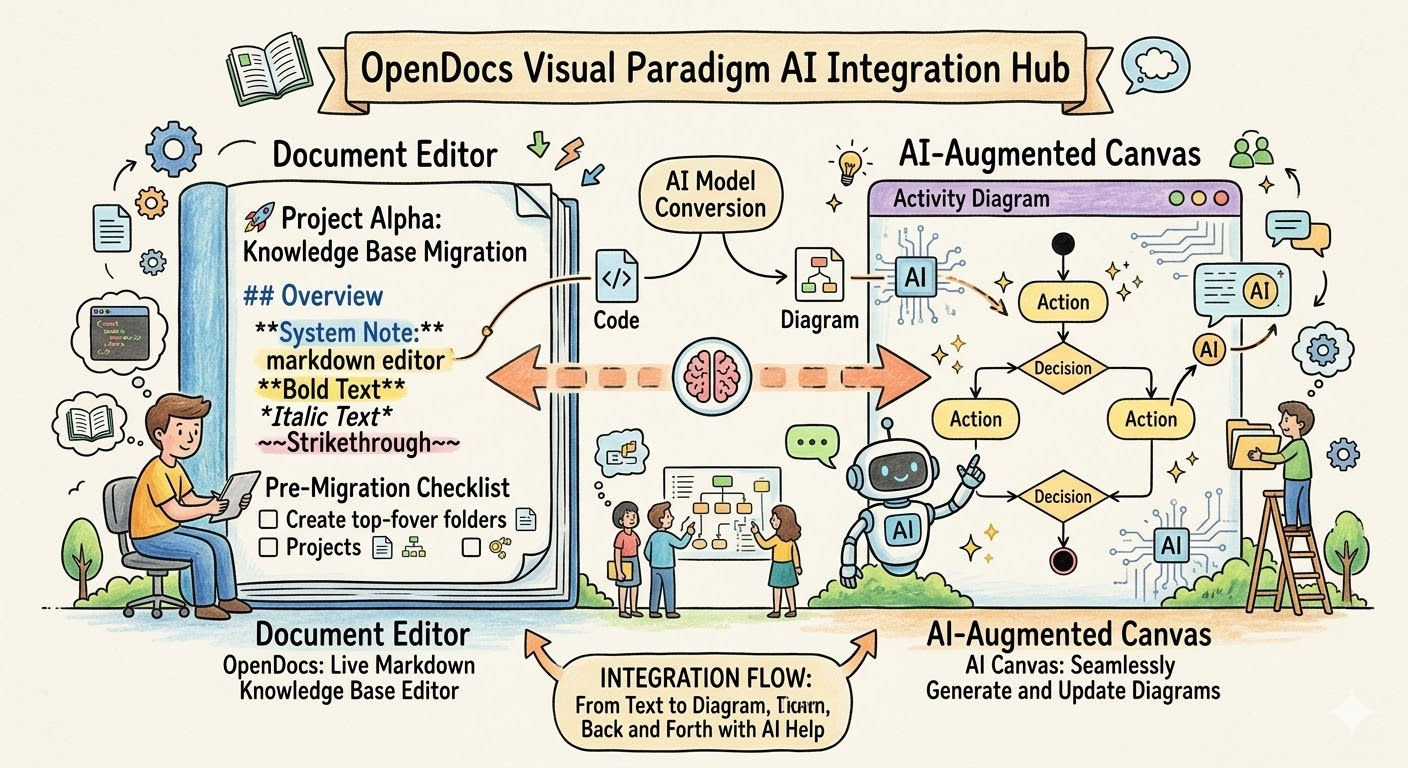
OpenDocs is an extension of the core desktop model but changes the context from “static production” to “dynamic collaboration.” It is best described as a visual Notion where diagrams are first-class citizens.
🌟 Feature Review
-
Embedded Interactivity: Diagrams are not images (PNGs). They are live, editable VP models embedded directly into text documents, wikis, or reports.
-
Real-Time Collaboration: Team members can edit a diagram while discussing a business requirement in the same document. Changes update instantly.
-
Dynamic Traceability: You can link diagram notes directly to specific elements within the diagram. If you update a requirement text, the AI can suggest updates to the linked diagram.
-
Knowledge Capture: Perfect for capturing the “why” and “how” of a model, not just the model itself.
💡 Ideal Use Cases
-
Team Wikis & Confluence Alternatives: Instead of posting static images, teams post interactive Class Diagrams that developers can edit.
-
Requirement Specifications: Embedding Business Process Diagrams directly next to the functional requirements text they support.
-
Training & Onboarding: Creating training manuals where learners can interact with the process flows without needing to log into a full Modeling tool.
-
Strategic Presentations: Embedding Architecture diagrams into executive summary PDFs where stakeholders can hover to see details or edit minor labels.
📝 Concrete Example: The Interactive Strategy Doc
Scenario: A product manager is writing a Tech Design Document for a senior engineering team.
-
Open OpenDocs.
-
Draft Text: Write the high-level summary of the system.
-
Embed Diagram: Type
/diagramand describe the system: “Create a C4 Container diagram with ‘API Gateway’ and ‘Microservice A’.” -
Iterate Live: An engineer joins the session. She sees the diagram, picks it up, and modifies the data flow.
-
Sync: The text updates slightly to reflect the new flow the engineer created.
-
Export: Generate a final PDF report where the team collaboratively built the document, ensuring visual and textual alignment.
📊 Quick Reference: OpenDocs Workflow
| Feature | Benefit | Best For |
|---|---|---|
| Live Embedding | Edit the image by clicking it directly. | Writers and Documentation Engineers. |
| Team Sync | Multiple users edit one doc simultaneously. | Team Wikis and Project Wikis. |
| Rich Text + Visuals | Mix paragraphs of text with complex diagrams seamlessly. | Technical Spec Documents. |
| Accessibility | No software installation required for viewers (if published online). | External Stakeholders and Clients. |
3. AI Visual Modeling Chatbot: The Rapid Prototyper
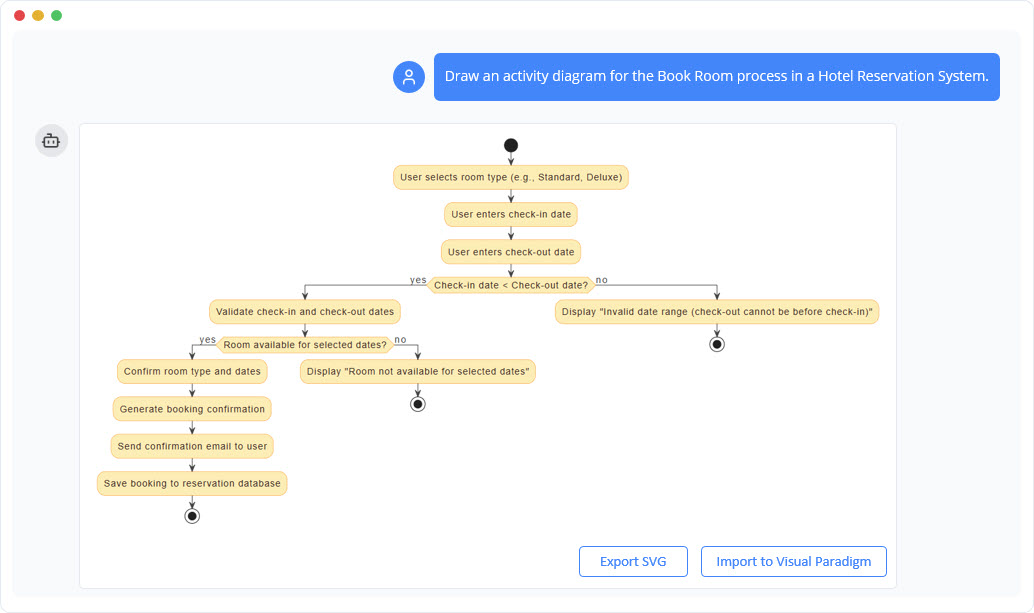
The Chatbot transforms diagramming into a conversation. It is designed for agility, brainstorming, and overcoming the “blank canvas” syndrome.
🌟 Feature Review
-
Natural Language Interface: No need to learn modeling syntax or drag-and-drop. Just describe what you want in a chat window.
-
Stop-and-Go Iteration: You can generate a sequence diagram, ask the AI “Make the ‘Pay’ step asynchronous and add error handling,” and it refines the visual immediately.
-
Educational Mode: Ideal for non-modelers. The AI explains why a certain design was chosen or helps a junior developer understand a complex architecture through conversation.
-
Cross-Platform Output: While it runs in the browser, results can often be exported to the Desktop for refinement or embedded into OpenDocs.
💡 Ideal Use Cases
-
The “Blank Canvas” Fix: You have an idea but no clue how to start drawing. Description: “Show me a flow chart for a login process.”
-
Agile Story Mapping: Quickly creating user story maps or activity diagrams for sprint planning.
-
Code Explanation: Uploading a snippet of code and asking: “Visualize how this code controls the user session.” The AI generates a Class Diagram based on the logic.
-
Educational Tutorials: Creating example diagrams for tutorials or whitepapers without setting up a complex environment.
📝 Concrete Example: Refining a System Flow
Scenario: A developer needs to visualize a data pipeline but keeps making errors in the UML syntax.
-
Open the Chatbot.
-
Prompt: “Create a Data Flow Diagram showing a file being uploaded to a cloud server, validated, and processed.”
-
AI Generation: Quickly generates the DFD.
-
Critique: The user sees it is missing the error handling loop.
-
Refine: “Add a feedback loop from the cloud server back to the client if validation fails, and change the cloud shape to a database.”
-
Result: The diagram updates instantly with the new branch and symbol, ready for export or further iteration.
💬 Quick Reference: Chatbot Interactions
| Task | User Action | AI Response |
|---|---|---|
| Brainstorming | “Give me ideas for a mobile app architecture.” | Suggests 3 different architectural patterns. |
| Drafting | “Make a sequence diagram for user login.” | Generates a basic sequence immediately. |
| Refining | “Add ‘Email Verification’ after ‘Password Submit’.” | Inserts the new steps and connects them logically. |
| Explaining | “Why is this design bad?” | Analyzes the logic and suggests specific improvements. |
4. Web Apps Step-by-Step: The Methodological Guide
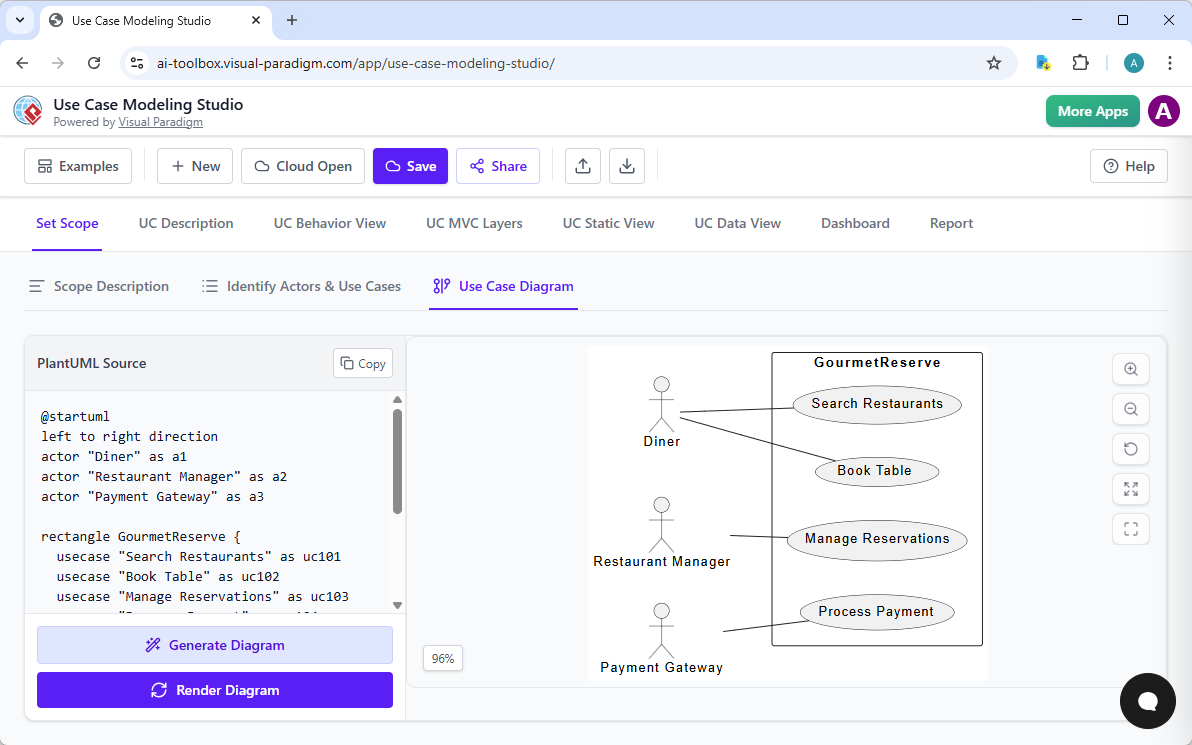
This pillar consists of specialized, browser-based studios for specific paradigms (e.g., C4 PlantUML Studio, Use Case Studio, DBModeler AI). These are for users who need constraints and best practices rather than open-ended creativity.
🌟 Feature Review
-
Structured Workflows: These tools force a logical progression (e.g., Context -> Container -> Component -> Deployment) preventing “diagram isolation” where one part exists in a vacuum.
-
Guided AI: The AI acts as a coach, asking clarifying questions to fill out missing details (e.g., “Which cloud provider should the database reside in?”) before generating the specific architecture.
-
Domain Specific: Some tools are hyper-specialized, such as the Agilien (Jira Backlog Planner) for project management or Value Stream Mapping for continuous improvement.
-
Lightweight Access: No heavy software installation required; runs in the browser but mimics the power of the desktop tool.
💡 Ideal Use Cases
-
C4 Model Planning: Building a multi-layer cloud architecture using the C4 PlantUML Studio, ensuring all layers derive from the same data source.
-
Database Modeler: Instantly generating an ERD from a text description of database requirements.
-
Project Initiation: Using the 4-Aspects Infographic Designer to quickly create SWOT or McKinsey 7S visuals for a kickoff meeting.
-
Solo Architects: Individuals who don’t have access to a team license but still need to produce professional-grade architectural specs.
📝 Concrete Example: The Infrastructure Blueprint
Scenario: An IT manager needs to document the infrastructure for a new Kubernetes cluster migration.
-
Open C4 PlantUML Studio (Web App).
-
Select Guided Mode.
-
Input: “Build a high availability Kubernetes cluster with three nodes, an ingress controller, and a stateful database.”
-
AI Guidance: The tool asks, “Do you need high availability for the database? Yes/No.” -> User selects Yes.
-
Visualization: The tool generates a C4 System Landscape Diagram showing the multiple physical servers, then drills down into a Container Diagram showing the Kubernetes pods.
-
Output: Export to PlantUML code (for CI/CD pipelines) or PNG for a presentation.
🖥️ Quick Reference: Web App Studios
| Studio Type | Primary Function | Key Guided Feature |
|---|---|---|
| C4 PlantUML Studio | Software Architecture | Generates C4 layers step-by-step (Context → System → Lines). |
| Use Case Studio | Requirements | Links Use Cases to Activity Diagrams and Realizations automatically. |
| DBModeler AI | Database Design | Converts requirements text into normalized ERDs instantly. |
| Infographic Designer | Strategy/Analysis | Generates SWOT, 5C, or 7S charts from text inputs in seconds. |
| Value Stream Mapping | Process Improvement | Guides you to identify waste in business processes. |
Strategic Conclusion: The Ecosystem Advantage
Visual Paradigm’s true differentiation lies in interoperability. You are not forced to choose one tool for your whole project. You can:
-
Discover a solution using the Chatbot.
-
Refine the structure using a Web Studio (to ensure it follows C4 or UML standards).
-
Finalize the model in VP Desktop to generate the actual executable code.
-
Publish the final result into OpenDocs so the entire team can discuss and edit the architecture alongside the code.
This “End-to-End” ecosystem eliminates the friction of switching between different tools, ensuring that the visual model, the code, and the documentation are always synchronized.
Summary Matrix: Choosing the Right Tool for the Job
| Goal | Best Tool | Why? |
|---|---|---|
| Generate Code & Models | VP Desktop | Two-way sync between code and diagrams; full traceability. |
| Write Documentation | OpenDocs | Diagrams live inside the text; live editing; collaborative. |
| Brainstorm Quickly | AI Chatbot | Fast, conversational, great for prototyping ideas. |
| Follow Standards | Web Apps | Pre-built templates force you to follow best practices. |