


Introduction to Automated Cinematic Storytelling
The traditional landscape of presentation design is often characterized by tedious formatting, endless searching for stock imagery, and the struggle to maintain narrative flow. With the release of Illumy AI Slides within Visual Paradigm, this dynamic has shifted dramatically. Illumy acts not just as an editor, but as a co-creator, leveraging Generative AI and advanced WebGL engines to transform simple text prompts into fully realized, broadcast-quality video slideshows in seconds.
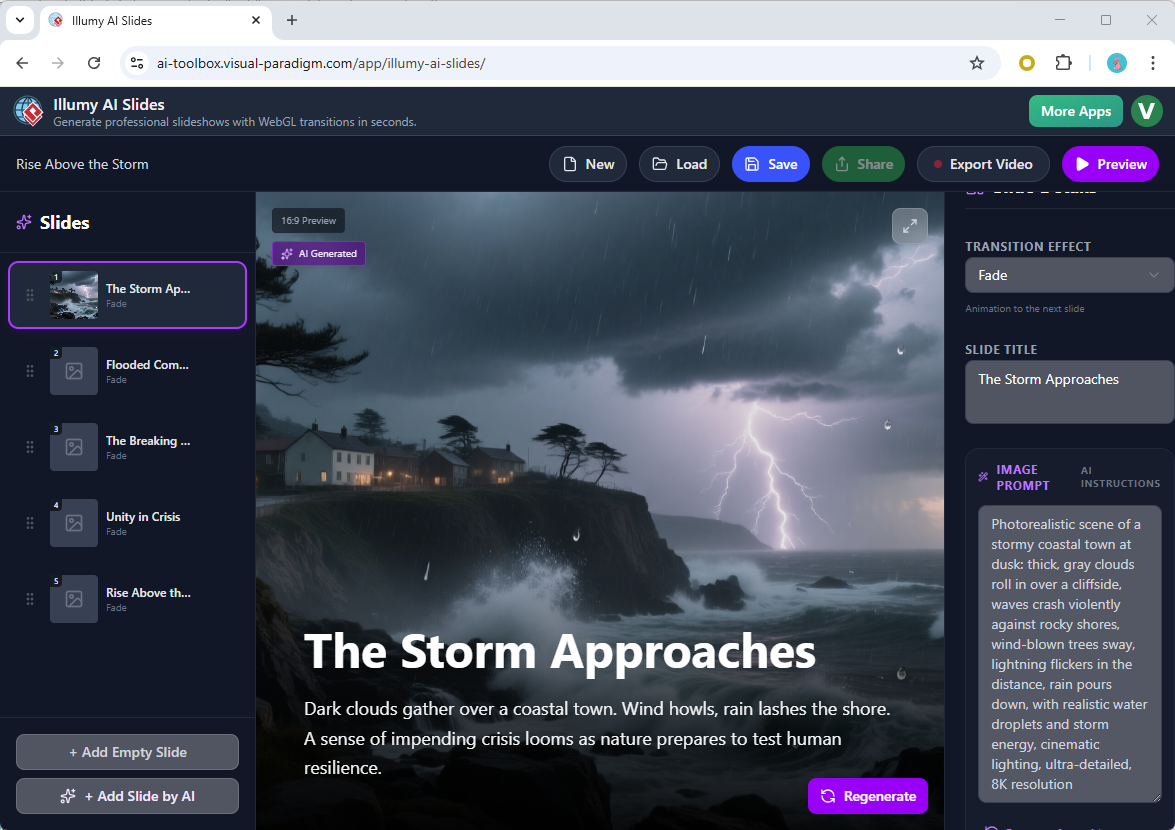
This tutorial provides a comprehensive walkthrough on how to utilize Illumy AI Slides to bypass the manual labor of deck creation and produce cinematic presentations that captivate audiences.
Why Use Illumy AI Slides?
Before diving into the workflow, it is essential to understand the technical advantages Illumy offers over traditional slide editors. By integrating AI image synthesis with a high-performance WebGL rendering engine, the tool solves three specific pain points:
- Content Generation: It automates the brainstorming and summarization process, structuring a coherent narrative instantly.
- Visual Consistency: Instead of mismatched stock photos, it generates context-aware, unique backgrounds for every slide.
- Broadcast Polish: It applies over 20 custom-coded transition effects, such as dramatic 3D cubes and elegant page curls, which are typically difficult to achieve manually.
Step-by-Step Tutorial: Creating Your First AI Slideshow
Follow these steps to go from a raw concept to a high-definition video export using Illumy AI Slides.
Step 1: Access the Illumy Interface
Begin by launching Visual Paradigm and navigating to the Illumy AI Slides section. The interface is designed for minimalism and efficiency, removing the clutter of complex toolbars found in standard presentation software.
Step 2: Input Your Core Concept
The engine requires a seed topic to generate your deck. In the input field, type a specific subject or idea. For example, you might enter “The Future of Sustainable Architecture” or “The Impact of Quantum Computing.”
Tip: While short prompts work, slightly more descriptive prompts can help the AI tailor the tone and image style more effectively.
Step 3: One-Click Generation
Click the Generate button. At this stage, the backend AI processes your request through several steps simultaneously:
- It structures the narrative flow of the presentation.
- It writes concise, summarized text for each slide.
- It generates prompts for image synthesis and creates high-quality visuals.
Within moments, a complete deck structure will appear.
Step 4: Review and Refine in the Split-Screen Editor
Illumy provides a split-screen editor that allows you to maintain full creative oversight without sacrificing speed. On one side, you will see the generated script and slide sequence; on the other, the visual preview.
During this phase, you should:
- Verify Text: Ensure the AI-generated summaries align with your specific messaging. You can edit the text directly if nuances need adjustment.
- Check Visuals: If a specific generated image does not match your vision, you can modify the image prompt and regenerate that specific slide’s background.
Step 5: Customize WebGL Transitions
One of Illumy’s standout features is its library of transition effects. By default, the AI assigns transitions, but you can manually override these to suit the mood of your presentation.
Navigate to the transition settings to swap effects. Options range from subtle “Fades” and “Ripples” to more aggressive “Glitches” or “3D Cubes.” These effects are rendered in real-time, providing a cinema-grade look that static slides cannot achieve.
Step 6: Preview and Export
Before finalizing, hit the Full-Screen Preview button. This will auto-play the slideshow, allowing you to gauge the pacing and the impact of the transitions.
Once satisfied, click Export. The engine will record the real-time rendering and output a high-definition .webm video file. This format is optimized for high quality and is ready for immediate sharing on social media, internal communication channels, or offline playback.
Feature Comparison: Traditional vs. Illumy AI
To highlight the efficiency gains, the following table compares the workflow of traditional presentation design against the Illumy AI workflow.
| Feature | Traditional Method | Illumy AI Slides |
|---|---|---|
| Narrative Structure | Manual brainstorming and outlining. | Auto-generated based on topic input. |
| Visual Assets | Time-consuming search for stock photos. | AI-synthesized, unique imagery. |
| Animation | Manual application of basic fades/wipes. | Automated, cinema-grade WebGL effects. |
| Output Time | Hours or Days. | Seconds or Minutes. |
Conclusion
Illumy AI Slides represents a significant leap forward in content creation technology. By automating the labor-intensive aspects of structure, writing, and design, it frees users to focus on the core message. Whether you are explaining complex technical concepts or pitching a new business idea, following this workflow ensures you can deliver a professional, visually stunning video slideshow with minimal effort.
-
Revolutionize Your Slides: Meet Visual Paradigm’s AI Markdown Presentation Maker!: 9 Dec 2025 · Introducing Visual Paradigm’s AI Markdown Presentation Maker – the game-changing tool that turns your raw ideas into stunning, animated …
-
Lumina AI: Generate AI-Powered Video Slideshows Instantly: Create dynamic video presentations from text using AI, perfect for storytelling, marketing, and rapid content creation.
-
Lumina AI Slideshow Maker: Create Stunning Presentations with AI: Use artificial intelligence to generate professional-quality slides from simple text input, saving time and enhancing creativity.
-
Illumy AI Slideshow Maker: Instant AI-Powered Presentation Creation: Generate visually rich, professional slides in seconds using AI, ideal for marketers, educators, and business professionals.
-
AI Animated Presentation Studio: Create Dynamic, Animated Slides with Ease: Design engaging, animated presentations with AI assistance, combining storytelling with motion and visual effects.
-
How to Create Stunning Animated Presentations with Visual Paradigm’s AI Markdown Presentation Maker: A step-by-step guide on leveraging AI-powered Markdown tools within Visual Paradigm to design visually engaging and dynamic presentations effortlessly.
-
Introducing AI Animated Presentation Studio – A New Era in Visual Storytelling: Visual Paradigm launches its AI Animated Presentation Studio, enabling users to generate dynamic, AI-enhanced presentations with minimal effort.
-
Visual Paradigm Online – AI-Powered Presentation Maker for Modern Creators: Explore the full suite of features in Visual Paradigm Online’s AI-driven presentation maker, designed for professionals and educators alike.
-
Visualizing Complex Ideas with AI-Powered Tree Diagrams: Explores how AI-driven tree diagram tools help users break down complex concepts into structured, visual representations for better understanding.
-
Instant AI Mind Maps for Rapid Idea Organization: Discover how Visual Paradigm’s AI-powered mind maps instantly transform raw ideas into structured, visual representations to boost creativity and clarity.
-
Mastering Visual Paradigm’s Markdown Presentation Maker: Step-by-Step Guide with AI Image Generation: This page provides a technical walkthrough of creating presentations using Markdown in Visual Paradigm, enhanced with AI-generated images for dynamic content.
-
Visual Paradigm Category – Tools and Resources: This category page aggregates tools, guides, and resources related to Visual Paradigm, including AI-assisted diagramming, documentation, and presentation creation.
-
Boost Creativity & Productivity with AI-Powered Mind Maps: Business Leaders – Visualize strategies and decision-making frameworks. Why Choose Visual Paradigm Online? Unlike manual tools, our AI-powered solution: Works instantly —no learning curve Delivers professional-quality maps —ready for presentations Supports real-time collaboration —perfect for remote teams
-
AI-Powered Markmap Studio: Visual Paradigm . What’s New. Features.Experience the Power of AI-Powered Markmap Studio. Transform your ideas into structured, interactive visual representations.
-
Ultimate Guide to Ilumy AI Slides: A comprehensive guide to creating AI-powered slides using Ilumy AI for presentations.