


Revolutionizing System Modeling
The landscape of system design and documentation has undergone a significant transformation with the introduction of the AI Diagram Generator in Visual Paradigm. Released in late 2025, this feature addresses the most labor-intensive aspect of software modeling: the manual layout of complex structures.
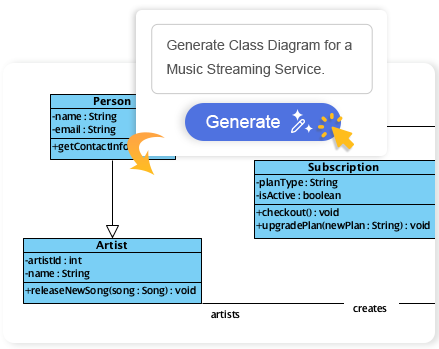
By leveraging artificial intelligence, professionals can now transition from conceptual ideas to fully editable, industry-standard diagrams in a matter of seconds. This guide explores how to utilize this technology to streamline workflows, eliminate repetitive tasks, and focus on high-level design decisions.
Key Concepts in AI Diagramming
Before diving into the workflow, it is essential to understand the core components and capabilities of the Visual Paradigm AI architecture.
Generative Modeling
Generative Modeling in this context refers to the AI’s ability to interpret natural language text prompts and translate them into structured visual representations. Unlike static templates, the AI analyzes the semantic meaning of the prompt (e.g., “Hospital Management System”) to determine the necessary entities, relationships, and flows.
Supported Diagram Types
The AI Diagram Generator is currently optimized for seven specific diagram types, covering both structural and behavioral modeling requirements:
| Diagram Type | Primary Function |
|---|---|
| Class Diagram | Visualizes system structure, attributes, and relationships between objects. |
| Sequence Diagram | Details how operations are carried out over time between objects. |
| State Machine Diagram | Models the dynamic behavior of entities based on event-driven state changes. |
| Use Case Diagram | Captures functional requirements and actor interactions. |
| PERT Chart | Used for project management to analyze tasks and timelines. |
| Requirement & Object Diagrams | Focuses on system requirements and specific object instances. |
Addressing the “Blank Canvas” Challenge
One of the primary friction points in traditional systems engineering is the “blank canvas” syndrome. Starting a new project typically involves tedious manual setup—dragging, dropping, connecting, and aligning elements one by one. This process often creates a lag between brainstorming and visualization.
The AI Diagram Generator acts as an intelligent assistant that eliminates this bottleneck. By automating the initial draft, it provides a clean, aesthetically pleasing layout immediately. This allows architects and developers to skip the manual setup and jump straight into the refinement phase, ensuring that the diagram accurately reflects the design intent without the overhead of manual drawing.
Guidelines: Step-by-Step Implementation
To effectively leverage the AI Diagram Generator, follow these standard operating procedures. Note that this feature requires a Professional Edition license (or higher) with an active maintenance plan.
Step 1: Accessing the Tool
Launch Visual Paradigm Desktop. From the main application menu, navigate to Tools and select AI Diagram. This serves as the central command hub for all generative tasks.
Step 2: Selecting the Diagram Architecture
Choose the specific type of diagram you wish to generate from the available options. Ensure you select the correct UML or chart type that matches your documentation goals (e.g., select “Class Diagram” for database structuring).
Step 3: Prompt Engineering
In the prompt field, you must provide a clear topic or system name. The quality of the output correlates with the clarity of the input. For example, enter “Online Retail System” or “Hospital Management System.” Click OK to initiate the generation process.
Step 4: Refinement and Iteration
Once the AI generates the diagram, it opens directly in the Visual Paradigm editor. At this stage, the diagram is fully functional and editable. You should review the generated entities and relationships, adjusting them to fit specific business logic that the AI may have generalized.
Expanding Horizons: AI-Powered Brainstorming
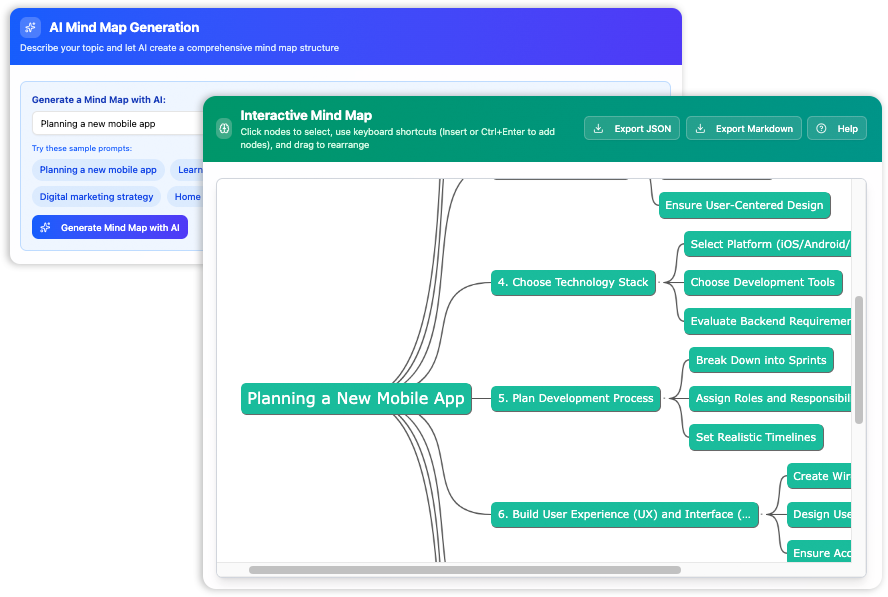
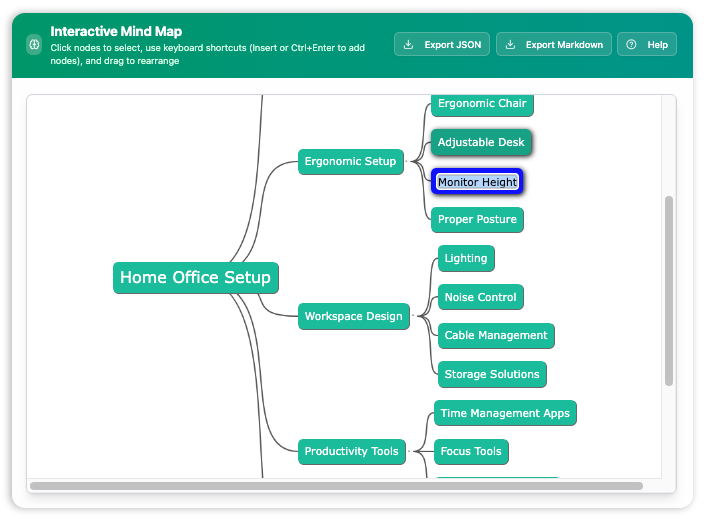
Beyond formal UML structures, Visual Paradigm has integrated AI into the ideation phase through AI-Powered Mind Maps. This tool is designed to transform abstract thoughts into structured plans.
- Input Phase: Enter a central concept or a spark of inspiration.
- Generation Phase: The AI expands this concept into a detailed, interconnected map of nodes and sub-nodes.
- Inline Editing: Use the drag-and-drop interface to rearrange branches effortlessly. This feature supports real-time updates with no lag, allowing for a fluid brainstorming session.
Tips and Tricks for Optimization
To get the most out of Visual Paradigm’s AI features, consider the following best practices and efficiency hacks.
Maximize Prompt Specificity
While simple prompts work, adding context can improve results. Instead of just “E-commerce,” try “E-commerce System with Inventory Management and Payment Gateway.” This helps the AI infer a more complete set of classes or states.
Utilize Keyboard Shortcuts
When working with the AI-generated Mind Maps or diagrams, familiar keyboard shortcuts are supported. Using these for standard operations (like copy, paste, delete, or navigating nodes) significantly speeds up the post-generation editing process.
Iterative Prototyping
Use the AI tool for rapid prototyping. If the first result isn’t perfect, generate a new one with a slightly modified prompt. It is often faster to generate three different variations and pick the best starting point than to manually fix a fundamentally flawed manual draft.
Combine Tools
Start with an AI Mind Map to brainstorm the high-level requirements of a system, and then use those requirements as prompts to generate specific Use Case or Class Diagrams. This creates a cohesive workflow from ideation to technical specification.
Visual Paradigm AI Visual Modeling
-
AI-Powered Use Case Diagram Refinement Tool – Smart Diagram Enhancement: Leverage AI to automatically refine and optimize your use case diagrams for clarity, consistency, and completeness.
-
Convert Use Case to Activity Diagram – AI-Powered Transformation: Automatically convert use case diagrams into detailed activity diagrams using AI to visualize system workflows.
-
AI-Assisted UML Class Diagram Generator – Visual Paradigm: An interactive, step-by-step tool to help users create UML class diagrams with AI-powered suggestions, validation, PlantUML export, and design analysis.
-
Mastering UML Activity Diagrams with AI | Visual Paradigm Blog: A blog post exploring how AI-powered features in Visual Paradigm enhance the creation and optimization of UML activity diagrams for developers and analysts.
-
Visual Paradigm AI Diagram Generation Guide: A comprehensive step-by-step guide to using Visual Paradigm’s AI-powered tools for generating diagrams quickly and accurately.
-
AI Diagram Generation Features in Visual Paradigm: Explore the advanced AI capabilities in Visual Paradigm that enable users to generate diagrams from natural language descriptions.
-
Visual Paradigm AI Diagram Generator Release Notes: Official release notes detailing the latest updates and enhancements to the AI Diagram Generator in Visual Paradigm.
-
Visual Paradigm’s AI Diagram Generator Expands Instant Creation Capabilities: Coverage of how Visual Paradigm’s AI diagram generator now supports instant creation of DFDs, ERDs, mind maps, and more.
-
New Diagram Types Added to AI Diagram Generator: DFD & ERD: Announcement of expanded AI diagram generation support for Data Flow Diagrams (DFD) and Entity Relationship Diagrams (ERD).
-
AI Diagram Generator Now Supports Package Diagrams in Visual Paradigm: New release enabling AI-generated package diagrams for better software architecture visualization.
-
AI Diagram Generator Adds Radar Chart Support: Visual Paradigm introduces AI-powered radar chart generation for visualizing complex performance and capability metrics.
-
Comprehensive Tutorial: Generating ArchiMate Diagrams with AI: In-depth tutorial showing how to use Visual Paradigm’s AI diagram generator to create ArchiMate diagrams and viewpoints efficiently.