


Introduction to AI-Driven Project Planning
In the fast-paced world of project management, the ability to rapidly transition from a conceptual idea to a structured, actionable plan is a significant competitive advantage. Visual Paradigm’s Development Plan Generator is an AI-powered tool designed to bridge this gap. By acting as an intelligent project manager, it transforms simple text descriptions into comprehensive development plans accompanied by instant visual timeline diagrams. This tool is essential for project managers, team leads, and entrepreneurs looking to minimize the manual effort of planning while reducing risks associated with scope creep and undefined milestones.
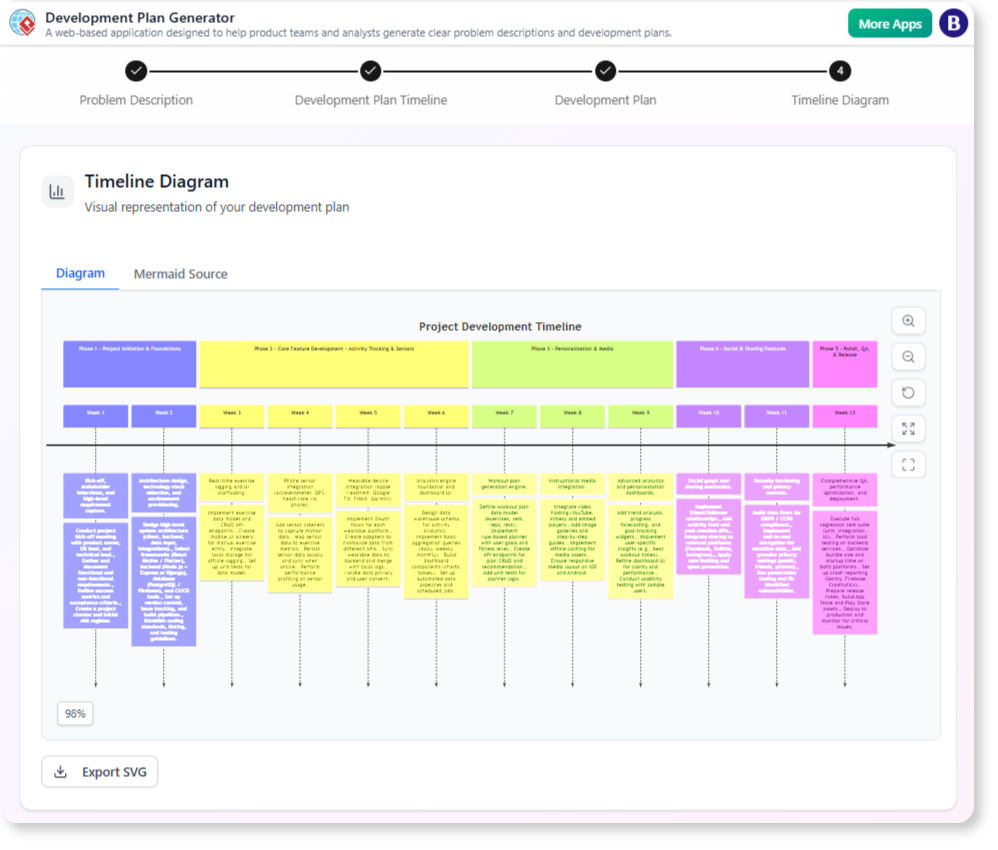
This comprehensive guide explores the functionality of the Development Plan Generator, detailing how it leverages artificial intelligence to automate the creation of objectives, task breakdowns, resource allocation, and Gantt-chart-style visualizations. Whether you are managing a small business website launch or a complex software update, this tool streamlines the planning phase, ensuring alignment and clarity from day one.
Key Concepts
Before diving into the workflow, it is crucial to understand the foundational elements that make this tool effective. These concepts highlight how the AI interprets data and visualizes it for stakeholders.
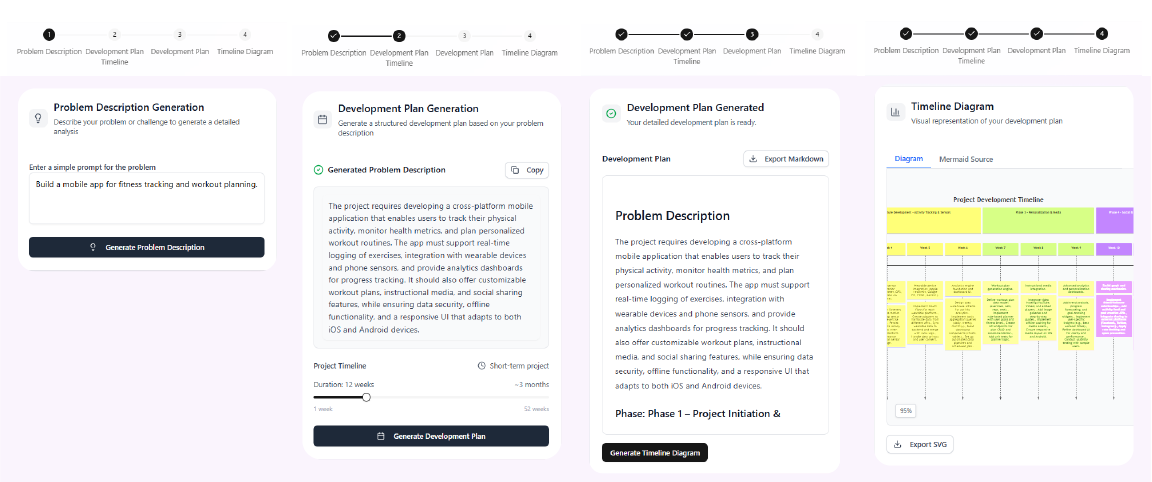
AI-Powered Plan Generation
The core of the tool is its ability to analyze natural language inputs. Upon receiving a description of a problem or goal, the AI generates a structured textual plan that includes:
- Objectives: High-level definitions of what success looks like for the project.
- Tasks: A granular breakdown of actionable steps, typically organized into logical phases.
- Resources: Intelligent recommendations for the personnel, tools, budget, or materials required to complete the tasks.
- Deadlines: Estimated timeframes for each task or phase based on industry standards and the complexity of the input.
Instant Visual Timeline Diagram
Simultaneous to the text generation, the tool creates a visual representation of the project. This diagram functions similarly to a Gantt chart, displaying project phases, dependencies, key milestones, and timelines. The visual aspect allows for quick identification of bottlenecks, overlapping tasks, and critical paths, facilitating better resource management.
Edition Requirements
Access to the AI Development Plan Generator depends on your specific Visual Paradigm platform. Ensure you meet the following requirements:
| Platform | Requirement |
|---|---|
| Visual Paradigm Online | Combo Edition or higher subscription |
| Visual Paradigm Desktop | Professional Edition or higher (with active software maintenance) |
Guidelines: Step-by-Step Workflow
Follow these structured guidelines to generate, refine, and utilize your AI-generated development plans effectively.
Step 1: Access the Tool
First, ensure you are logged into the correct edition of the software.
- For Online Users: Navigate directly to the AI Toolbox via the Visual Paradigm Online interface or the specific URL provided in your dashboard.
- For Desktop Users: Open the application, navigate to the Tools menu, select App, and then click on Development Plan Generator.
Step 2: Define the Project Scope
The quality of the output is directly dependent on the clarity of the input. In the input field, provide a concise yet descriptive summary of your project. This should include the primary goal, scope, known constraints, team size, budget, and desired timeline.
Example Input: “Develop a mobile app for fitness tracking including user registration, workout logging, and analytics. Target launch in 3 months with a team of 5 developers and a $50,000 budget.”
Step 3: Generate and Review
Click the Generate button. The AI will process the context and produce two distinct outputs:
- A detailed textual plan organized by objectives, tasks, resources, and risks.
- A synchronized visual timeline diagram showing the sequence of phases (e.g., Planning, Development, Testing).
Review these outputs carefully. The timeline and text are linked; usually, updates to the textual plan will reflect in the visual diagram, ensuring consistency.
Step 4: Refine and Customize
Rarely is a generated plan perfect on the first try. Use the editor to make manual adjustments:
- Edit Text: Modify task descriptions, add missing subtasks, or adjust resource allocations to better fit your reality.
- Adjust Visuals: Drag timeline bars to change durations, establish new dependencies, or color-code phases for better readability.
Step 5: Export and Execute
Once the plan meets your standards, export the artifacts. You can save the textual plan and the diagram as PDFs or images for presentations. For ongoing management, integrate the output into Visual Paradigm’s other diagramming tools or export data for use in external project management software.
Real-World Application Examples
To understand the tool’s versatility, consider how it handles different project scales.
Scenario A: Small Business Website Launch
Input: Launch a boutique e-commerce site with a $10k budget and 2-month timeline.
Output: The AI generates a 4-phase plan (Planning, Design & Dev, Content & Testing, Launch). It identifies resources such as a Web Developer and Designer. The visual timeline displays overlapping phases, ensuring design begins immediately after planning requirements are set.
Scenario B: Enterprise Software Update
Input: Update CRM software with AI analytics, ensuring GDPR compliance, with a 6-month deadline and 10 engineers.
Output: The plan includes specific phases for “Research & Design” and “Privacy Audits.” It identifies risks regarding compliance delays and suggests mitigation buffers. The timeline visualizes dependencies, such as ensuring legal approval before deployment.
Tips and Tricks for Optimization
Maximize the efficiency of the Development Plan Generator with these expert tips:
- Be Specific with Constraints: The AI performs better when given concrete constraints. Instead of saying “a quick project,” specify “a 2-week sprint.” Mentioning budget caps or team specificities helps the AI allocate resources more logically.
- Iterative Prompting: If the initial output misses the mark, do not manually rewrite the whole plan. Instead, refine your input description to be more explicit about the missing elements and regenerate.
Leverage the Visuals for Communication: Use the generated timeline diagram as a shared artifact during stakeholder meetings. It provides an immediate, high-level view that text documents often fail to convey, helping to spot misalignment early.
Visual Paradgim AI Study List:
- AI-Powered Visual Modeling and Design Solutions by Visual Paradigm: Explore cutting-edge AI-driven tools for visual modeling, diagramming, and software design, enabling faster, smarter development workflows.
- Visual Paradigm – All-in-One Visual Development Platform: A comprehensive platform for visual modeling, software design, business process modeling, and AI-powered development tools.
- AI Chatbot Feature – Intelligent Assistance for Visual Paradigm Users: Leverage AI-powered chatbot functionality to get instant guidance, automate tasks, and enhance productivity within Visual Paradigm.
- Visual Paradigm Chat – AI-Powered Interactive Design Assistant: An interactive AI chat interface that helps users generate diagrams, write code, and solve design challenges in real time.
- AI Textual Analysis – Transform Text into Visual Models Automatically: Use AI to analyze text documents and automatically generate diagrams such as UML, BPMN, and ERD for faster modeling and documentation.
- Visual Paradigm AI Chatbot Enhances Multi-Language Support …: 7 hours ago · Discover the latest updates to Visual Paradigm ‘s AI -Powered visual modeling software, including multi-language UI and improved chat content localization. Experience seamless AI diagram generation in languages like Spanish, French, Chinese, and more with our AI chatbot for UML and other diagrams.
- AI -Powered BI Analytics by Visual Paradigm – ArchiMetric: Get started in under a minute at ai . visual – paradigm .com/tool/ ai -powered-bi-analytics. No installation, no signup required for most features.
- Discover the Power of Visual Paradigm ’s AI -Powered… – Visualize AI: While tools like Google’s AI Image Translator (via Google Lens and Google Translate) offer convenience, Visual Paradigm ’s AI -Powered Image Translator takes the lead with…
- AI Chatbot for Diagramming: How It Works with Visual Paradigm: The Visual Paradigm AI chatbot is an AI -powered modeling assistant that turns natural language into diagrams. It doesn’t require users to learn specific modeling standards or syntax.
- AI Brainstorming Features – Visual Paradigm: Discover how Visual Paradigm’s AI-powered brainstorming tools enhance idea generation with intelligent suggestions and collaborative workflows.
- AI Brainstorming Tool – Visual Paradigm AI: Use the AI Brainstorming tool from Visual Paradigm to rapidly generate and organize ideas with AI-driven insights and smart templates.
- AI-Powered Use Case Diagram Refinement Tool – Smart Diagram Enhancement: Leverage AI to automatically refine and optimize your use case diagrams for clarity, consistency, and completeness.
- Convert Use Case to Activity Diagram – AI-Powered Transformation: Automatically convert use case diagrams into detailed activity diagrams using AI to visualize system workflows.
- AI-Assisted UML Class Diagram Generator – Visual Paradigm: An interactive, step-by-step tool to help users create UML class diagrams with AI-powered suggestions, validation, PlantUML export, and design analysis.
- Mastering UML Activity Diagrams with AI | Visual Paradigm Blog: A blog post exploring how AI-powered features in Visual Paradigm enhance the creation and optimization of UML activity diagrams for developers and analysts.
- Revolutionize Your Slides: Meet Visual Paradigm’s AI Markdown Presentation Maker!: 9 Dec 2025 · Introducing Visual Paradigm’s AI Markdown Presentation Maker – the game-changing tool that turns your raw ideas into stunning, animated …
- Lumina AI: Generate AI-Powered Video Slideshows Instantly: Create dynamic video presentations from text using AI, perfect for storytelling, marketing, and rapid content creation.
- Lumina AI Slideshow Maker: Create Stunning Presentations with AI: Use artificial intelligence to generate professional-quality slides from simple text input, saving time and enhancing creativity.
- Illumy AI Slideshow Maker: Instant AI-Powered Presentation Creation: Generate visually rich, professional slides in seconds using AI, ideal for marketers, educators, and business professionals.
- AI Animated Presentation Studio: Create Dynamic, Animated Slides with Ease: Design engaging, animated presentations with AI assistance, combining storytelling with motion and visual effects.
- Agilien AI-Powered Jira Backlog Planner – Visual Paradigm: Automate and enhance your Jira backlog planning with Agilien AI, which intelligently structures user stories and epics for efficient sprint planning.
- How to Create Stunning Animated Presentations with Visual Paradigm’s AI Markdown Presentation Maker: A step-by-step guide on leveraging AI-powered Markdown tools within Visual Paradigm to design visually engaging and dynamic presentations effortlessly.
- Introducing AI Animated Presentation Studio – A New Era in Visual Storytelling: Visual Paradigm launches its AI Animated Presentation Studio, enabling users to generate dynamic, AI-enhanced presentations with minimal effort.
- Visual Paradigm Online – AI-Powered Presentation Maker for Modern Creators: Explore the full suite of features in Visual Paradigm Online’s AI-driven presentation maker, designed for professionals and educators alike.
- Complete Tutorial: AI-Powered Business Process Mapping with Visual Paradigm: Step-by-step guide to leveraging AI features in Visual Paradigm for smarter, faster, and more accurate business process mapping.
- Visual Paradigm AI Diagram Generation Guide: A comprehensive step-by-step guide to using Visual Paradigm’s AI-powered tools for generating diagrams quickly and accurately.
- AI Diagram Generation Features in Visual Paradigm: Explore the advanced AI capabilities in Visual Paradigm that enable users to generate diagrams from natural language descriptions.
- Visual Paradigm AI Diagram Generator Release Notes: Official release notes detailing the latest updates and enhancements to the AI Diagram Generator in Visual Paradigm.
- Visual Paradigm’s AI Diagram Generator Expands Instant Creation Capabilities: Coverage of how Visual Paradigm’s AI diagram generator now supports instant creation of DFDs, ERDs, mind maps, and more.
- New Diagram Types Added to AI Diagram Generator: DFD & ERD: Announcement of expanded AI diagram generation support for Data Flow Diagrams (DFD) and Entity Relationship Diagrams (ERD).
- AI Diagram Generator Now Supports Package Diagrams in Visual Paradigm: New release enabling AI-generated package diagrams for better software architecture visualization.
- AI Diagram Generator Adds Radar Chart Support: Visual Paradigm introduces AI-powered radar chart generation for visualizing complex performance and capability metrics.
- Comprehensive Tutorial: Generating ArchiMate Diagrams with AI: In-depth tutorial showing how to use Visual Paradigm’s AI diagram generator to create ArchiMate diagrams and viewpoints efficiently.
- From Problem Description to Class Diagram: AI-Powered Textual Analysis: Explore how Visual Paradigm uses AI to convert natural language problem descriptions into accurate class diagrams for software modeling.
- How to Translate Text in Images for UML, BPMN, and Flowcharts: Step-by-step guide on using AI-powered tools to extract and translate text in technical diagrams for global collaboration and localization.
- AI Textual Analysis Tool by Visual Paradigm: A powerful AI tool that transforms natural language input into structured diagrams, supporting software design, documentation, and system modeling.
- Introduction to Choosing Between Generative AI and Visual Paradigm AI for Diagramming: This article helps users understand the key differences between general generative AI and Visual Paradigm AI, guiding them in selecting the right tool for efficient and accurate diagram creation.
- Comprehensive Guide to Visual Paradigm AI Table Generator: From Natural Language to Executable Code: This guide walks users through transforming natural language descriptions into fully functional database tables and executable code using Visual Paradigm AI’s advanced table generation engine.
- Case Study: Enhancing System Modeling Efficiency with Visual Paradigm’s AI-Powered Chatbot: This case study demonstrates how Visual Paradigm’s AI chatbot improves productivity and accuracy in system modeling by enabling conversational diagram creation.
- Information Discovery with Deep Learning & NLP on Azure – Template: An advanced Azure architecture template for building intelligent systems that extract insights from unstructured data using deep learning and natural language processing.
- Mastering AI-Driven Use Case Diagrams with Visual Paradigm: A comprehensive tutorial on leveraging AI features in Visual Paradigm to create intelligent, dynamic use case diagrams for modern software systems.
- AI-Powered Radar Chart Creation in Visual Paradigm Desktop: Learn how to generate intelligent, data-driven radar charts using AI features in Visual Paradigm Desktop for enhanced analytical visualization.
- Comprehensive Tutorial: Using Visual Paradigm’s AI Development Plan Generator: A step-by-step guide on leveraging Visual Paradigm’s AI-powered tool to create detailed and strategic development plans for software and AI projects.
- Ultimate Guide to C4 Model Visualization Using Visual Paradigm’s AI Tools: A comprehensive guide on leveraging Visual Paradigm’s AI-powered tools to automate and enhance C4 model visualization for faster, smarter software architecture design.
- Comprehensive Guide to Translating Text in Technical Diagrams Using AI: Learn how Visual Paradigm’s AI Image Translator enables accurate, automated translation of text within technical diagrams like UML, BPMN, and flowcharts.
- Comprehensive Review of Visual Paradigm’s AI Diagram Generation Features: A detailed analysis of Visual Paradigm AI’s capabilities in generating diagrams from natural language, highlighting its accuracy, speed, and usability across various diagram types.
- AI-Powered User Story 3Cs Editor: Enhance Clarity and Completeness: An AI-driven tool that helps Agile teams write better user stories by guiding them through the 3Cs framework—Card, Conversation, and Confirmation.
- AI-Powered Gantt Chart Builder – Instant Project Planning Tool: A smart, AI-driven tool that automatically generates Gantt charts from simple task inputs, streamlining project planning with intelligent scheduling and visual feedback.
- AI-Powered Fishbone Diagram Generator – Uncover Root Causes in Seconds: Discover how AI automates the creation of fishbone diagrams to accelerate root cause analysis and decision-making.
- AI-Powered Diagram Generation: New Features for UML Timing Diagrams: Announcement of AI-driven enhancements in Visual Paradigm that enable automatic generation of UML timing diagrams, improving speed and accuracy in system modeling.
- Introducing AI-Powered ArchiMate Viewpoints Generator in Visual Paradigm: Visual Paradigm’s latest release features an AI-driven ArchiMate viewpoints generator that automates the creation of enterprise architecture views, enhancing modeling efficiency and accuracy.
- Visual Paradigm AI Chatbot: The World’s First Purpose-Built AI Assistant for Visual Modeling: Visual Paradigm launches its groundbreaking AI chatbot, designed specifically to assist users in visual modeling tasks with natural language interactions and intelligent guidance.
- How AI Enhances Class Diagram Creation in Visual Paradigm: This blog explores how Visual Paradigm leverages AI to automate and improve the creation of class diagrams, making software design faster and more accurate.
- AI-Powered Sequence Diagram Refinement in Visual Paradigm: Discover how Visual Paradigm’s AI tool transforms use-case descriptions into precise and professional sequence diagrams with minimal manual effort.
- Streamlining Class Diagrams with Visual Paradigm’s AI: This article explains how Visual Paradigm’s AI-powered tools reduce the complexity and time required to create accurate class diagrams for software projects.
- AI-Powered MVC System Architecture Generator by Visual Paradigm: Leverage AI to automatically generate clean, scalable MVC (Model-View-Controller) system architectures with minimal manual effort.
- Comprehensive Tutorial: AI-Powered ArchiMate Diagram Generation in Visual Paradigm Desktop: Step-by-step guide to using AI to create professional ArchiMate diagrams in Visual Paradigm Desktop for enterprise architecture modeling.
- Introducing Visual Paradigm AI Chatbot: Intelligent Design Assistance: Discover how Visual Paradigm’s AI chatbot enhances design workflows by offering real-time suggestions and automating repetitive tasks.
- Leveraging Visual Paradigm’s AI C4 Studio for Streamlined Architecture Documentation: A detailed guide on using Visual Paradigm’s AI-enhanced C4 Studio to create clean, scalable, and maintainable software architecture documentation.
- What Is the Business Model Canvas? Why Use Visual Paradigms & AI Tools: This comprehensive guide explains the Business Model Canvas, its core components, and how visual paradigms and AI-powered tools enhance strategic planning and business innovation.
- AI-Powered Textual Analysis Tutorial for Software Design with Visual Paradigm: This comprehensive tutorial demonstrates how to leverage Visual Paradigm’s AI-driven textual analysis to extract key software design elements from natural language requirements.
- Identifying Domain Classes Using AI Textual Analysis in Visual Paradigm: Learn how to automatically detect domain classes from textual inputs using Visual Paradigm’s AI-powered analysis tools, streamlining the modeling process.
- Visual Paradigm AI Toolbox: Textual Analysis Tool for Software Modeling: A powerful AI-driven tool that transforms unstructured text into structured software models by identifying entities, relationships, and key concepts.
- AI-Powered Balanced Scorecard Software for Strategic Planning: Leverage AI-driven insights and automation to build and manage balanced scorecards for effective strategic execution.
- AI-Powered Risk Breakdown Structure Generator: Simplify Proactive Risk Management: Discover how Visual Paradigm’s AI-driven tool automates the creation of Risk Breakdown Structures (RBS) to enable proactive and efficient risk identification and management.
- Real-World Examples of AI-Generated Risk Breakdown Structures: Explore practical examples of how AI-powered RBS generation enhances risk assessment across industries like IT, construction, and finance.
- Minimizing Risk: Building Effective W.T. Strategies with AI: Learn how to leverage AI-driven insights to develop robust W.T. (Worst-Case and Threat) strategies for resilient project planning and execution.
- AI-Powered Scenario Analysis for Strategic Business Planning: Harness AI-driven scenario analysis tools to model future business outcomes, assess risks, and make informed strategic decisions.
- AI-Powered Visual Tools for Creating Infographics, Charts, and Graphics: Discover how AI-driven tools from Visual Paradigm streamline the creation of professional infographics, charts, and graphics with intelligent design suggestions and automation.
- Visual Paradigm Introduces AI-3 Aspect Infographic Tool for Enhanced Design Efficiency: Explore the latest release of Visual Paradigm’s AI-powered infographic tool, featuring three key design aspects that boost creativity and streamline workflow.
- Visual Paradigm Launches AI-8 Aspect Infographic Designer for Advanced Visual Creation: The new AI-8 Aspect Infographic Designer from Visual Paradigm delivers eight intelligent design dimensions to elevate the quality and speed of visual content creation.
- Mastering Sequence Diagrams with Visual Paradigm: AI Chatbot Tutorial: A beginner-friendly tutorial using Visual Paradigm to create sequence diagrams, illustrated through a real-world e-commerce chatbot use case.
- Comprehensive Tutorial: Using Visual Paradigm’s AI Diagram Generator: A step-by-step guide to leveraging Visual Paradigm’s AI-powered diagram generator for creating professional diagrams with minimal effort.
- Visual Paradigm AI: Streamlining Diagram Creation with AI: A YouTube tutorial demonstrating how Visual Paradigm’s AI features simplify the process of generating and refining software diagrams in real time.
- Mastering Diagram Translation with Visual Paradigm’s AI Image Translator: A comprehensive guide to using Visual Paradigm Online’s AI-powered image-to-diagram translator for converting hand-drawn or image-based diagrams into editable digital models.
- Click-Start AI: Rapid AI Integration for Visual Paradigm Users: This guide provides step-by-step instructions for quickly activating and using AI features within Visual Paradigm, empowering users to accelerate diagramming and modeling with intelligent automation.
- AI-Powered Image Translator Tutorial for Visual Paradigm Online: This tutorial demonstrates how to use Visual Paradigm Online’s AI-powered image translator to convert visual content into structured diagrams and models automatically.
- Why Visual Paradigm ‘s AI -Powered Image Translator… – Visualize AI: Visual Paradigm , known for its robust design and diagramming software, has developed an AI -powered image translator tailored for professional and technical applications.
- AI Tree Diagram Maker | Visualize Hierarchical Data Instantly: Effortlessly create stunning hierarchical diagrams like mind maps, org charts, and work breakdowns with our AI-powered tool. Simply describe your topic and …
- Integrating AI Activity Diagrams into Your Visual Paradigm …: Sep 12, 2025 · Learn how to use AI -powered modeling software to generate and refine activity diagrams with natural language. Discover the benefits of AI chatbot diagram generation in UML workflows.
- Activity Diagram AI – Visual Paradigm Online: Get inspired. Create great design with an extensive collection of designs created by VP users around the world.
- 10 Online Genogram Maker to Track Family Relationships: Various diagrams (ecomaps, mind maps, genograms, family trees, etc.) AI -powered diagramming assistance. Export format flexibility (PNG, SVG, PDF, and so on). Visual Paradigm applies to all, be it an educator, a healthcare worker, or an average person who likes drawing.
- AI-Powered UML Class Diagram Generator by Visual Paradigm: An advanced AI-assisted tool that automatically generates UML class diagrams from natural language descriptions, streamlining software design and modeling.
- Real-Life Case Study: Generating UML Class Diagrams with Visual Paradigm AI: A detailed case study showcasing how Visual Paradigm’s AI assistant successfully transformed textual requirements into accurate UML class diagrams in a real-world project.
- Comprehensive Tutorial: Generate UML Class Diagrams with Visual Paradigm’s AI Assistant: Step-by-step guide demonstrating how to use Visual Paradigm Online’s AI assistant to create precise UML class diagrams from plain text input.
- Creating a UML Class Diagram for a Library System Using AI and Visual Paradigm: A practical blog post that walks through building a UML class diagram for a library management system using Visual Paradigm’s AI assistant.
- Interactive AI Chat for UML Class Diagram Generation: A conversational AI interface that allows users to generate UML class diagrams through natural language interaction directly in the browser.
- AI-Assisted UML Class Diagram Generator – Visual Paradigm AI Toolbox: A dedicated AI-powered application that enables developers to generate UML class diagrams from text descriptions with minimal manual input.
- Building a Hotel Reservation System Class Diagram with Visual Paradigm AI: A hands-on tutorial guiding users through the creation of a comprehensive UML class diagram for a hotel reservation system using Visual Paradigm’s AI capabilities.
- Visual Paradigm – AI-Powered UML Sequence Diagrams: Learn how to generate UML sequence diagrams instantly using AI within Visual Paradigm’s advanced modeling suite.
- AI-Powered Use Case to Activity Diagram Tutorial with Visual Paradigm: A step-by-step guide demonstrating how Visual Paradigm’s AI features automatically convert use case descriptions into detailed activity diagrams.
- Introducing Visual Paradigm’s AI-Powered Textual Analysis Tool: Discover how Visual Paradigm’s latest release enhances diagramming with AI-driven textual analysis for smarter, faster modeling.
- AI-Powered Use Case Diagram Example for Smart Home System: A community-shared AI-generated use case diagram illustrating interactions between users and a smart home system, demonstrating real-world application of AI in UML modeling.
- AI-Powered Use Case Diagram Refinement Tool by Visual Paradigm: A smart AI feature that enhances and refines existing use case diagrams by suggesting improvements, identifying missing actors, and optimizing structure.
- AI Use Case Description Generator by Visual Paradigm: An AI-powered tool that automatically generates detailed use case descriptions from user inputs, speeding up system analysis and documentation.
- Master AI-Driven Use Case Diagrams: A Short Tutorial: A concise tutorial from Visual Paradigm on leveraging AI to create, refine, and automate use case diagram development for faster delivery.
- AI-Powered Sequence Diagram Refinement Tool | Visual Paradigm: Discover how Visual Paradigm’s AI Sequence Diagram Refinement Tool enhances UML modeling by automatically improving and optimizing sequence diagrams with intelligent suggestions.
- Simplify Complex Workflows with Visual Paradigm AI Sequence Diagram Tool: Explore how Visual Paradigm’s AI-enhanced sequence diagram tool simplifies the modeling of complex system interactions and workflows.
- AI Sequence Diagram Refinement Tool | Visual Paradigm: Use AI to automatically refine and optimize your sequence diagrams for better readability, correctness, and consistency.
- Beginner’s Tutorial: Create Your First Professional Sequence Diagram in Minutes: A beginner-friendly guide to generating professional sequence diagrams quickly using Visual Paradigm’s AI chatbot feature.
- From Simple to Sophisticated: AI-Powered Sequence Diagram Refinement Tool: Explore how Visual Paradigm’s AI-powered tool evolves simple diagrams into sophisticated, accurate models with minimal effort.
- Refining Sequence Diagrams with AI: A Smarter Way to Design Systems: Learn how AI enhances the design process by intelligently refining sequence diagrams for better system modeling and clarity.
- Generate Activity Diagrams from Use Cases Instantly with Visual Paradigm’s AI: Discover how Visual Paradigm’s AI engine enables rapid, accurate conversion of use cases into professional activity diagrams with minimal effort.
- Interactive UML Activity Diagram Creator – Visual Paradigm Chat Interface: Use the AI-powered chat interface in Visual Paradigm to generate and edit UML activity diagrams in real time with natural language input.
- AI-Powered Editor for Converting Use Cases to Activity Diagrams: An AI-driven online editor that automatically transforms use case descriptions into structured UML activity diagrams with intelligent suggestions.
- Kata AI Marketing Platform ERD – Sample Database Design: A real-world example of an ERD for an AI-powered marketing platform, demonstrating how to model users, campaigns, analytics, and content relationships.
- Comprehensive Guide to AI-Powered Chart Generation with Visual Paradigm Online: A detailed guide on leveraging Visual Paradigm Online’s AI features to create accurate and visually engaging charts effortlessly.
- How to Use Visual Paradigm’s AI Column Chart Generator: Step-by-step instructions for using Visual Paradigm’s AI-driven column chart generator to create dynamic and professional charts.
- Automate Organizational Charts with Visual Paradigm AI – Watch the Demo: Explore how Visual Paradigm’s AI automates organizational chart creation with real-time updates and intelligent design features.
- AI-Powered Brainstorming Tool by Visual Paradigm: A smart, AI-driven brainstorming tool that helps users generate and organize ideas quickly and efficiently using intelligent suggestions and visual mapping.
- Instant AI Mind Maps for Rapid Idea Organization: Discover how Visual Paradigm’s AI-powered mind maps instantly transform raw ideas into structured, visual representations to boost creativity and clarity.
- AI Brainstorming Editor by Visual Paradigm: An intelligent AI editor that enhances brainstorming sessions with real-time idea suggestions, auto-organization, and visual mapping.
- Unleashing Creativity with AI-Assisted Brainstorming: A detailed guide on using AI to supercharge brainstorming sessions, turning abstract ideas into structured, actionable plans.
- Visual Paradigm Mind Mapping Tool – Create Visual Ideas with Ease: A powerful, web-based mind mapping tool with collaboration features, templates, and AI assistance to help users organize thoughts and plan projects efficiently.
- Revolutionizing Use Case Elaboration with Visual Paradigm AI: A detailed guide on how Visual Paradigm’s AI enhances use case modeling by automating documentation and improving clarity in software development.
- Free AI Brainstorming Tool Released by Visual Paradigm: Visual Paradigm launches a free, accessible AI-powered brainstorming tool to help users generate and organize ideas efficiently and collaboratively.
- AI-Generated ArchiMate Diagram for Cloud Migration Initiative: Explore a real-world example of an AI-generated ArchiMate diagram illustrating a cloud migration initiative, showcasing business, application, and technology layers.
- Interactive ArchiMate Diagram Creation with Visual Paradigm: Create and customize professional ArchiMate diagrams using the AI-powered diagramming tool in Visual Paradigm, supporting business, application, and technology modeling.
- How Visual Paradigm Uses AI to Generate ArchiMate Diagrams: Learn how Visual Paradigm integrates AI to automate and enhance ArchiMate diagram creation, improving speed and accuracy for enterprise architects.
- Automating Use Case Development with AI in Visual Paradigm: Learn how Visual Paradigm’s AI-powered use case description generator streamlines the creation of detailed use cases, reducing manual effort and improving consistency in software development.
- How the Scenario Analysis Tool Works in Visual Paradigm: An overview of the inner workings and functionality of the Scenario Analysis Tool in Visual Paradigm for use case validation.
- How the Scenario Analysis Tool Works – Official Blog Post: Insightful blog post explaining the mechanics and benefits of Visual Paradigm’s Scenario Analysis Tool for use case modeling.
- A Comprehensive Guide to Using the MVC System Architecture Generator | Visual Paradigm: Step-by-step guide on leveraging Visual Paradigm’s AI-powered MVC system architecture generator to accelerate application design.
- Free AI MVC System Architecture Tool Released | Visual Paradigm: Announcement of a free AI-powered tool that helps developers generate MVC system architectures quickly and accurately.
- What is an MVC System Architecture Generator? | Visual Paradigm: Explains the functionality and benefits of AI-driven MVC architecture generators in modern software design workflows.
- AI-Powered MVC System Architecture Generator | Visual Paradigm AI Toolbox: A web-based AI tool that automatically generates MVC system architectures from user inputs and requirements.
- Lost in Translation? Meet Visual Paradigm Online’s AI Image Translator: This article introduces Visual Paradigm Online’s AI-powered image translator, a tool that enables automatic conversion of images into diagrams using artificial intelligence.
- AI-Powered Business Model Canvas Builder – Instant Strategy Design: An AI-driven tool that automates the creation of business model canvases, offering intelligent suggestions and real-time insights to accelerate business planning.
- AI Canvas Tool – Intelligent Design for Business Frameworks: An AI-powered canvas application that helps users generate and refine business models, value propositions, and strategy frameworks with smart suggestions and automation.
- AI Business Model Canvas Tool – Smart Strategy Development: A comprehensive AI-enhanced solution for building and refining business models with intelligent insights, real-time feedback, and collaborative features.
- Using AI to Refine Use Case Diagrams in Visual Paradigm: Tutorial on utilizing Visual Paradigm’s AI-powered diagram refinement tool to enhance accuracy and completeness of use case diagrams.
- How the Gap Analysis Tool Works – Visual Paradigm AI: This page explains the technical functionality and workflow of Visual Paradigm’s AI-powered gap analysis tool for identifying discrepancies between current and desired business or system states.
- Gap Analysis Tool – Visual Paradigm AI: This page introduces the AI-enhanced gap analysis tool from Visual Paradigm, designed to automate the identification of gaps in system and business models through intelligent analysis.
- What is a Gap Analysis? Your Guide to AI-Powered Strategic Planning: Visual Paradigm’s Gap Analysis App simplifies the entire process into a seamless, AI-powered workflow. While you can still meticulously fill out every detail manually, the true power lies in letting our AI do the heavy lifting.
- Gap Analysis App – ai.visual-paradigm.com: The gap analysis reveals strategic opportunities for improvement across key objectives. The proposed action plan provides a structured approach to close identified gaps through prioritized initiatives, resource allocation, and timeline management.
- The Fundamentals: What Is Gap Analysis?: This article introduces the core concepts of gap analysis, explaining its role in identifying discrepancies between current and desired states in business or IT environments.
- AI-Powered Markmap Studio Launch: This page announces the release of an AI-enhanced Markmap Studio feature, enabling automated visual mapping and diagram generation from text input.
- AI Canvas Editor Release Update: Introduces an AI-powered canvas editor that enhances diagram creation through intelligent suggestions and automated layout optimization.
- AI-Powered Business Model Canvas Tool Guide: A step-by-step guide on using an AI-enhanced tool to generate and refine business model canvases with intelligent input and real-time recommendations.
- Mission Model Canvas | AI-Powered Strategy Tool by VP: October 28, 2025 – Coordinate live sessions with your team using the built-in timer and export your final canvas or reports into professional formats such as Word, Markdown, or CSV. … The Mission Model Canvas is specifically designed for non-profits, government agencies, social enterprises, and any organization where the primary goal is mission achievement rather than profit.
- AI Fishbone Diagram Generator: An AI-powered tool that automatically generates Fishbone (Ishikawa) diagrams to help identify root causes of complex problems.
- The Ultimate Guide to C4-PlantUML Studio: Revolutionizing Software Architecture Design – Visual Paradigm Blog: 2 weeks ago – Software architecture documentation is often a bottleneck—time-consuming, error-prone, and quickly outdated. The C4-PlantUML Studio, developed by Visual Paradigm, changes this by combining AI-driven automation, the C4 model’s clarity, and PlantUML’s flexibility into a single, powerful tool.
- A Comprehensive Guide to Visual Paradigm’s AI-Powered C4 …: Dec 3, 2025 · Enter Visual Paradigm ’s AI-Powered C4 PlantUML Studio, released November 14, 2025 — a purpose-built tool that transforms natural language into correct, layered C4 diagrams. But how is it different from just asking ChatGPT or Claude to “draw a system diagram”? And can it really generate valid C4? Let’s unpack it all.
- C4-PlantUML Studio | AI-Powered C4 Diagram Generator – Visual Paradigm: An AI-powered tool to automatically generate C4 software architecture diagrams from simple text descriptions.
- Comprehensive Tutorial: Generating and Modifying C4 Component …: Dec 16, 2025 · This tutorial is based on the official Visual Paradigm product demo video, demonstrating how to use the AI-powered Chatbot to create and iteratively refine a C4 Component Diagram for a car park booking system. The C4 model (Context, Containers, Components, and Code) is a popular approach for visualizing software architecture, and the Component level focuses on the internal structure of a …
- AI-Powered C4 Diagram Generator – Visual Paradigm AI: C4 & Supporting Diagrams The AI-Powered C4 Diagram Generator supports the four core levels of the C4 Model (Context, Container, Component, Deployment) plus essential supporting views to provide comprehensive architectural documentation. Core C4 Diagrams The Core C4 Diagrams are fundamental for documenting the static structure of your software system, detailing how it is broken down …
- Visual Paradigm Full C4 Model Support Release: This release announcement details the integration of full C4 model support in Visual Paradigm, enabling users to create and manage architecture diagrams at multiple abstraction levels.
- New: Full C4 Model Support Added to Visual Paradigm Desktop – ArchiMetric: 6 days ago · The C4 Model: A Comprehensive Guide to Visualizing Software Architecture with AI-Powered Tools …
- Comprehensive Tutorial: AI-Powered Business Canvas Toolkit with Visual Paradigm: This page provides a detailed guide on using an AI-enhanced Business Model Canvas toolkit integrated with Visual Paradigm for automated business strategy development.
- AI Canvas Tool – Visual Paradigm: An AI-driven tool within Visual Paradigm that enables users to generate and refine business canvases through intelligent automation and natural language input.
- Mastering the Business Model Canvas with AI: Step-by-Step Guide Using Visual Paradigm: This blog post offers a structured walkthrough of leveraging AI capabilities in Visual Paradigm to create, customize, and optimize Business Model Canvases efficiently.
- How the AI Business Model Canvas Builder Works – Visual Paradigm: This page explains the functionality of the AI-powered Business Model Canvas Builder, highlighting how machine intelligence automates canvas creation and strategic insight generation.
- Deep Learning AI Canvas | Strategy Tools Analysis Canvas Template: Edit Localized Version: 深度學習 AI 畫布(TW) | 深度学习 AI 画布(CN) View this page in: EN TW CN · Visual Paradigm Online (VP Online) is an online diagram software that supports analysis canvases, various charts, UML, flowchart, rack diagram, org chart, family tree, ERD, floor plan, etc .
- Product Canvas | AI-Powered Strategy Tool by VP: Build products people love. Combine strategy, design, and feedback into one visual space with our AI-powered Product Canvas to bring ideas to market faster.
- Lean UX Canvas | AI-Powered Strategy Tool by VP: October 28, 2025 – Create a complete strategy framework in moments. Simply describe your vision, and the AI canvas generator transforms it into a structured, insight-rich canvas that helps you visualize, plan, and refine your next big idea.
- Lean Canvas – Visual Paradigm: October 28, 2025 – Our application is designed to be your strategic partner, providing intelligent tools to enhance every step of your planning process for the Business Model Canvas. … Have a startup idea? Just enter ‘a mobile app for local home-cooked meal delivery’ and let our AI generate a complete Lean Canvas, outlining the problem, solution, and key metrics.
- AI-Powered SWOT Analysis in Visual Paradigm: This page explains how AI enhances SWOT analysis within the Visual Paradigm platform, enabling automated insights and strategic planning.
- SWOT Analysis via AI Chat in Visual Paradigm: This interactive page allows users to generate SWOT analyses through an AI-powered chat interface within the Visual Paradigm environment.
- AI-Powered SWOT and TOWS Business Analysis Tool: This tool leverages artificial intelligence to assist users in conducting SWOT and TOWS analyses for strategic business planning.
- SWOT Analysis: A Definitive Guide to AI-Powered Strategic Planning: Learn what SWOT Analysis is and see how AI helps you generate deeper insights, create TOWS strategies, and turn strategic planning into a fast, data-driven, and continuous process.
- Meet the AI SWOT Assistant: How Visual Paradigm’s Chatbot …: Sep 11, 2025 · Discover how the visual paradigm chatbot provides natural language diagram generation for business frameworks like SWOT , PEST, and more—turning ideas into clear strategic models with AI -powered analysis .
- Free AI SWOT & TOWS Analysis Tool for Strategic Planning …: Sep 1, 2025 · Move from analysis to action with our free AI SWOT & TOWS analysis tool. A step-by-step guide to identify your strengths and weaknesses, and formulate powerful strategies.
- How to Create SWOT Analysis Instantly with AI-Powered Diagramming: How to Create a SWOT Analysis Instantly Using Visual Paradigm’s AI Chatbot Creating a SWOT analysis traditionally requires time, manual effort, and a clear understanding of business frameworks.
- Turn SWOT Insights into Action Plans with AI-Powered Modeling: The shift from static SWOT analysis to dynamic, AI -powered modeling for business strategies is already underway. Visual Paradigm leads this transformation by combining deep knowledge of business frameworks with real-time diagram generation. For users looking to turn SWOT insights into action plans, the AI chatbot provides an accessible, accurate, and practical solution. Whether you’re a …
- How It Works – SWOT-TOWS Business Analysis – Visual Paradigm AI: Stop creating static SWOT lists. This guide explains how our tool uses the powerful TOWS matrix to bridge the gap between analysis and action.
- SWOT-TOWS Business Analysis Archives – Visual Paradigm AI: A SWOT analysis is a powerful tool, but its effectiveness hinges on the accuracy of your external scan. Simply listing opportunities and threats isn’t …
- How Visual Paradigm’s Chatbot Outperforms Generic AI Tools for SWOT Analysis: Discover how the visual paradigm chatbot delivers accurate swot analysis with AI, enabling natural language to diagram conversion for business & strategic …
- The Core Difference: SWOT vs. TOWS – Visual Paradigm AI: November 6, 2025 – Its purpose is to take the descriptive data from your SWOT analysis and transform it into a set of actionable strategies . It does this by pairing up the four SWOT categories to formulate four types of strategies: SO (Strengths-Opportunities): …
- Visual-paradigm: Our AI supports a wide range of diagrams across various domains, including UML, C4 models for software architecture, and strategic frameworks like SWOT and PESTLE analysis.
- Visual Paradigm AI Suite: A Comprehensive Guide to Intelligent Modeling Tools – Cybermedian: 6 days ago – Strategic Frameworks: SWOT Analysis, PEST/PESTLE Analysis, Ansoff Matrix, and Blue Ocean Four Actions Framework. Systems Engineering: SysML Block Definition, Internal Block, and Requirement diagrams. Architecture: ArchiMate diagrams and C4 models. General Business: Organization Charts, Mind Maps, and PERT Charts. While the AI Chatbot is a cloud-based feature of VP Online, it is seamlessly integrated into the Visual Paradigm Desktop environment.
- Free SWOT Analysis Templates: Users can simply browse the library, find a template that fits their needs, and customize it to their liking. This makes it easy to create a professional-looking SWOT analysis without spending a lot of time on design and layout.Create Your Free SWOT Analysis Model · ©2025 by Visual Paradigm. All rights reserved. Terms of Service · AI Policy ·
- Pestle Analysis Tool – AI-Powered Business Environment Scanning: This page provides an AI-driven tool for conducting PESTLE analysis to evaluate macro-environmental factors affecting business strategy.
- Pestle Analysis Software Guide – AI-Powered Business Environment Scanning: This guide explains how to use AI-powered software to perform comprehensive PESTLE analysis for strategic business decision-making.
- Pestle Analysis Tool – AI Toolbox App: Access an AI-powered PESTLE analysis application designed to automate environmental scanning and strategic insight generation.
- What is PESTLE Analysis? – AI Visual Paradigm Blog: This blog post explains the fundamentals of PESTLE analysis and how AI-enhanced tools can streamline its application in business strategy.
- PESTLE Analysis Tool – Visual Paradigm: PESTLE Analysis Tool. Analyze external macro-environmental factors impacting your business strategy. Import Project Export Project. More. Load Sample Project …
- PESTLE Analysis – AI Chatbot: Get a 360-degree view of your market with an AI PESTLE analysis tool. Analyze Political, Economic, Social, Technological, Legal, and Environmental factors.
- Launch SaaS with AI-Powered PESTLE Analysis: Visual Paradigm’s AI is not a generic chatbot. It is trained on established business frameworks and real-world industry data. It understands the nuances of SaaS …
- PESTLE Analysis: A Definitive Guide to AI-Powered 360° Environmental Scanning: This guide explains the PESTLE framework and how AI can provide a comprehensive view of your macro-environment. PESTLE Analysis: A Definitive Guide to AI- …
- Visual-paradigm: Our AI supports a wide range of diagrams across various domains, including UML, C4 models for software architecture, and strategic frameworks like SWOT and PESTLE analysis.
- ai project | Visual Paradigm User-Contributed Diagrams / Designs: February 26, 2024 – PESTLE and Five Forces Analysis · 5 Whys Template 02 · No credit card required. No contracts to cancel. No downloads. No hidden costs. Get Started for Free · ©2025 by Visual Paradigm. All rights reserved. Terms of Service · Privacy Policy ·
- What Makes Visual Paradigm’s AI Chatbot Different from Other AI Diagram Tools? – Visual Paradigm Blog: October 14, 2025 – Business Frameworks: SWOT, PEST, PESTLE, SOAR, Eisenhower Matrix, Ansoff Matrix, Blue Ocean Four Actions · Data Visualization: Bar, line, area, pie, scatter, radar charts · This coverage enables users to transition seamlessly between technical and strategic modeling—something most ai …
- Understanding Political and Economic Factors in PESTLE Analysis: October 2, 2025 – For example, after running a PESTLE analysis, a user might follow up with: “Can I generate a SWOT based on the political risks in this region?” · The AI connects the dots across frameworks—something traditional tools can’t do. For more advanced modeling, users can import the generated diagrams into the full Visual Paradigm …
- Why I’m Ditching Generic AI for Visual Paradigm ’s Modeling Chatbot: The team at Visual Paradigm quietly rolled out one of the most powerful AI modeling assistants I’ve seen yet — and it’s not just another ChatGPT wrapper. This thing actually understands modeling languages, business frameworks, and systems engineering standards at a scary level of…
- How It Works – PESTLE Analysis Tool – Visual Paradigm AI: PESTLE Analysis Tool How it Works: From Data to Decision This free app is a tool for conducting a PESTLE analysis, a powerful framework used to assess the external macro-environmental factors that can impact an organization.
- PESTLE Analysis Explained: The Ultimate AI Guide: Sep 10, 2025 · Visual Paradigm ’s AI chatbot supports the generation of diagrams for several key business frameworks, including SWOT, PESTLE , Ansoff, BCG, and C4 models. These are not standalone tools but components of a holistic strategic analysis toolkit.
- Free AI Pestle Analysis Tool – Visual Paradigm: A free AI-powered tool that automates the creation of Pestle analysis frameworks for strategic planning.
- Pestle Analysis Resources – AI Visual Paradigm: A curated collection of AI-enhanced resources and templates for conducting comprehensive Pestle analysis.
- Pestle Analysis Canvas – Visual Paradigm: An interactive canvas for visualizing and structuring Pestle analysis across political, economic, social, technological, legal, and environmental factors.
- Visual Paradigm AI Policy: This page outlines Visual Paradigm’s official stance on the ethical use, development, and deployment of AI technologies within its products.
- AI Usecase Diagram | Visual Paradigm User-Contributed Diagrams / Designs: October 31, 2021 – Get inspired. Create great design with an extensive collection of designs created by VP users around the world.
- Meet Your New AI Assistant: August 20, 2025 – Access 50+ purpose-built AI apps for analysis. Learn More … Text-to-diagram in seconds. Describe it, see it. … The foundation of Visual Paradigm.
- Powerful AI Image Optimizers: Our AI image optimizers can help you restore, repair, unblur, increase resolution, upscale or denoise your photos with 1 simple click .
- AI Chatbot for Diagram and Model Generation: This page features an AI-powered chatbot that enables users to generate diagrams and models through natural language input.
- Introducing Visual Paradigm AI Chatbot: A Smarter Way to …: Sep 29, 2025 · Discover how the Visual Paradigm AI Chatbot enables natural language diagram generation, smart editing, and contextual analysis for enterprise modeling and planning.
- Visual Paradigm AI Chatbot – Intelligent Diagram Generation …: A Visual Paradigm Online Feature: The AI Chatbot is a powerful cloud-based feature from VP Online, made accessible directly within your desktop software. Access for Desktop Users: If you have a VP Desktop license and subscribe to VP Online, you can use the Chatbot without ever leaving your desktop application.
- Visual Paradigm AI Chatbot: Turn Your Ideas into Diagrams Instantly – Visual Paradigm Blog: October 13, 2025 – The AI Chatbot in Visual Paradigm Online is an advanced assistant that lets you create diagrams using natural language .
- How to Turn Requirements into Diagrams with an AI Chatbot – Visual Paradigm Blog: October 13, 2025 – The AI chatbot is just the beginning—your diagrams can grow from text into full system designs. Ready to turn your project requirements into clear, visual models? Start your conversation today at https://chat.visual-paradigm.com/.
- How AI Chatbot Can Help You Learn UML Faster – Visual Paradigm Blog: October 17, 2025 – AI is not just changing how diagrams … Online’s AI Chatbot, you can practice UML interactively, visualize every concept instantly, and receive feedback that helps you improve continuously …
- Visual Paradigm Desktop Product Updates – Visual Paradigm Product Updates: 1 month ago – We are excited to announce significant improvements to our AI-Powered visual modeling software, the Visual Paradigm AI Chatbot.
- AI in Architecture Modeling: Keeping Complex Systems Aligned – Visual Paradigm Blog: October 20, 2025 – Instead of redrawing or rebuilding diagrams from scratch, the chatbot examines your current model and interprets your latest instruction in context. When you request changes — for example, “Add a reporting service under the application layer and link it to the data warehouse” — the AI understands your existing diagram and updates it accordingly. It maintains naming consistency, connection logic, and visual organization, ensuring that each revision fits smoothly into the overall architecture.
- AI Sequence Diagram Example: Video Streaming Playback Initiation | Visual Paradigm: 5 days ago – It started with a straightforward prompt: “Create a sequence diagram that explains how a video streaming platform starts playback when a user clicks play.” The Visual Paradigm AI Chatbot didn’t just generate a diagram—it acted as a modeling partner, interpreting intent, anticipating needs, and refining logic in real time.
- The Future of Collaborative Modeling: AI as Your Team’s Co-Designer – Visual Paradigm Blog: October 20, 2025 – Visual Paradigm Online’s AI Chatbot empowers you to do just that: create clear, standards-compliant diagrams from natural language, then share your insights with others in a structured, visual way .
- Tutorial Using Visual Paradigm’s AI-Powered Textual Analysis for Software Design: This page provides a technical tutorial on leveraging Visual Paradigm’s AI-driven textual analysis to automate and enhance software design processes.
- Mastering State Diagrams with Visual Paradigm AI: A Guide for Automated Toll Systems: This guide demonstrates how to use Visual Paradigm’s AI-enhanced state diagrams to model and automate complex behavior in toll system software.
- A Manager’s Guide to Clear Project Planning: AI-Driven Use Case Insights: This article provides managers with AI-powered insights into use case analysis to improve project planning and decision-making.
- Comprehensive Guide to Fliplify and Anifuzion: Powerful Tools from Visual Paradigm Online: This guide introduces Fliplify and Anifuzion, AI-powered tools from Visual Paradigm Online for creating dynamic diagrams and animations.
- Comprehensive Tutorial: Visual Paradigm Model Canvas Tool for AI-Driven Software Development: This page provides a detailed tutorial on using Visual Paradigm’s Model Canvas tool to design intelligent software applications with AI integration.
- Visual Paradigm AI-Powered Diagram Generation Tutorial: This YouTube video demonstrates how to use AI-driven features in Visual Paradigm to automatically generate diagrams from natural language input.
- AI-Powered Chatbot Development Using Visual Paradigm: This video demonstrates how to build an AI-driven chatbot using automated diagramming tools and AI-assisted modeling techniques.
- AI Diagram Generator: Complete C4 Model Support: This page details the release of an AI-powered diagram generation feature in Visual Paradigm that enables automated creation of C4 model diagrams.
- Why Every Team Needs an AI Diagram Maker for Faster Project Kickoff: This article explains how AI-powered diagram generation accelerates project initiation by automating the creation of visual models such as UML and component diagrams.
- Analyzing…: Imported.
- CyberMedian – Visual Paradigm Solutions and AI-Powered Tools: CyberMedian is a platform offering tools and resources for visual modeling, documentation, and AI-enhanced content creation using Visual Paradigm.
- Mastering Visual Paradigm’s Markdown Presentation Maker: Step-by-Step Guide with AI Image Generation: This page provides a technical walkthrough of creating presentations using Markdown in Visual Paradigm, enhanced with AI-generated images for dynamic content.
- Visual Paradigm Category – Tools and Resources: This category page aggregates tools, guides, and resources related to Visual Paradigm, including AI-assisted diagramming, documentation, and presentation creation.
- AI Slideshow Video Maker | Visual Paradigm Online: Visual Paradigm 桌面版 VP Online.传真: +852 2744 6722. 邮箱: info@ visual – paradigm . com .
- Comprehensive Tutorial: Visual Paradigm AI … – Cybermedian: Visual Paradigm’s AI-Powered Visual Modeling Chatbot (accessible at https://chat.visual-paradigm.com) lets you go from a simple text prompt to a complete …
- Visual Paradigm’s AI Powered Flipbook Generator: A … – Cybermedian: 10 Ready to Start? Create stunning, interactive digital flipbooks in minutes — no design or writing expertise required. Introduction.
- AI Tree Diagram Maker – Visual Paradigm AI: Visualize Any Idea. Build Your First Tree Diagram Instantly. Get AI-powered risk analysis and structural suggestions to perfect your project before you even start.
- AI Tree Diagram Maker: Generate Hierarchies Instantly – Visual Paradigm Product Updates: November 4, 2025 – Effortlessly create complex tree diagrams from text with Visual Paradigm’s new AI Tree Diagram Maker. Describe your structure, and let AI build the visualization for you.
- AI Development Plan Generator – Visual Paradigm: However, creating detailed development plans and visualizing project timelines can be time-consuming and complex. The AI-Powered Development Plan Generator in Visual Paradigm is designed to revolutionize this process, empowering you to quickly transform your project ideas into actionable roadmaps.
- AI Diagram Examples – AI Chatbot: Security Overview. Report Abuse. ©2025 by Visual Paradigm .
- Boost Creativity & Productivity with AI-Powered Mind Maps: Business Leaders – Visualize strategies and decision-making frameworks. Why Choose Visual Paradigm Online? Unlike manual tools, our AI-powered solution: Works instantly —no learning curve Delivers professional-quality maps —ready for presentations Supports real-time collaboration —perfect for remote teams
- AI Mind Map Generator | Organize Ideas with AI: Quickly generate and organize creative ideas with AI assistance . Map out tasks, timelines, and dependencies for smooth execution. Convert study materials into structured mind maps for better retention. Visualize strategies, SWOT analysis, and action plans effectively.
- Use Case Diagram Refinement Tool: AI-Powered Modeling Guide: This guide explains how AI-powered tools in Visual Paradigm enhance use case diagram creation and refinement through intelligent modeling assistance.
- Enhance Design Thinking: New AI Diagram Generation in Visual Paradigm: This release announcement highlights the integration of AI-driven diagram generation features in Visual Paradigm to improve design thinking workflows.
- Chart: A Complete Guide to AI-Powered Data Visualization – AI Chatbot: Discover how AI transforms data into ready-to-use charts—making visualization effortless for business, learning, and decision-making.
- AI-Powered Markmap Studio: Visual Paradigm . What’s New. Features.Experience the Power of AI-Powered Markmap Studio. Transform your ideas into structured, interactive visual representations.
- Power Image Translator using AI OCR and Translation …: Apr 15, 2025 · Visual Paradigm Online’s AI Image Translator represents a groundbreaking advancement in the field of image translation, offering an unparalleled solution for translating text embedded within images. This innovative tool leverages the power of artificial intelligence to not only detect and translate text but also preserve the original layout and design of the image. Unlike traditional […]
- Home – Tech Posts: Latests. Reducing Cognitive Load in Complex Modeling Tasks. AI Visual Modeling1 month ago.Comprehensive Guide to UML Use Case Modeling in Visual Paradigm .
- Visual Paradigm TOGAF – Everything about TOGAF, Enterprise …: Dec 16, 2025 · Introduction Enterprise Architecture (EA) is crucial for aligning business goals with IT infrastructure. However, creating detailed ArchiMate diagrams—essential for visualizing complex relationships—has traditionally been a time-consuming, manual process. Visual Paradigm Desktop’s latest AI Diagram Generator revolutionizes this workflow by enabling Read More AI Powered TOGAF ADM Leave a …
- Home – Viz Note: Modeling Continuity: Why Visual Paradigm Users Can’t Live Without This New AI Service Read More AI Powered Chart Generator 6 months ago
- AI Powered Chart Generator Archives – Viz Note: Visual Paradigm AI Bar Chart Generator: A Comprehensive Guide Read More AI Image Translator 7 months ago
- Comprehensive Guide to Visual Paradigm Online’s AI Image Translator – Viz Read: 15 Apr 2025 · Visual Paradigm Online’s AI Image Translator is a powerful, easy-to-use solution for translating text in images while maintaining design fidelity and offering …
- Visual Paradigm Online’s AI Translator: The Best AI OCR Image Translator – Viz Note: Visual Paradigm Online’s AI Translator is a powerful, versatile tool designed to translate text within images quickly and accurately.
- Viz Read: Homepage: Comprehensive Guide to Visual Paradigm Online’s AI Image Translator. Visual Paradigm Online’s AI Image Translator is a sophisticated tool that leverages unique …
- Comprehensive Guide for Visual Paradigm Online AI Image Translator: This page explains how to use the AI-powered image-to-diagram translation feature in Visual Paradigm Online for automated diagram generation.
- Comprehensive Guide to Visual Paradigm’s AI-Powered Image Translator – Ez Knowledge –: Visual Paradigm’s AI-Powered Image Translator is a cutting-edge tool designed to handle the complexities of translating text within images.
- C4 Model AI Generator: Automate Context … – Ez Knowledge –: Visual Paradigm’s new AI Chatbot is purpose-built to automate the full C4 modeling lifecycle using conversational prompts, guaranteeing consistency across all …
- How to Generate Diagrams in Your Native Language with Visual Paradigm …: Visual Paradigm has addressed this challenge head-on with significant updates to its AI-Powered visual modeling software. The Visual Paradigm AI Chatbot now boasts enhanced multi-language support, allowing users to create, refine, and analyze diagrams in their native languages.
- What is AI-Assisted Brainstorming? A Guide to Unlocking Your Best Ideas: 11 Sept 2025 · Yes, versatile tools like the AI-Assisted Brainstorming app in Visual Paradigm allow you to export your mind maps in common formats like JSON …
- AI Diagram Chatbot Update: Better ArchiMate & SysML Support: 12 Dec 2025 · Latest AI Chatbot update brings higher stability, improved relevance, and better handling of complex prompts for ArchiMate diagrams (all …
- Comprehensive Tutorial: Using ArchiMate with TOGAF ADM and the Role of AI in Enterprise Architecture Modeling: 16 Dec 2025 · This tutorial explores how Visual Paradigm, a certified ArchiMate and TOGAF tool, facilitates EA modeling, and how its AI Diagram Generator and …
- The Essential Guide to ArchiMate: How It Works, Strengths, and …: How Visual Paradigm’s AI-powered ArchiMate diagram generation addresses key disadvantages; Best practices for effective ArchiMate modeling. Why Use ArchiMate?
- AI powered ArchiMate Archives – ArchiMate Resources for FREE: AI powered ArchiMate · Comprehensive Tutorial: Using ArchiMate® with the Business Motivation Model (BMM™) · Comprehensive Tutorial: How to Draw ArchiMate Diagrams.
- How to Use ArchiMate to Visualize Information Flows with AI: Sep 17, 2025 · Compared to generic AI tools or simple diagram generators, Visual Paradigm ’s AI -powered modeling software stands out because: It understands ArchiMate -specific concepts, including information flows, viewpoints, and business-technology alignment
- ArchiMate Explained: A Guide to AI-Powered Enterprise …: This is where an AI assistant emerges as a transformative partner, democratizing enterprise architecture and empowering organizations to design their future with unprecedented clarity and speed. This guide introduces the ArchiMate framework and shows how AI is revolutionizing the practice of enterprise architecture.
- Accelerating Scrum Kickoff with AI-Powered Use Case Refinement: A case study demonstrating how AI-driven tools enhance use case diagram refinement during Scrum project initiation.
- AI Business Process Improvement Tool – Visual Paradigm Product Updates: 7 Nov 2025 · Accelerate your business process analysis with Visual Paradigm’s new AI BPM tool. Go from problem statement to diagrams, KPIs, …
- AI-Powered Textual Analysis in Design: Discusses how generative AI enhances textual analysis for visual and system design.
- Comprehensive Tutorial: AI-Powered Textual Analysis for …: Dec 15, 2025 · AI-Powered Textual Analysis is a game-changer for software design, transforming unstructured problem descriptions into structured, visual domain models. Visual Paradigm ’s tool automates the heavy lifting—identifying classes, attributes, operations, and relationships—while providing the flexibility to refine and adapt the output.
- AI-Powered Brainstorming: A Comprehensive Guide to… – Cybermedian: Visual Paradigm ’s AI-Assisted Brainstorming app changes this dynamic by automating the structure .
- The Comprehensive Guide to DBModeler AI… – Cybermedian: Visual Paradigm ’s DBModeler AI represents a significant leap forward in database design. By combining expert guidance, visual diagramming, and live SQL testing , it allows users to…
- AI-Powered JSON CRUD Table Generator: Generate dynamic CRUD tables from JSON data using AI-driven automation.
- AI-Powered MVC System Architecture Generator: Automatically generate MVC system architecture diagrams using AI-driven design tools.
- Examples of AI MVC System Architecture Generator: Here are some examples of how the AI MVC System Architecture Generator works in practice. Browse through these cases to better understand how the tool helps …
- MVC System Architecture Generator Archives – Visual Paradigm AI: A Controller Class Diagram is a specialized diagram used in MVC (Model–View–Controller) architecture to represent the controller layer of a system.
- Enroll in Course Example | AI MVC System Architecture Generator – Visual Paradigm AI: See how the Enroll in Course use case in an e-learning platform is expanded into MVC architecture. Generate controller class diagrams and MVC sequence …
- Visual Paradigm 17.3 Released: AI-Powered Use Case Scenario Analyzer; AI-Powered MVC System Architecture Generator; AI-Powered Brainstorming; AI Sequence Diagram Refinement Tool; AI Use Case …
- Enterprise Architecture Archives – Visual Paradigm Guides: 21 Aug 2025 · The Use Case Diagram Report Generator transforms PlantUML use case diagrams into AI-generated textual reports. Ideal for system designers …
- AI-Powered Image Enhancer for Photo Quality Improvement: A tool that uses advanced AI to enhance image quality, clarity, and detail in real time.
- Automate Organizational Charts with Visual Paradigm AI Demo: Discover how Visual Paradigm’s AI-powered tools streamline organizational chart creation and management.
- AI Integration in Visual Paradigm: User Discussions: Exploration of AI features and user experiences within Visual Paradigm’s platform.
- AI-Powered Site Builder Release: Announcement of the new AI Site Builder tool for rapid website creation.
- AI Benchmarking Tool for Strategic Growth: Guide to using Visual Paradigm’s AI-driven benchmarking tool for business strategy.
- AI PlantUML Use Case Diagram Report Generator – Visual Paradigm: Automatically generate comprehensive, text-based reports from PlantUML use case diagrams, complete with automated analysis of actors, use cases, …
- Mastering Use Case Complexity with an Extend & Include Use …: Sep 10, 2025 · Visual Paradigm : Your Modeling Partner The Extend and Include Use Case Analyzer is just one example of how Visual Paradigm make software modeling smarter, faster, and more intuitive. As an AI-Powered Modeling Software, we’re committed to providing you with tools that not only help you create diagrams but also understand and analyze them.
- Convert JSON to Table Instantly for Fast Data Visualization: Transform JSON data into interactive tables with minimal effort for immediate visualization.
- Generate CRUD Tables from JSON with AI-Powered Tool: Create editable CRUD tables directly from JSON input using intelligent automation.
- New AI Table Generator Launches for Rapid Data Modeling: Introducing a powerful AI-driven tool to generate tables from data inputs in seconds.
- AI-Powered JSON-to-CRUD Table Conversion Tool: Effortlessly convert JSON data into functional CRUD tables using AI-driven processing.
- Tutorial: Build CRUD Tables from JSON Using AI: Step-by-step guide to generating dynamic CRUD tables from JSON with AI assistance.
- Why the Visual Paradigm AI Chatbot Is Uniquely Engineered for …: VP-specific JSON schema for lossless round-tripping between Desktop and Online. Teams practicing Infrastructure-as-Code, GitOps, or documentation-as-code can …
- Task Management Log Example – Visual Paradigm AI: See how the AI JSON CRUD Table Maker organizes tasks in an editable table. Load JSON, update task details, and export results to streamline project tracking.
- Crafting Dynamic Tables with JSON CRUD Table Maker – Visual …: Aug 19, 2025 · Conclusion The JSON CRUD Table Maker empowers users to create dynamic, customizable tables with ease, whether starting with JSON data or a schema. Its intuitive interface, combined with AI-driven features and flexible editing options, makes it ideal for a wide range of use cases, from personal projects to professional data management.
- What is the JSON CRUD Table Maker? The Easiest Way to Build …: Sep 10, 2025 · The JSON CRUD Table Maker is a revolutionary app designed to streamline this process, and it’s powered by the best in AI-powered modeling software from Visual Paradigm .
- Creating SysML Block Definition Diagrams with an AI… – Cybermedian: With Visual Paradigm AI Chatbot, you simply describe your idea in plain English—like “Create a SysML Block Definition Diagram for a Weather Forecasting System with sensors and…
- Agile Retrospective: Non-Profit Case Study – Visual Paradigm AI: See how a small non-profit improved efficiency with 45-minute outcome-driven retrospectives, boosting core service delivery by 30%.
- Case Study: How AI-Powered Modeling Software Builds a Complete Online Shopping System UML Diagram – Visual Paradigm Guides: 9 Oct 2025 · Below is a step-by-step walkthrough of how a developer used AI-powered modeling software to build a complete UML Class Diagram for an online …
- Agile Retrospective: Gaming Sector Case Study – Visual Paradigm AI: See how a creative gaming studio used the Agile Retrospective Planner to transform retrospectives into engines for innovation and new feature generation.
- Mastering AI-Driven Systems Engineering… – Cybermedian: Case Study : Enhancing System Modeling Efficiency with Visual Paradigm ’s AI-Powered Chatbot. Mastering Data Flow Diagrams with Visual Paradigm : A Step-by-Step Guide.
- AI Work Breakdown Structure Generator: Transform Project Chaos into Clear Action Plans: 20 May 2025 · Visual Paradigm Online’s AI Work Breakdown Structure (WBS) Generator transforms chaotic project planning into a streamlined, efficient process.
- Free Gap Analysis Examples & Templates | Current vs. Future State Planning: Explore practical gap analysis examples and templates. See how to identify discrepancies between current and desired states for effective strategic planning …
- Gap Analysis Articles – Visual Paradigm AI: Learn how to pinpoint the differences between your current and desired states, enabling effective strategic planning and decision-making.
- Fishbone Analysis: Ishikawa Diagram Concepts and AI-Powered Tools: A comprehensive case study on Ishikawa diagrams, covering key concepts, real-world examples, and the integration of AI-powered tools like Visual Paradigm.
- Announcement: AI Fishbone Diagram Generator Launch: Official release announcement for the new AI-powered Fishbone Diagram Generator in Visual Paradigm, streamlining root cause analysis.
- Comprehensive Tutorial: How to Master AI Tree Diagram Maker …: Dec 3, 2025 · The AI Tree Diagram Maker (branded as IntelliTree) from Visual Paradigm is one of the most powerful AI-assisted hierarchical diagramming tools available in 2025. It combines ChatGPT-like intelligence with an interactive D3.js-powered tree visualizer and markdown-style text editing to turn chaotic ideas into beautiful, actionable tree diagrams (org charts, WBS, mind maps, decision trees …
- Home – Tree Diagram Maker: Create, visualize, and analyze hierarchical data with our AI Tree Diagram Maker. Use blueprints for WBS, SWOT, org charts, and more. Start for free.
- Comprehensive Tutorial: Mastering the AI Tree Diagram Maker …: Dec 3, 2025 · Released in late 2025, Visual Paradigm ’s AI Tree Diagram Maker completely removes that bottleneck by using generative AI to turn natural-language descriptions into fully-structured, professionally formatted tree diagrams in seconds. Instead of drawing, you now think, type, and let AI do the heavy lifting.
- Generate Reports from Diagrams Using AI Chatbot: Use Visual Paradigm’s AI chatbot to automatically generate professional reports from diagrams.
- AI-Powered Object Diagrams in Visual Paradigm: Explore how AI enhances structural visualization through object diagrams in Visual Paradigm.
- ArchiMetric: Visual Paradigm offers powerful AI features for generating UML diagrams (including package diagrams where applicable) from text prompts, descriptions, or ideas.
- diagrams.templates.geo-map.meta.title – Visual Paradigm Online: Turn your results into flipbooks, slideshows, or videos, and display them on a virtual bookshelf. … Unlock AI-powered tools that simplify tasks and boost …
- OGAF ADM: A Comprehensive Guide – Visual Paradigm TOGAF: 16 Dec 2025 · Visual Paradigm’s AI diagram generator can streamline this by quickly producing stakeholder maps or maturity assessment visuals based on input …
- How to Use Visual Paradigm AI Chatbot’s Multi-Language Features: Step-by-step tutorial on using Visual Paradigm AI Chatbot’s new multi-language support. Learn to switch UI languages and generate UML diagrams in Spanish, French, Chinese, and more.
- Major Upgrade to AI UML Component Diagram Generation in Visual Paradigm AI Chatbot: 2 hours ago · These enhancements solidify Visual Paradigm’s AI Chatbot as an indispensable tool for software developers, system architects, and students.
- Check for Consistency: After manual edits, always verify that the visual timeline still aligns with the text-based deadlines to avoid confusion during execution.