


Introduction
As someone who regularly collaborates with development teams and documents system architectures, I’ve tried countless diagramming tools over the years—from free open-source options to enterprise-grade suites. What I always look for is a balance: powerful enough to handle complex UML specifications, yet intuitive enough that I’m not fighting the interface while trying to capture ideas.
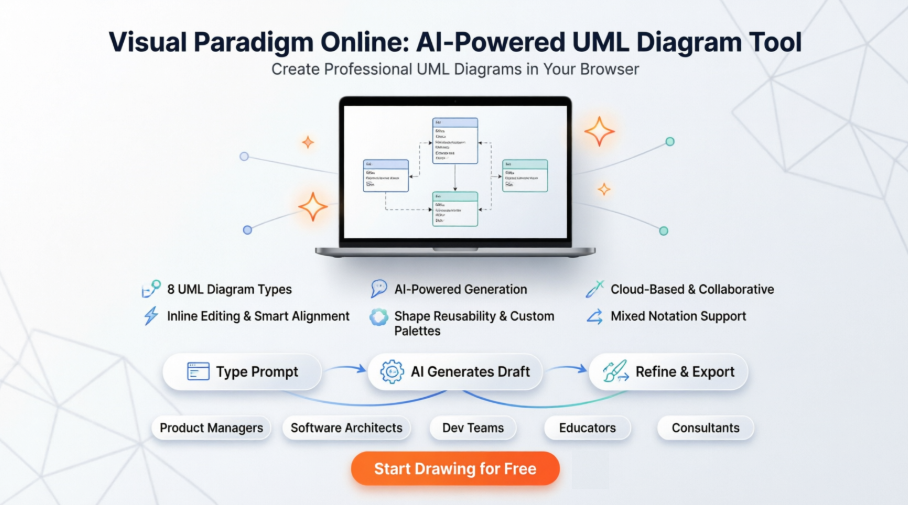
When I recently needed to draft a series of class and sequence diagrams for a microservices migration project, I decided to give Visual Paradigm Online a thorough test drive. This isn’t a sponsored review—just my honest experience after spending two weeks using the platform for real-world modeling tasks. Below, I’ll walk you through what worked, what surprised me, and whether this tool might fit your workflow.
A UML Editor That Actually Feels Online-First
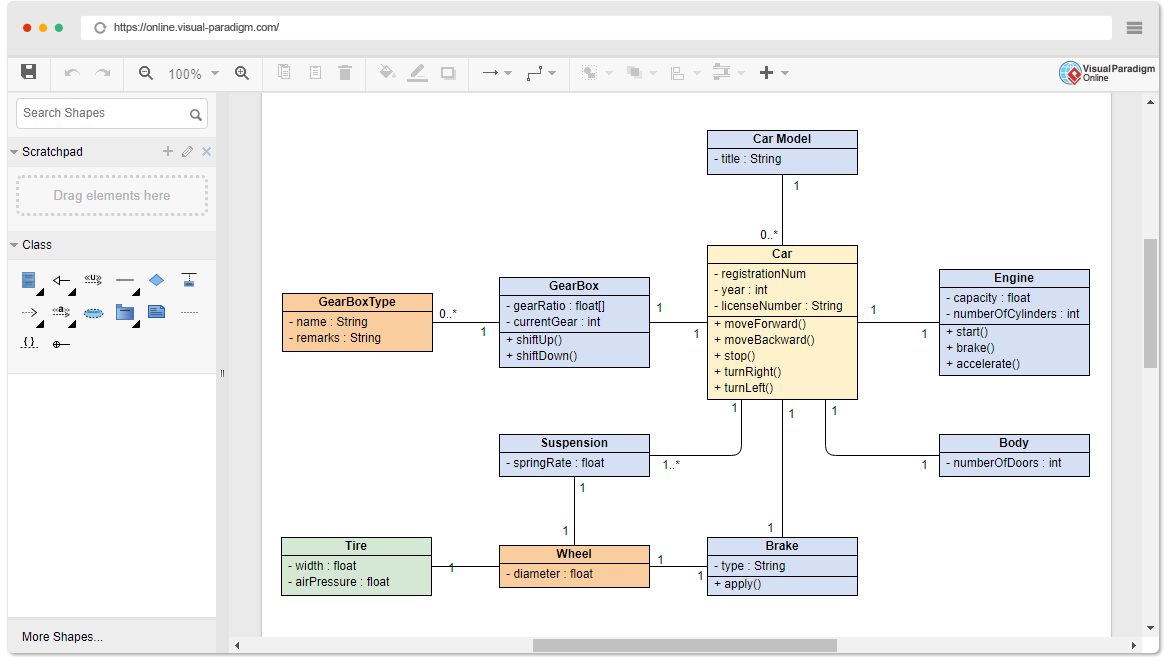
What struck me first was how responsive the web interface felt. No Java applets, no heavy downloads—just a clean canvas that loaded instantly in my browser. As a product manager who switches between devices, the fact that my diagrams synced seamlessly between my laptop and tablet was a genuine productivity boost.
The tool supports all the UML diagrams I regularly need: Class, Use Case, Sequence, Activity, Deployment, Component, State Machine, and Package diagrams. But rather than just listing features, here’s what my actual workflow looked like:
Diagram Types I Put to the Test
-
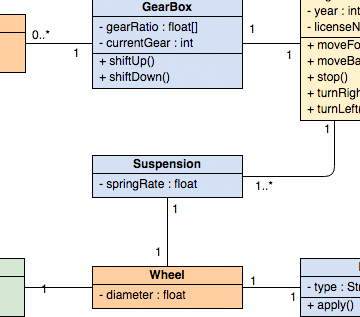
Class Diagram
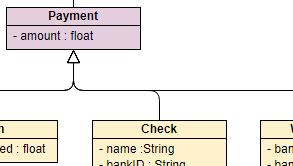
My take: Creating the Car class diagram took minutes. The inline editing for attributes and methods felt natural—no awkward pop-up dialogs. The auto-layout feature saved me from manual alignment headaches. -

Use Case Diagram
My take: Mapping actor relationships for the ATM example was intuitive. The drag-and-drop connectors automatically suggested valid UML relationships, which helped me avoid syntax errors I’ve made in other tools. -
Sequence Diagram
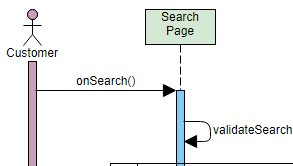
My take: This was my favorite test. Creating lifelines and messages felt fluid. The “1-click message creation” isn’t marketing fluff—it genuinely reduced the steps compared to tools where you manually draw arrows. -
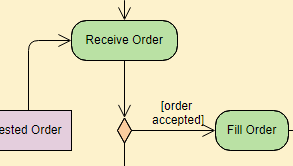
Activity Diagram
My take: Modeling the order workflow with decision nodes and parallel flows was straightforward. The snap-to-grid and alignment guides kept everything visually clean without me micromanaging positions. -
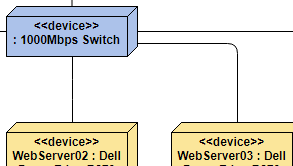
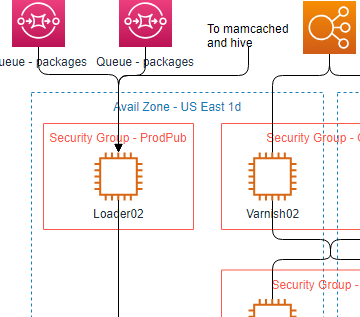
Deployment Diagram
My take: Useful for infrastructure planning. The pre-built cloud and server icons saved time, and nesting components felt logical. -
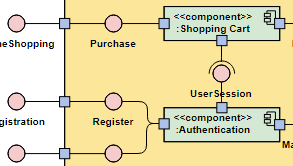
Component Diagram
My take: Great for high-level architecture reviews. The interface/provided-required notation was easy to apply correctly. -
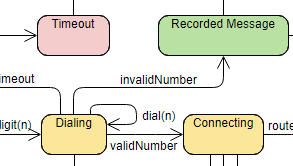
State Machine Diagram
My take: Modeling device states with transitions and guards was clear. The visual distinction between states and actions helped avoid ambiguity in documentation. -
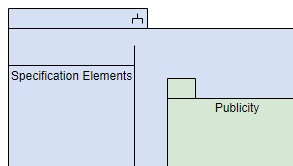
Package Diagram
My take: Perfect for organizing large codebases visually. Dependency arrows auto-updated when I reorganized packages—a small detail that prevented errors.
Speed Features That Actually Save Time
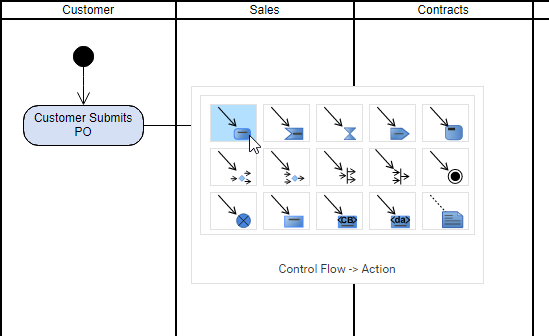
In practice, these weren’t just checkboxes on a feature list:
-
Inline editing: I could double-click a class name or attribute and type directly—no property panel hunting. This cut my iteration time significantly.
-
Resource Catalog: Dragging pre-defined shapes (like “Controller” or “Entity”) sped up initial drafts. I started reusing my own custom shapes after day two.
-
Group & align: Selecting multiple elements and hitting “align center” just worked. No more pixel-perfect manual adjustments.
-
Sequence message drag-and-drop: Creating a new message between lifelines was as simple as dragging from one to another. The tool auto-generated the correct UML arrow style.
Class Members: Editing That Makes Sense
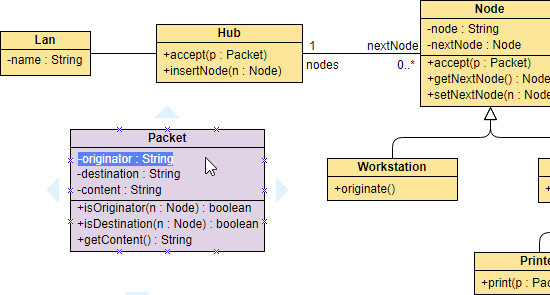
This was a standout for me. In many tools, class attributes are just text labels you manually format. Here, they’re structured compartments. I could:
-
Add a private attribute with visibility icon in two clicks
-
Reorder methods via drag-and-drop
-
Toggle visibility of compartments without deleting content
For team reviews, this structure meant stakeholders could read diagrams without guessing what was an attribute vs. a note.
Sequence Diagrams: Finally, Intuitive
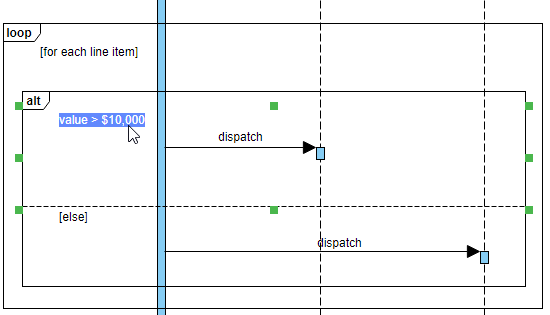
Having built sequence diagrams in tools that treat them as generic shapes, the specialized UML elements here were refreshing. The tool:
-
Auto-managed lifeline lengths as I added messages
-
Handled combined fragments (alt/opt loops) with proper UML framing
-
Let me collapse/expand sections for complex scenarios
No more manually redrawing arrows when inserting a new step mid-sequence.
Workflow Wins: Reusability and Flexibility
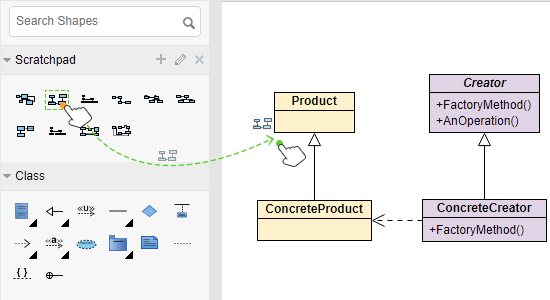
One afternoon, I created a “User Authentication” component for a sequence diagram. Later, when building a deployment diagram, I pulled that same shape from my palette—complete with properties intact. This consistency across diagrams saved hours of rework and reduced documentation drift.
Mixing Notations Without Breaking Standards
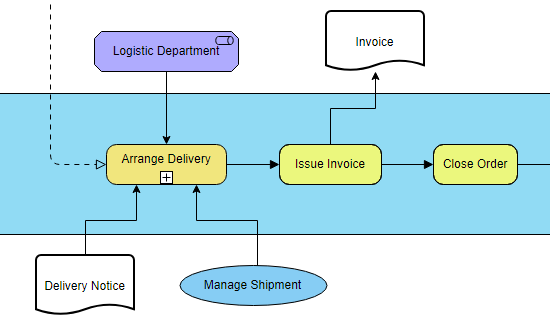
Real-world diagrams aren’t always pure UML. When I needed to add an ArchiMate business process next to a UML use case for a stakeholder presentation, the tool didn’t force me to choose. I could blend notations while keeping each element semantically correct. This flexibility is rare in “standards-compliant” tools.
Bring Your Own Shapes
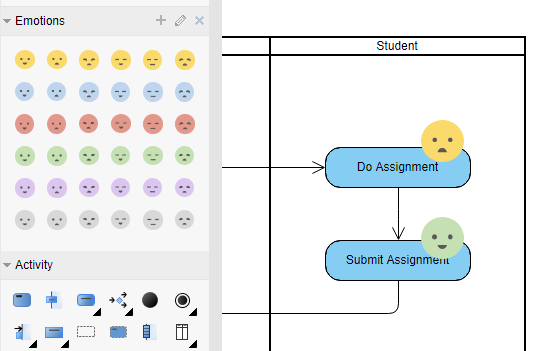
I imported our company’s custom service icons (as SVGs) into a personal palette. Now, every diagram I create uses our internal visual language without manual copying. For teams with branding guidelines, this is a game-changer.
Beyond UML: A Surprisingly Versatile Canvas

Getting Started Was Frictionless
I appreciated that I could jump straight into a Class Diagram without account setup. The free tier let me explore core features before committing.
What else I tested:
-
Technical diagrams: ERD for database modeling, DFD for data flows—both felt as polished as the UML tools.
-
Business diagrams: Created a BPMN workflow for a client review; the validation hints caught a gateway error I’d missed.
-
Cloud architecture: Drafted an AWS deployment using official icons. The auto-snap connections made network topology clear.
-
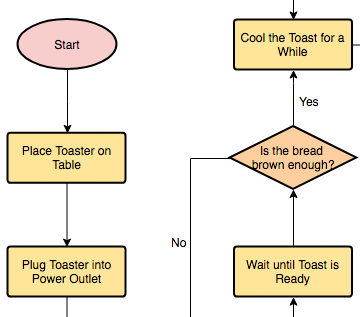
Quick visuals: Mind maps for brainstorming, flowcharts for user journeys—all in the same interface.
The breadth is impressive, but crucially, it doesn’t feel bloated. I could focus on UML when needed, then switch contexts without relearning a new tool.
The AI Features: My Real-World Experience
Visual Paradigm recently integrated AI capabilities, and I was skeptical—until I tried them.
Generative AI Chatbot: From Prompt to Diagram
I typed: “Create a sequence diagram for user login with MFA”. Within seconds, the chatbot generated a syntactically correct draft with actors, messages, and alt fragments for success/failure paths. I imported it directly into my project and refined the details. This wasn’t just a pretty picture—the underlying model was editable, which matters for documentation accuracy.
AI-Assisted Wizards: Guided, Not Generic
Using the AI-Assisted UML Class Diagram Generator, I described a “Library Management System.” The wizard asked clarifying questions about entities and relationships, then proposed a class structure. I accepted ~80% of suggestions and tweaked the rest. For greenfield projects, this cuts hours off initial modeling.
Iterative Refinement: The “Co-Pilot” Feel
After generating a diagram, I chatted: “Add a timeout handler to the login sequence”. The AI updated the model in place, adding the new lifeline and messages. This interactive refinement felt more useful than one-shot generation—it adapted to my evolving requirements.
Learning Aid for Teams
When onboarding a junior developer, I used the AI chatbot to explain composite aggregation vs. composition. The tool generated side-by-side examples with plain-language notes. Having this embedded guidance reduced my mentoring overhead.
AI Across Platforms
-
VP Desktop: I used the native AI integration for complex, offline work. The chatbot context-awareness was deeper here.
-
Visual Paradigm Online: The web-based AI Studios was perfect for quick collaborative sessions with remote teammates.
-
OpenDocs: Embedding live, AI-generated diagrams in our Confluence docs kept documentation dynamic—changes in the model reflected automatically.
Conclusion: Who Should Try This Tool?
After two weeks of daily use, here’s my honest verdict:
Strengths:
-
✅ Truly browser-based with no performance compromises
-
✅ UML syntax enforcement that educates without frustrating
-
✅ Inline editing and smart alignment that respect your time
-
✅ AI features that augment (not replace) thoughtful modeling
-
✅ Flexibility to blend notations for real-world communication
Considerations:
-
⚠️ The free tier has export limitations (watermarks on PDFs)
-
⚠️ Advanced AI features require a subscription
-
⚠️ Very large diagrams (>200 elements) can feel sluggish in-browser
Best for:
-
Product managers and architects who need to communicate system designs clearly
-
Development teams practicing model-driven development
-
Educators teaching UML who want interactive, correct examples
-
Consultants who switch between diagram types across client projects
If you’re looking for a no-install, collaborative UML tool that balances standards compliance with practical usability—and you’re open to AI-assisted workflows—Visual Paradigm Online earned a permanent spot in my toolkit. The ability to start simple and scale to complex, AI-enhanced modeling without switching platforms is rare.
Final tip: Start with the free tier to test the core editor. If the AI features align with your workflow, the productivity gains justify the upgrade.
References
- Visual Paradigm UML Tool Solution Page: Overview of Visual Paradigm’s comprehensive visual modeling toolset supporting all 14 UML 2.x diagram types with advanced features beyond basic diagramming.
- Visual Paradigm Ecosystem: AI-Supported UML Diagram Features: Detailed exploration of how AI integration transforms manual UML diagramming into an interactive, automated process across Visual Paradigm’s platform suite.
- UML Support in the Visual Paradigm AI Ecosystem: A Comprehensive Guide: In-depth guide covering AI capabilities for all 14 core UML diagram types, including structural and behavioral diagrams with practical implementation examples.
- Guide to Powered UML Diagram Generation: Official documentation on using the AI chatbot to generate, refine, and export UML diagrams through natural language prompts and interactive editing.
- How AI Chatbot Can Help You Learn UML Faster: Educational resource explaining how Visual Paradigm’s AI functions as a conversational co-pilot for learning UML notation, syntax, and best practices.
- Visual Paradigm AI UML Tutorial Video: Video demonstration showcasing step-by-step AI-assisted creation of UML diagrams, highlighting time-saving workflows and real-time refinement capabilities.
- AI-Assisted UML Class Diagram Generator: Feature page detailing the guided wizard for generating class diagrams from textual descriptions, with scope definition, entity identification, and relationship mapping.
- Visual Paradigm Sequence Diagram AI Demo: Tutorial video focused on AI-powered sequence diagram generation, demonstrating message flow creation, combined fragments, and iterative refinement via chat commands.
- Visual Paradigm Activity Diagram AI Walkthrough: Video guide showing how AI interprets process descriptions to generate accurate activity diagrams with decision nodes, parallel flows, and swimlanes.
- Visual Paradigm UML Tool Features Overview: Comprehensive feature catalog for the online UML editor, including inline editing, shape reusability, mixed notation support, and custom shape import capabilities.
- AI-Powered Use Case Modeling Studio: Dedicated AI studio for generating use case diagrams from natural language system descriptions, with actor identification and relationship suggestion.
- Visual Paradigm Desktop AI: Activity Diagram Generation Update: Release notes detailing new AI capabilities for activity diagram generation in the desktop version, including text-to-model analysis and interactive refinement.
- Visual Paradigm Behavioral Diagrams Support: Reference documentation covering AI support for behavioral UML diagrams including Use Case, Activity, State Machine, Sequence, Communication, Interaction Overview, and Timing diagrams.