
Mastering Root Cause Analysis with VPasCode AI Chatbot
In the high-stakes world of software engineering and system reliability, the aftermath of a critical incident is often chaotic. Teams rush to “firefight,” applying quick fixes to restore service without fully understanding why the failure occurred. To prevent recurrence, organizations must transition from reactive troubleshooting to structured Root Cause Analysis (RCA).
The Ishikawa Diagram, also known as the Fishbone or Cause-and-Effect diagram, is the gold standard for visualizing the potential causes of a problem. However, creating these diagrams manually in traditional drawing tools can be a tedious distraction from the actual analysis.
This tutorial introduces a paradigm shift in diagramming. We will explore how to leverage VPasCode—Visual Paradigm’s Diagram-as-Code editor—combined with its new AI-driven Ishikawa Generator. By utilizing natural language prompts and Mermaid.js syntax, engineers can instantly generate, refine, and export professional-grade cause-and-effect models.
Understanding the Ishikawa Diagram Structure
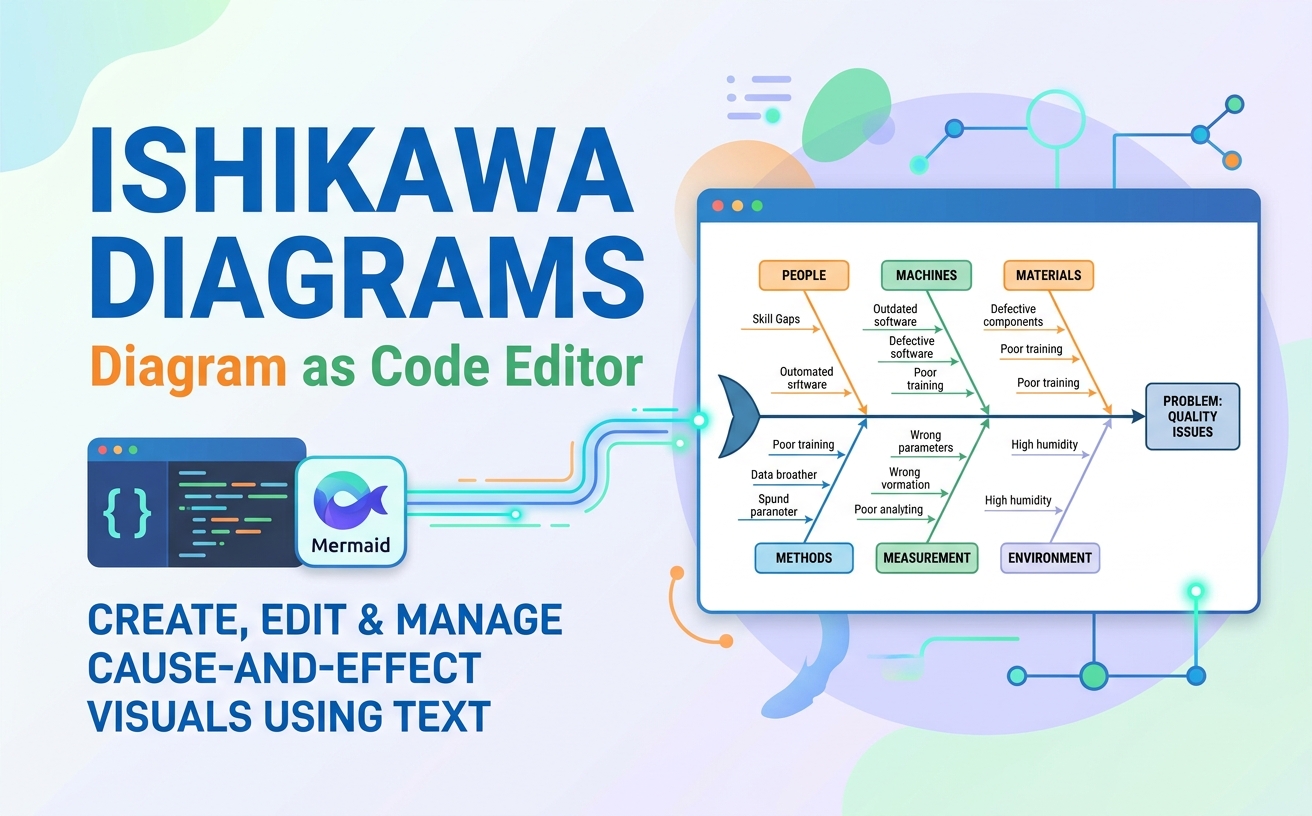
Before diving into the code, it is essential to understand the anatomy of the diagram you are about to generate. The Ishikawa diagram is designed to categorize causes of a problem into specific groups, often referred to as the 6Ms in manufacturing or adapted for software engineering.
The Anatomy of the Fishbone
- The Head (Effect): Located on the right side, this box defines the specific problem or outcome being analyzed (e.g., “System Latency Spike”).
- The Backbone: The central horizontal arrow pointing to the head, representing the main flow of analysis.
- The Major Bones (Categories): Diagonal arrows branching off the backbone. These represent the primary categories of causes. Common categories include:
- People: Human factors, training, or communication gaps.
- Machines/Tools: Hardware failures, software version issues, or tooling limitations.
- Methods: Processes, workflows, or algorithms.
- Materials: Data integrity, inputs, or dependencies.
- Environment: External factors like network conditions or infrastructure.
- The Minor Bones (Root Causes): Smaller branches extending from the major bones, detailing specific sub-causes (e.g., “Outdated software” under Machines).
Step 1: Initiating the Diagram with VPasCode
In Visual Paradigm, VPasCode allows you to work in a text-based editor rather than dragging and dropping shapes. This approach is significantly faster for documentation and version control.
To begin, open the VPasCode editor within Visual Paradigm and ensure the context is set to Ishikawa or Diagram-as-Code.
Step 2: Generating the Diagram via AI
Instead of manually typing every node and connecting line, you can leverage the AI-driven generator. This feature interprets natural language prompts to construct the entire diagram structure.
Example Prompt Strategy:
“Create an Ishikawa diagram for a ‘Server Latency Spike’. Categories should be People, Machines, Methods, and Environment. Under Machines, include ‘High CPU Usage’ and ‘Memory Leak’. Under People, include ‘Lack of Monitoring’.”
Upon executing this prompt, the AI engine parses the intent and generates the underlying Mermaid.js syntax automatically. You will see the diagram render instantly on the right side of your editor.
Step 3: Manual Refinement with Mermaid Syntax
While the AI provides a robust starting point, engineering precision often requires manual adjustments. VPasCode renders standard Mermaid.js syntax for Ishikawa diagrams. Understanding this syntax allows you to fine-tune the layout, styling, and relationships.
The syntax follows a logical flow: defining the head, the spine, and the branching nodes.
%%{init: {'theme': 'base', 'themeVariables': { 'primaryColor': '#ffdfd3', 'edgeLabelBackground':'#ffffff'}}}%%
graph LR
    %% Define the main problem (Head)
    subgraph Head
        A[Problem: Quality Issues]
    end

    %% Define the Backbone
    subgraph Spine
        B(( ))
        B --- A
    end

    %% Define Categories (Major Bones)
    subgraph People
        C1[People]
    end
    subgraph Machines
        C2[Machines]
    end
    subgraph Materials
        C3[Materials]
    end
    subgraph Methods
        C4[Methods]
    end
    subgraph Environment
        C5[Environment]
    end

    %% Connect Bones to Spine
    C1 -.-> B
    C2 -.-> B
    C3 -.-> B
    C4 -.-> B
    C5 -.-> B

    %% Define Specific Causes (Minor Bones)
    subgraph Causes
        D1[Skill Gaps]
        D2[Outdated Software]
        D3[Defective Components]
        D4[Wrong Parameters]
        D5[High Humidity]
    end

    %% Connect Causes to Categories
    D1 -.-> C1
    D2 -.-> C2
    D3 -.-> C3
    D4 -.-> C4
    D5 -.-> C5
Key Syntax Concepts for VPasCode
When editing this code manually, keep the following Mermaid rules in mind:
- Graph Direction:
graph LRsets the layout to Left-to-Right, which is standard for Fishbone diagrams. - Subgraphs: Use
subgraphto group related nodes. This helps the rendering engine organize the “Major Bones” logically. - Link Types:
---: Solid lines for strong connections.-.->: Dashed lines, often used for the relationship between the major category (bone) and the specific cause (fishbone).
- Nodes: Use
ID[Text]for rectangles andID(Text)for rounded shapes.
Step 4: Exporting and Integrating
Once your diagram accurately reflects the post-mortem analysis, VPasCode allows for seamless integration. You can export the Mermaid code directly to PNG, PDF, or SVG formats for inclusion in official incident reports.
Furthermore, because the source is text-based, you can store this diagram in your Git repository alongside your codebase. This enables Version Control for your documentation—allowing you to track how the understanding of a problem evolves over time.
Conclusion
By adopting VPasCode and the AI-driven Ishikawa Generator, engineering teams eliminate the friction of manual drawing. This approach ensures that your Root Cause Analysis remains focused on the content of the problem rather than the mechanics of the diagram. The result is a faster, more accurate path to system reliability.