


Introduction
As a product manager who has spent countless hours manually syncing user stories with technical diagrams, I was thrilled to test the integration of the Visual Paradigm AI Chatbot directly into the VPasCode framework. In this review, I’ll share my firsthand experience with this closed-loop, automated diagramming pipeline. Instead of relying on external third-party AI interfaces, the native Visual Paradigm AI Chatbot operates directly inside the desktop or web environment. I found that it effortlessly generates code fragments, troubleshoots syntax errors, and updates structural visual mappings live during our Agile sprint planning sessions, completely transforming how our team handles technical documentation.
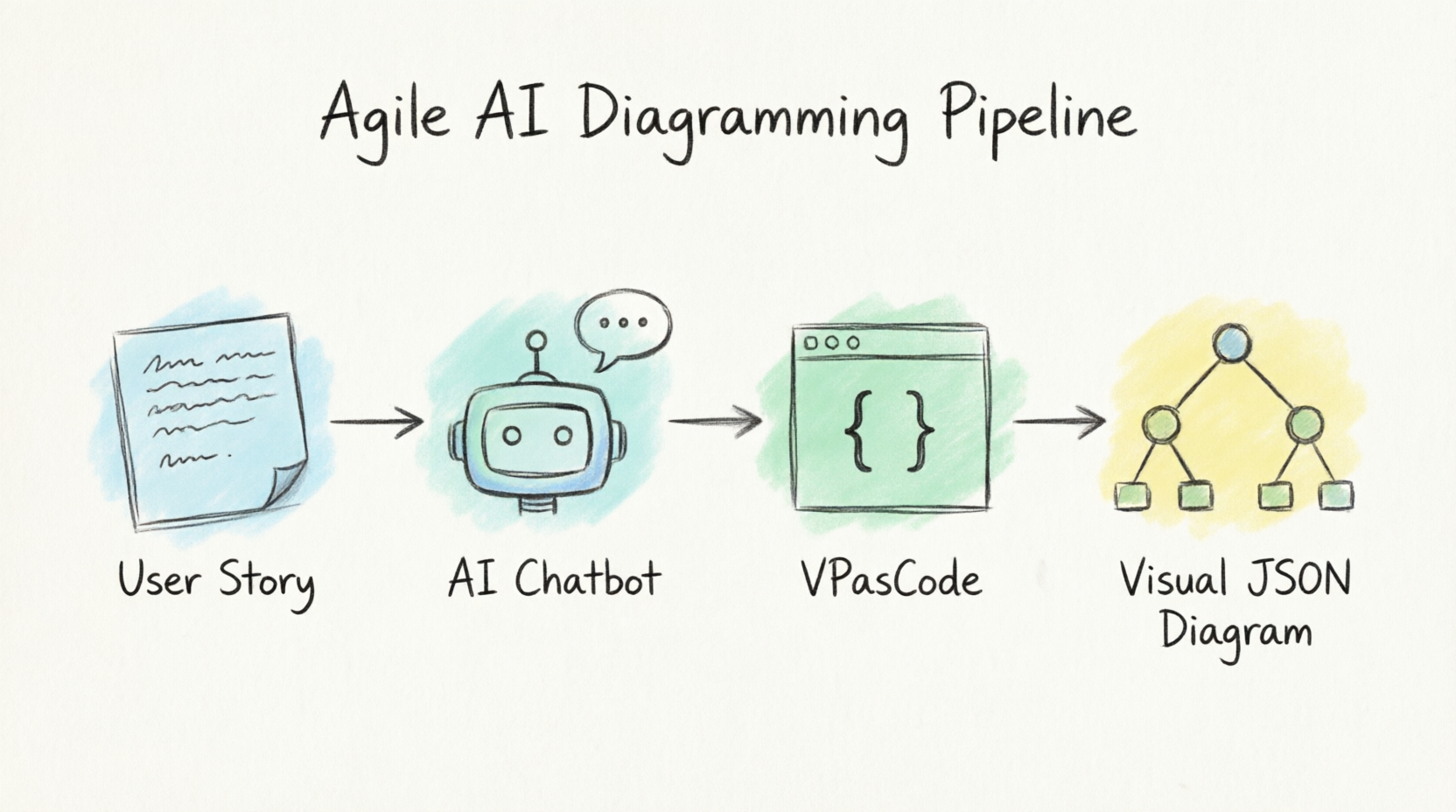
Step-by-Step Guide with Native VP Chatbot
[Agile User Story Text] ➔ [VP AI Chatbot Window] ➔ [Open in VPasCode] ➔ [Dynamic JSON Diagram Preview]
1. Open the Chatbot Panel
Rather than jumping to a separate browser tab, I loved activating the built-in modeling engine right beside my canvas.
-
In Visual Paradigm Desktop, I went to the top utility menu and navigated to Tools > AI Assistant (or AI Chatbot).
-
I toggled the Chatbot panel on to dock it securely along the side of my workspace interface.
2. Querying the Chatbot for JSON Formats
The domain-specialized AI Chatbot natively interprets technical modeling structures, JSON attributes, and UML associations without complex parameter adjustments.
-
I entered my raw user story or technical requirement parameters directly into the chat prompt input box.
-
Example Prompt:
“Generate a valid PlantUML JSON block representing a profile entity named John Doe, age 30, with nested address properties and an array of security roles.”
-
I clicked send; the assistant analyzed the architectural entities and output a fully formed code snippet inside the chat window in seconds.
3. Bridge directly to VPasCode
I didn’t need to highlight text manually or deal with clipboard transfer errors.
-
I located the action bridge control, labeled Open in VPasCode, found right beneath the chatbot response block.
-
I clicked the button to automatically instantiate a clean canvas view, select the correct PlantUML parsing mode, and dump the structured string block straight into my visual code pane.
4. Interactive Conversational Refinement
When user story requirements fluctuated mid-session, I avoided manual code changes or drag-and-drop structural updates.
-
I returned to the AI Chatbot side pane and stated my required adjustments in plain conversational language.
-
Example Follow-up Prompt:
“Add a boolean parameter called ‘isEmployed’ to the root and insert a list of home and work contact numbers to the profile entity.”
-
The assistant updated the syntax block, pushing the new configurations live into my VPasCode workflow environment instantly.
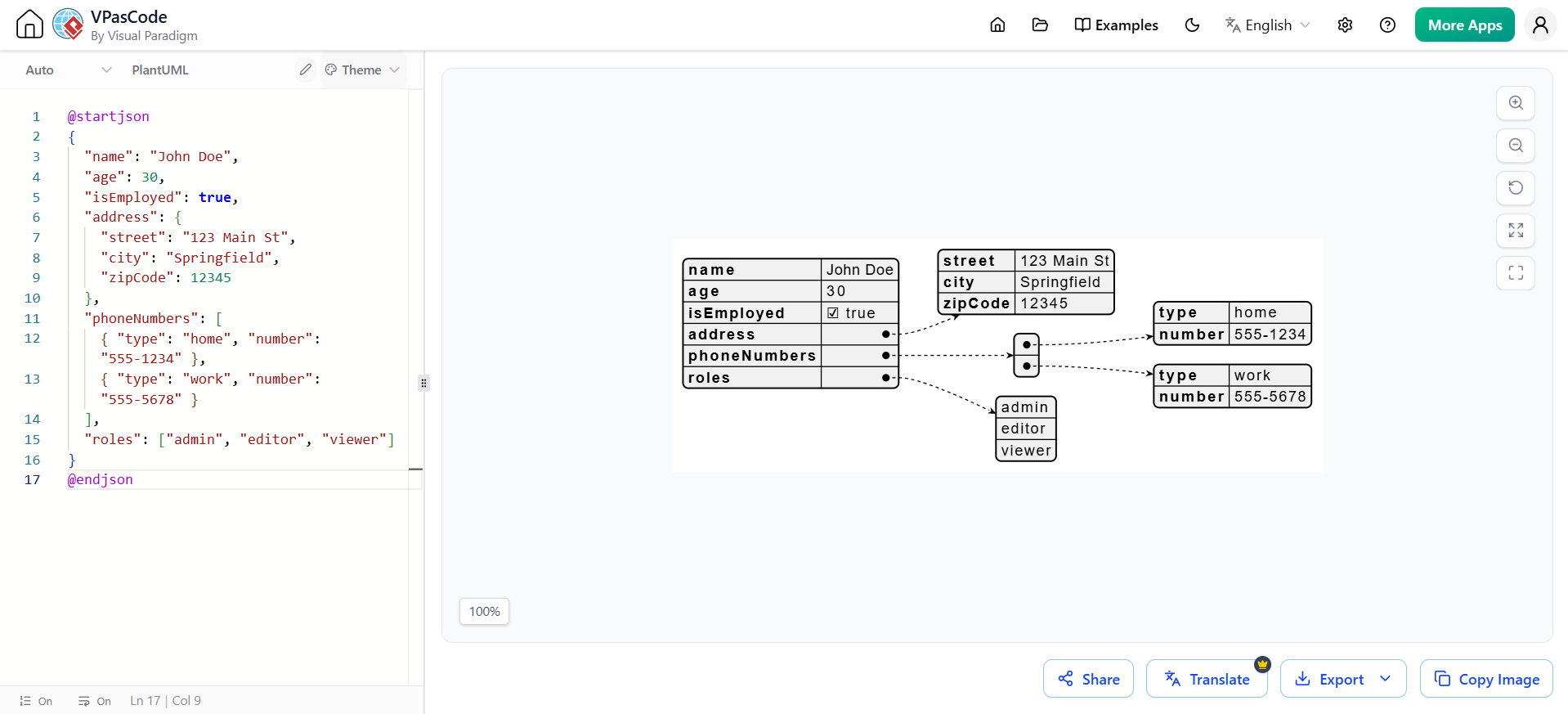
@startjson
{
  "name": "John Doe",
  "age": 30,
  "isEmployed": true,
  "address": {
    "street": "123 Main St",
    "city": "Springfield",
    "zipCode": 12345
  },
  "phoneNumbers": [
    { "type": "home", "number": "555-1234" },
    { "type": "work", "number": "555-5678" }
  ],
  "roles": ["admin", "editor", "viewer"]
}
@endjson
The New Agile & AI Lifecycle
| Phase | Previous Workflow | Modern Chatbot + VPasCode Pipeline |
|---|---|---|
| Requirements Gathering | Manually sketch JSON objects on whiteboards. | VP Chatbot processes text to build structured schemas instantly. |
| Code Generation | Manually format brackets and commas. | AI auto-generates error-free PlantUML markup code strings. |
| Prototyping Validation | Drag and drop nested canvas tables. | Open in VPasCode generates structural tree charts smoothly. |
| Scope Changes | Manually rewire connector lines and cells. | Conversational prompts automatically adjust parameters on the canvas. |
| Project Tracking | Static files detached from Jira/Sprint Backlogs. | Save projects natively to link .vpp models to active User Stories. |
During my testing, I also explored how the AI VPP Chatbot in version 18.1 lets teams query whole project files (.vpp) to verify JSON models, and how to share a direct workspace URL with remote Agile developers.
To make my documentation comprehensive for my Agile team, I tested three additional advanced JSON examples. These patterns cover real-world microservice data structures: a Paginated REST API Response, an E-commerce Product Catalog with Nested Arrays, and a Microservice Error Handling Schema.
Example 1: Paginated REST API Response
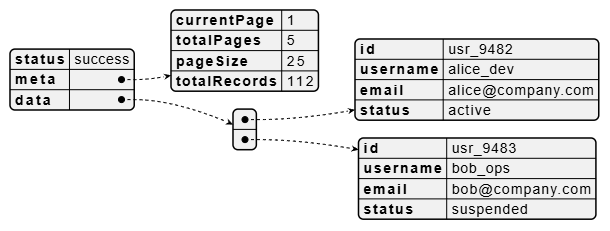
This example models common REST API metadata, showing how to structure server metadata alongside an array of user objects.
The PlantUML Code:
@startjson
{
  "status": "success",
  "meta": {
    "currentPage": 1,
    "totalPages": 5,
    "pageSize": 25,
    "totalRecords": 112
  },
  "data": [
    {
      "id": "usr_9482",
      "username": "alice_dev",
      "email": "[email protected]",
      "status": "active"
    },
    {
      "id": "usr_9483",
      "username": "bob_ops",
      "email": "[email protected]",
      "status": "suspended"
    }
  ]
}
@endjson
Visual Structure in VPasCode:
-
Root Node: Houses the status primitive and branches into two main tracks: meta and data.
-
The Metadata Node: Expands into a separate tabular block highlighting page counting and record volumes.
-
The Data Node: Renders as a stacked horizontal array containing distinct child blocks for individual user data tracking.
Example 2: E-commerce Product Catalog with Multilevel Nesting
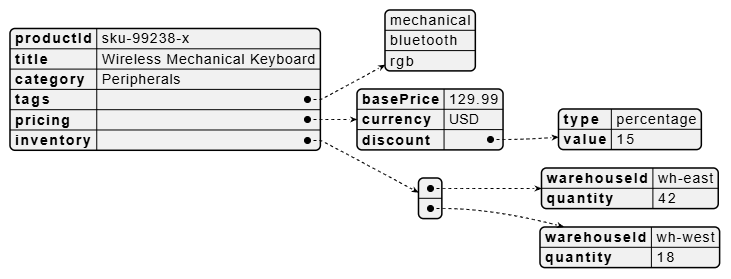
This complex payload tracks a product item containing descriptive tags, structured inventory warehouse distributions, and varying item pricing metrics.
The PlantUML Code:
@startjson
{
  "productId": "sku-99238-x",
  "title": "Wireless Mechanical Keyboard",
  "category": "Peripherals",
  "tags": ["mechanical", "bluetooth", "rgb"],
  "pricing": {
    "basePrice": 129.99,
    "currency": "USD",
    "discount": {
      "type": "percentage",
      "value": 15
    }
  },
  "inventory": [
    { "warehouseId": "wh-east", "quantity": 42 },
    { "warehouseId": "wh-west", "quantity": 18 }
  ]
}
@endjson
Visual Structure in VPasCode:
-
The Tags Node: Generates an indexed sequence array box (0, 1, 2) containing item label strings.
-
Multilevel Pricing Branch: The root points to pricing, which automatically shoots an additional sub-pointer arrow downward into a child discount node.
-
Inventory Node: Links horizontally out to separate sub-tables, visually demonstrating geographic asset distribution to developers.
Example 3: Microservice Error Handling Schema (RFC 7807)
Standardizing error structures is crucial during API grooming. This example demonstrates how the VP AI Chatbot models error validation structures for downstream front-end development engineers.
The PlantUML Code:

@startjson
{
  "type": "https://company.com",
  "title": "Bad Request",
  "status": 400,
  "detail": "The request entity contains invalid payload attributes.",
  "instance": "/orders/ord_5521A/checkout",
  "invalidParams": [
    {
      "name": "cart.items[0].quantity",
      "reason": "Quantity must be greater than zero"
    },
    {
      "name": "billingAddress.zipCode",
      "reason": "Zip code format is invalid for the selected country"
    }
  ]
}
@endjson
Visual Structure in VPasCode:
-
Error Node Base: Displays system diagnostic indicators (type, status, detail) inside the initial entry structural block.
-
The Parameter Box: Isolates individual request failures down an array tree, letting UI/UX teams quickly trace exactly how multi-field form errors return across the network layer.
Prompting Tip for the Visual Paradigm Chatbot
To generate similar production-grade data models inside the interface panel, I found that instructing the chatbot directly works best:
“Generate a valid PlantUML JSON block for an IoT telemetry payload. Include device details, an array of sensor readings (temperature and humidity with timestamps), and a system health status check indicator.”
Conclusion
In conclusion, my experience with integrating the Visual Paradigm AI Chatbot into the VPasCode framework has been transformative for our Agile workflows. The ability to move seamlessly from natural language prompts to fully structured, visually rendered JSON diagrams eliminates the traditional friction between product requirements and technical implementation. For teams looking to further customize their experience, exploring the color skins of these JSON tables using PlantUML commands inside VPasCode or auto-generating Java class structures from these diagrams are excellent next steps. Overall, this native AI integration is a must-have tool for modern product and engineering teams aiming to maintain velocity without sacrificing architectural clarity.
Reference
- AI Chatbot Tool: Explore the core capabilities of the AI chatbot tool.
- VPasCode Features: Discover diagram-as-code functionalities within VPasCode.
- Turn Ideas into Diagrams Instantly: Blog post on generating diagrams instantly from ideas.
- Beginner’s Guide to AI-Powered UML: Introductory guide for AI-driven UML modeling.
- From Text to Code: Guide on converting text to code using AI.
- From Text to Architecture: Creating system architectures from text via AI.
- Mastering VPasCode: Ultimate guide to mastering VPasCode with multi-engine support.
- AI Chatbot and VPasCode Ecosystem: How the chatbot and VPasCode integrate seamlessly.
- Unlock Your Team’s Potential: Complete guide to leveraging the Visual Paradigm AI Chatbot.
- AI Chatbot Features: Detailed feature overview of the AI Chatbot.
- AI Chatbot C4 Pipeline Guide: Step-by-step guide for the C4 and OpenDocs workflow.
- Visual Paradigm AI Chat Portal: Direct web portal for the domain-specialized AI chatbot.
- Introducing AI VPP Chatbot: Release notes for the conversational AI VPP Chatbot.