
Introduction
In the modern software development and business landscape, the journey from a raw idea to a finalized, actionable specification is often fraught with friction. Teams frequently jump between whiteboarding tools, word processors, and diagramming software, leading to lost context, outdated diagrams, and broken communication channels.
The central idea of the workflow presented by Visual Paradigm seeks to eliminate this friction. By combining the freeform, intuitive nature of Excalidraw with the structured, collaborative environment of Visual Paradigm OpenDocs, teams can create a seamless pipeline. This guide explores how to transition from “Sketch” to “Document” to “Collaborate,” ensuring that your ideas not only get captured but evolve into reliable, living documentation.
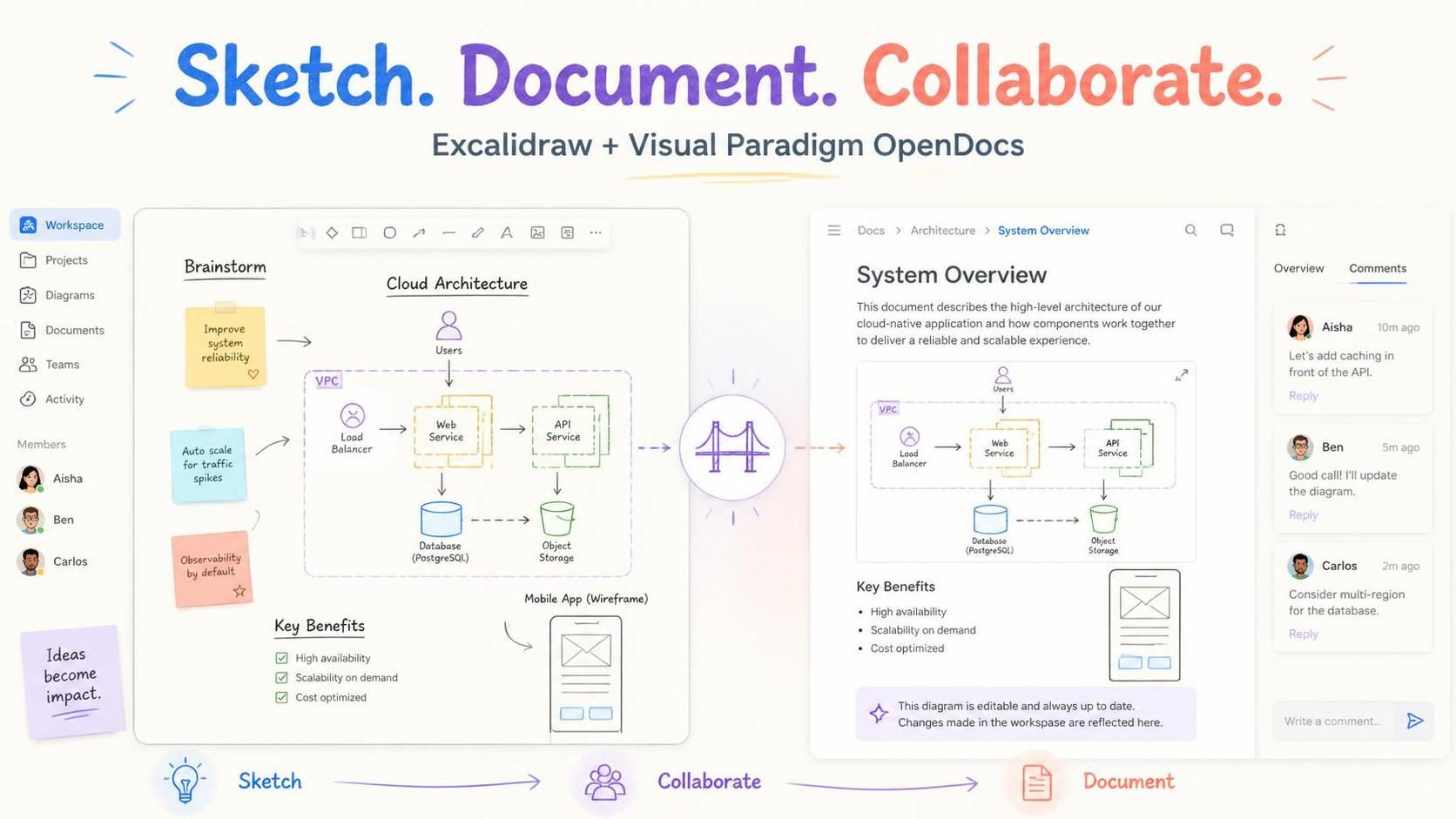
The Core Workflow: Sketch. Document. Collaborate.
The graphic above illustrates a three-step evolution of an idea:
-
Sketch (The Left Panel): It all starts with brainstorming. Using Excalidraw’s hand-drawn style, you capture raw concepts—like improving system reliability or auto-scaling for traffic spikes—without worrying about perfect formatting.
-
Document (The Right Panel): These sketches are then embedded into OpenDocs. Here, the rough diagram is contextualized with text, key benefits, and system overviews (e.g., “This document describes the high-level architecture…”).
-
Collaborate (The Bridge): The central bridge icon represents the connection. Team members (Aisha, Ben, Carlos) can view the documentation, leave comments directly on the page, and suggest changes (like adding caching or multi-region support), which triggers updates to the diagram.
Key Concepts
To successfully implement this workflow, it is essential to understand the core mechanics that make Excalidraw and OpenDocs work together.
1. The Living Diagram
Unlike traditional documentation where you paste a static image of a diagram, this integration creates a Living Diagram. The diagram is embedded as an editable object within the document. If the architecture changes, you can edit the Excalidraw sketch directly inside OpenDocs without needing to export, re-import, or recreate the image.
2. Native Tooling Integration
Excalidraw is not a third-party plugin here; it is a native tool within the Visual Paradigm ecosystem. This means:
-
Unified Asset Management: Sketches are saved directly into your Visual Paradigm workspace alongside your other project artifacts.
-
Single Source of Truth: The document and the diagram stay in sync, preventing version drift.
3. Collaborative Context
OpenDocs provides the “why” behind the “what.” While the Excalidraw diagram shows the system architecture (Load Balancer, Web Service, Database), OpenDocs provides the narrative (Key Benefits: High availability, scalability, cost-optimized) and facilitates the discussion (Comments).
Examples: The Cloud Architecture Scenario
Let’s walk through the specific example shown in the image to demonstrate how this works in practice.
The Scenario: A team is designing a cloud-native application.
-
Brainstorming (Excalidraw): The team uses sticky notes to list requirements: “Improve system reliability,” “Auto scale for traffic spikes,” and “Observability by default.” They sketch a rough wireframe of a mobile app and a high-level cloud architecture using basic shapes.
-
Structuring (OpenDocs): The sketch is moved into OpenDocs. The team adds a “System Overview” section. They define the “Key Benefits” (High availability, Scalability on demand, Cost optimized) and embed the Excalidraw diagram.
-
Collaboration (Comments): In the right-hand panel, Aisha comments, “Let’s add caching in front of the API.” Ben replies, “Good call! I’ll update the diagram.” Carlos adds, “Consider multi-region for the database.”
-
Iteration: Ben double-clicks the embedded diagram in OpenDocs, adds a “Cache” node, and saves. The updated diagram is now instantly visible to Aisha and Carlos, and the documentation remains current.
How-To Guide: Using the Visual Paradigm Tooling
Here is a step-by-step guide to setting up this workflow within Visual Paradigm.
Step 1: Creating a Sketch in Excalidraw
-
Log into your Visual Paradigm Workspace.
-
Click Create New and search for Excalidraw.
-
Select Excalidraw Whiteboard. This opens a canvas where you can use shapes, arrows, text, and “sticky notes” to build your diagram.
-
Save the file to your project repository.
Step 2: Documenting in OpenDocs
-
Navigate to OpenDocs and create a new page (e.g., “System Overview”).
-
Click the + (Insert) button in the editor toolbar.
-
Select Excalidraw Whiteboard from the list of available elements.
-
You can either embed a previously saved sketch or create a new one on the spot.
Step 3: Collaborating and Iterating
-
Once the document is published, team members can view it.
-
Use the Comments tab on the right side to start discussion threads.
-
When a consensus is reached, the diagram owner can click the embedded diagram to edit it in place.
-
The changes are saved automatically, ensuring the “Document” phase always reflects the latest “Sketch.”
Conclusion
The integration of Excalidraw and Visual Paradigm OpenDocs represents a fundamental shift in how teams manage knowledge. By removing the barriers between sketching and documenting, it empowers teams to think visually while maintaining the rigor of structured documentation.
This workflow ensures that your documentation is not a static artifact of the past, but a dynamic, collaborative tool that grows with your project. Whether you are mapping out a complex cloud architecture or brainstorming a new product feature, the “Sketch, Document, Collaborate” methodology keeps everyone aligned and informed.