
Mastering Interactive Flipbook Navigation: From Concept to Implementation with Visual Paradigm
In the modern digital landscape, static PDFs are often insufficient for complex documents like technical manuals, educational textbooks, or corporate reports. Users demand interactivity—the ability to instantly locate specific terms, jump to relevant chapters, and switch viewing modes. This tutorial explores the technical architecture behind these features, specifically focusing on the comprehensive Search and Navigation framework provided by tools like Visual Paradigm Flipbook Maker.
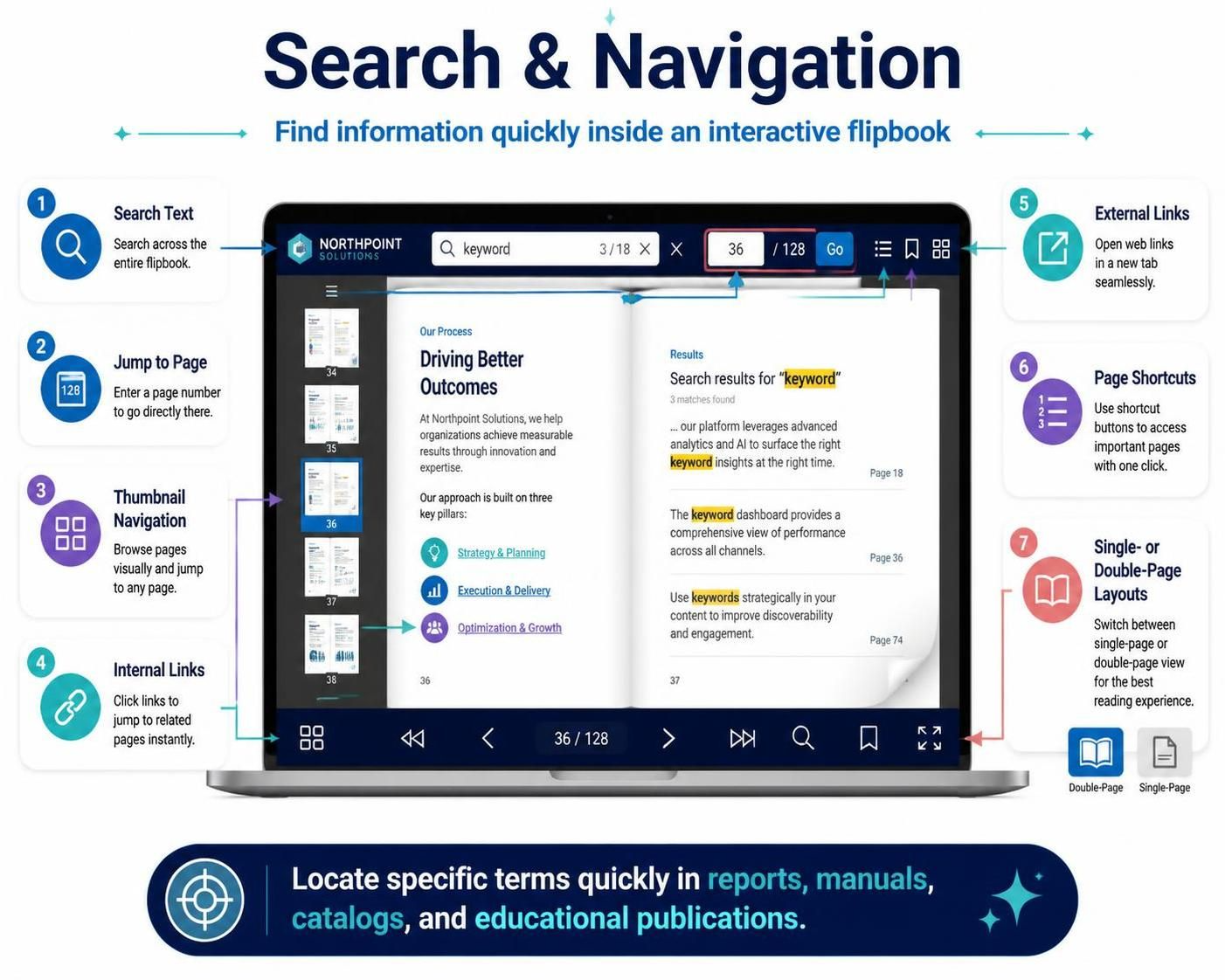
We will deconstruct the seven core navigation primitives illustrated in the system interface, analyzing how they function to transform a flat document into a dynamic, user-centric experience.
1. The Architecture of Text Search
The cornerstone of digital navigation is information retrieval. In a digital flipbook, this is not merely a visual overlay but a backend indexing operation.
Full-Text Indexing
When a user initiates a search (labeled as item #1 in the diagram), the system performs a full-text scan across the entire document object. Unlike simple PDF find functions that might only scan the current view, a robust flipbook engine indexes every character of the document upon creation or conversion.
- Highlighting Mechanism: The system uses specific HTML/CSS classes to dynamically render highlighted text overlays on the rendered pages. In the example provided, the term “keyword” is highlighted in yellow, indicating a successful match.
- Result Aggregation: The search engine aggregates matches into a list (as seen in the “Search results” section), allowing the user to navigate directly to the context of the word, not just the page.
2. Direct Access and Visual Browsing
While search is ideal for specific terms, users often need to navigate to a known location or browse broadly. This involves two distinct paradigms: coordinate-based navigation and visual navigation.
Coordinate-Based Navigation (Jump to Page)
As shown in item #2, the “Jump to Page” feature allows the user to input a specific page number (e.g., 128). Technically, this maps a user-provided integer to a specific frame index in the document object model (DOM). The viewer engine instantly re-renders the canvas to the target coordinate, bypassing the need for sequential rendering.
Thumbnail Navigation
Item #3 illustrates the “Thumbnail Navigation” sidebar. This feature serves as a visual map of the document. It requires the rendering engine to generate low-resolution raster images of every page during the build process. These thumbnails are cached to allow for instant scrolling and clicking, enabling users to visually scan the document structure before selecting a destination.
3. Hyperlinking and External Connectivity
A flipbook is often a gateway to broader information. The system supports two types of link resolution:
Internal Links
Internal links (Item #4) are relative references within the same document. When a user clicks a link (e.g., “Strategy & Planning”), the viewer’s navigation stack is updated to load the destination page. This is often implemented using anchor tags or specific page IDs within the viewer’s configuration file.
External Links
External links (Item #5) break the boundary of the document. The viewer must handle these events by triggering a browser action to open the URL in a new tab or window. This is crucial for maintaining the user’s session within the flipbook while accessing supplementary resources like vendor websites or contact forms.
4. User Experience (UX) and Layout Customization
The final layer of the navigation architecture deals with presentation preferences. This is where the “Page Shortcuts” and “Layouts” come into play.
Page Shortcuts
Item #6 describes “Page Shortcuts.” These are essentially bookmarks or pre-defined navigation paths that allow users to skip directly to important sections (like “Chapter 1” or “Appendix A”) without searching or scrolling. This mimics the physical act of using a tabbed divider in a binder.
Single vs. Double-Page Layouts
Item #7 highlights the toggle between Single-Page and Double-Page views. This is a rendering logic switch:
- Single-Page: Renders one page at a time, filling the viewport. Ideal for mobile devices or users focusing on fine details.
- Double-Page: Renders two facing pages simultaneously, mimicking the experience of a physical book. This requires the viewer to calculate the aspect ratio of the viewport to ensure both pages fit comfortably.
Summary
By integrating these seven features, the Flipbook Maker transforms a static document into an interactive application. The system architecture relies on a combination of backend indexing, dynamic DOM manipulation, and flexible rendering engines to provide a seamless experience for reports, manuals, and educational publications.