
Automated Invoice Processing: Mastering Complex Logic with BPMN in Visual Paradigm
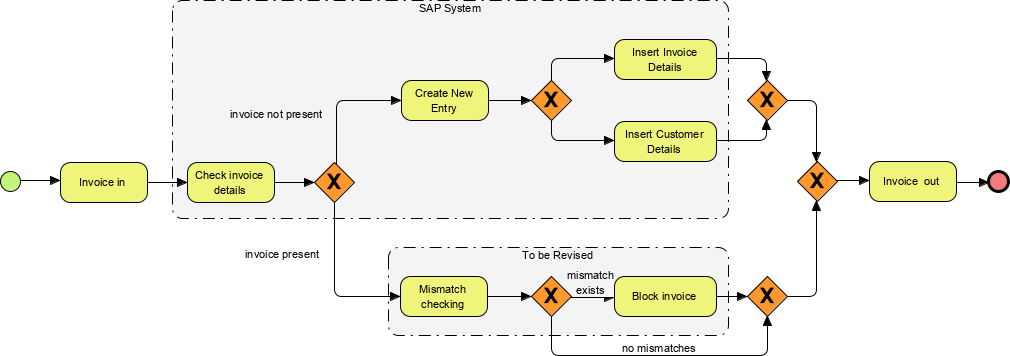
In the world of enterprise resource planning (ERP) and business process modeling, clarity is paramount. Whether you are designing an automated workflow for an SAP environment or mapping out a legacy system’s logic, understanding how to represent complex decision trees and parallel processing is essential. Today, we will dissect a sophisticated Business Process Model and Notation (BPMN) diagram: the Automated Invoice Processing workflow.
This tutorial will guide you through the architecture of this process, explaining how to handle conditional branching, parallel flows, and distinct system boundaries using Visual Paradigm. By the end of this article, you will understand how to model a scenario where an invoice might be a “new entry” or require a “mismatch check” before final processing.
Understanding the Process Context
The diagram we are analyzing represents a high-level control flow for handling incoming invoices. Unlike simple linear processes, this workflow involves dynamic decision-making. The process begins when an invoice arrives (“Invoice in”) and immediately branches based on the existence of that invoice.
The diagram is visually divided into two primary swimlanes or logical containers:
- SAP System (Dashed Boundary): This represents the core automated environment where the actual data entry and validation occur.
- To be Revised (Dashed Boundary): This represents a manual or external review process where specific discrepancies are handled.
Step 1: The Entry Point and Initial Branching
Every BPMN diagram starts with a Start Event, depicted here as a green circle. The flow initiates with the task “Invoice in”. Immediately following this, the system encounters the first decision point, represented by an orange diamond with an “X” inside (an Exclusive Gateway).
This gateway asks a critical question: “Is the invoice present?” The diagram splits this path into two distinct logical branches:
- Invoice Not Present: If the system cannot find the invoice, the flow moves up to create a new entry.
- Invoice Present: If the invoice exists, the flow moves down to check for errors.
Step 2: Handling New Entries (The “No” Path)
When the path “invoice not present” is selected, the system enters the “SAP System” boundary. The process flow is as follows:
- Create New Entry: The system prepares a blank record for the invoice.
- Parallel Gateway: After the entry is created, the flow hits a second Exclusive Gateway. This node splits the process into two parallel actions.
- Insert Invoice Details & Insert Customer Details: These two tasks happen simultaneously. The system inserts the specific invoice data (amounts, dates) and the customer master data into the database at the same time to optimize performance.
- Join: Once both insertion tasks are complete, the paths merge back together at a third gateway.
Step 3: Handling Existing Invoices (The “Yes” Path)
Conversely, if the initial check confirms the invoice is present, the process follows the “invoice present” path. This branch is more complex as it involves a potential manual intervention loop.
- Mismatch Checking: The system compares the invoice details against existing purchase orders.
- Decision Point: The system asks: “Does a mismatch exist?”
- Scenario A: Mismatch Exists: The flow moves to “Block invoice”. This action is enclosed in the “To be Revised” boundary, indicating that this step requires human intervention or a specific revision process outside of the standard automated flow.
- Scenario B: No Mismatches: If the details align perfectly, the flow bypasses the blocking task and proceeds directly to the final merge point.
Step 4: Convergence and Completion
Whether the invoice was a new entry, a matched entry, or one that required blocking, the process eventually needs to converge. The diagram uses a final Exclusive Gateway to bring all parallel and conditional paths back together.
From this convergence point, the flow exits the “SAP System” and “To be Revised” boundaries, moving to the final task: “Invoice out”. This task signifies that the processing is complete, and the result is handed off to the next stage. The diagram concludes with a End Event (a red circle).
Technical Implementation Notes
When replicating this model in Visual Paradigm, pay close attention to the Gateway types. The “X” inside the diamond indicates an Exclusive Gateway, meaning only one path can be taken at a time (unless it is a parallel join, which waits for all incoming paths). The logic flows are strictly sequential between gateways unless explicitly split into parallel branches.
Conclusion
This diagram serves as a perfect example of how BPMN can capture the nuance of real-world business logic. By separating the “SAP System” tasks from the “To be Revised” review process, stakeholders can clearly see where automation ends and manual effort begins. Using Visual Paradigm, you can easily modify these gateways to add more complex conditions, such as checking credit limits or validating tax codes, ensuring your models are as robust as the systems they represent.