
Mastering Dynamic Sequence Diagrams with PlantUML Variables in VPasCode
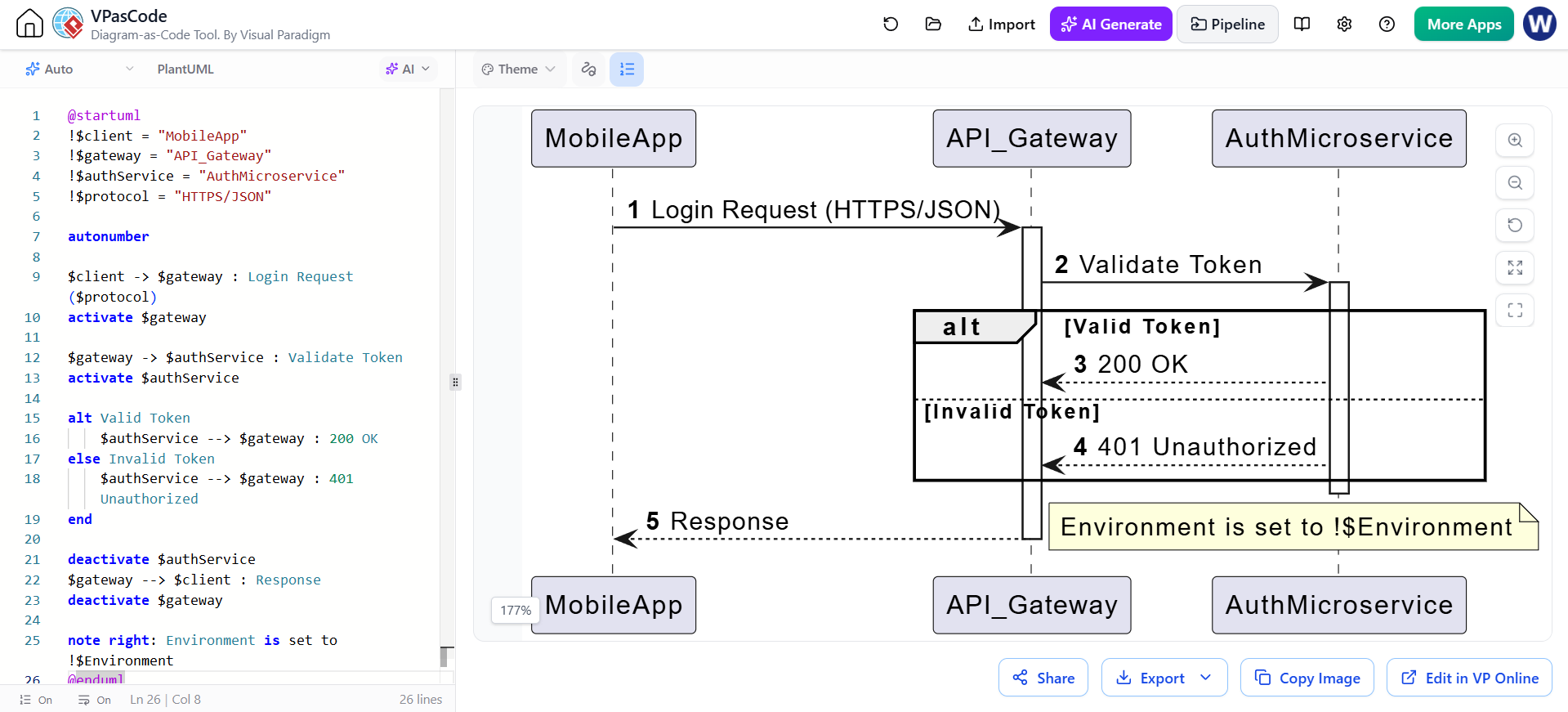
Creating software architecture diagrams often involves repetitive coding, especially when defining actors and message flows. In the realm of Visual Paradigm’s VPasCode, efficiency is key. This tutorial explores how to leverage PlantUML Variables to build dynamic, maintainable, and real-time updating Sequence Diagrams. By the end of this guide, you will understand how to decouple your diagram’s logic from its static values, allowing for rapid prototyping and scenario testing.
Why Use Variables in Sequence Diagrams?
A Sequence Diagram models the interactions between objects or components over time. In a standard coding scenario, if you define your actors as hardcoded text strings like MobileApp or AuthMicroservice, changing the client type requires you to manually edit every single message arrow and activation bar.
By utilizing the ! prefix to define variables, you transform your diagram into a flexible template. This approach offers three distinct advantages:
- Consistency: Update a variable once, and the diagram updates everywhere that variable is referenced.
- Readability: The code becomes a logical script rather than a visual drawing tool, making it easier to read the flow of control.
- Scalability: You can easily swap out the “Client” from a Mobile App to a Web Dashboard without rewriting the interaction logic.
Step-by-Step: Building the Dynamic Login Flow
Let’s deconstruct the example provided in the VPasCode context. We will break down the syntax and logic used to create a robust authentication flow.
1. Defining the Variables
The foundation of this diagram lies in the first few lines of code. We use the ! operator to declare variables that store string values. In this scenario, we are defining the key components of a microservices architecture.
@startuml
!$client = "MobileApp"
!$gateway = "API_Gateway"
!$authService = "AuthMicroservice"
!$protocol = "HTTPS/JSON"
Here, !$client acts as a placeholder for the user interface, while !$gateway represents the entry point to the system. These variables are global to the diagram, meaning they can be referenced in any subsequent command.
2. Establishing the Flow with Autonumber
To make the diagram professional and easy to follow, we enable autonumber. This automatically assigns a sequence number to every message sent in the diagram, removing the need for manual numbering.
autonumber3. Executing Messages with Variables
The power of variables becomes evident when sending messages. Instead of typing the name of the actor, we reference the variable.
$client -> $gateway : Login Request ($protocol)
activate $gateway
In this line, the diagram engine resolves $client to “MobileApp” and $gateway to “API_Gateway”. It also dynamically injects the value of $protocol (HTTPS/JSON) into the message label. The activate command visually draws the “activation bar” (the vertical rectangle) on the lifeline, indicating that the Gateway is currently processing a request.
4. Handling Logic with Alt Blocks
Real-world systems rarely follow a single linear path. We use the alt (alternative) block to model conditional logic, such as a successful login versus a failed one.
alt Valid Token
  $authService --> $gateway : 200 OK
else Invalid Token
  $authService --> $gateway : 401 Unauthorized
end
This block creates a split path. If the condition “Valid Token” is met, the diagram renders the first path. Otherwise, it renders the “Invalid Token” path. Note how we reuse the $authService variable to return messages to the gateway.
5. Cleanup and Notes
Finally, we must deactivate the actors to end their lifelines and add context using notes.
deactivate $authService
$gateway --> $client : Response
deactivate $gateway
note right: Environment is set to !$Environment
The deactivate command signals that the component has finished its task. The note right command adds a sticky note to the diagram, providing metadata about the environment.
Putting It All Together
Here is the complete code snippet ready for the VPasCode editor. You can copy this directly to see the diagram render.
@startuml
!$client = "MobileApp"
!$gateway = "API_Gateway"
!$authService = "AuthMicroservice"
!$protocol = "HTTPS/JSON"

autonumber
$client -> $gateway : Login Request ($protocol)
activate $gateway

$gateway -> $authService : Validate Token
activate $authService

alt Valid Token
  $authService --> $gateway : 200 OK
else Invalid Token
  $authService --> $gateway : 401 Unauthorized
end

deactivate $authService
$gateway --> $client : Response
deactivate $gateway

note right: Environment is set to !$Environment
@endumlReal-Time Iteration in VPasCode
The ultimate benefit of this setup is the speed of iteration. Imagine you need to present a different architecture to a stakeholder. Instead of redrawing the entire sequence diagram, simply change the variable definition:
!$client = "WebDashboard"VPasCode will instantly re-render the diagram, replacing “MobileApp” with “WebDashboard” in the actor boxes and message labels. This allows you to focus on the system logic and flow rather than the mechanics of drawing boxes and arrows.