


Introduction
Visual modeling is a universal language, but the tools used to create it have often been restricted to English interfaces. Visual Paradigm has addressed this barrier with significant enhancements to its AI-Powered visual modeling software. The Visual Paradigm AI Chatbot now offers robust multi-language support, covering both the User Interface (UI) and the generative conversation content.

This update allows professionals worldwide to generate UML diagrams, SysML requirements, ArchiMate viewpoints, and strategic analysis tools using their native language. This tutorial provides a comprehensive guide on how to configure and utilize these new localization features to enhance your modeling workflow.
Key Concepts
Before diving into the operational steps, it is essential to understand the core components involved in this enhanced workflow.
- AI-Powered Visual Modeling: The process of using Artificial Intelligence to convert natural language text prompts into structured diagrams (such as UML Class diagrams, Sequence diagrams, or Mind Maps) automatically.
- UI Localization: The adaptation of the software interface—menus, buttons, tooltips, and settings—into a specific target language. In Visual Paradigm, this is handled via a dedicated language selector.
- Context-Aware NLP: The AI Chatbot utilizes Natural Language Processing to detect the language of the user’s input prompt. Unlike simple translation, it understands the context, ensuring that generated diagram labels, actors, and descriptions are rendered in the same language as the request.
- Diagram Interchange: The ability to move generated assets from the web-based AI Chatbot into the desktop environment (Visual Paradigm Professional or VP Online) for further editing and reporting.
Guidelines: Using the Multilingual AI Chatbot
Follow these steps to configure the environment and start generating diagrams in languages such as Spanish, French, Chinese, Japanese, German, and Portuguese.
Step 1: Accessing the Language Settings
The first step in localizing your experience is adjusting the User Interface. By default, the chatbot launches in English, but this can be changed instantly.
- Navigate to the top bar of the Visual Paradigm AI Chatbot interface.
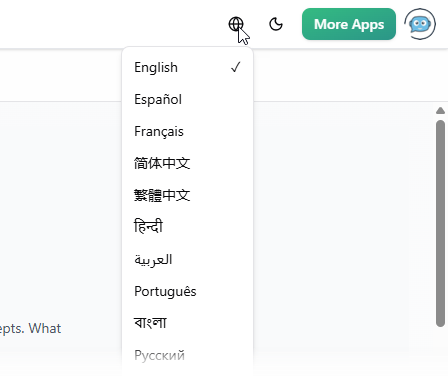
- Locate the ‘Earth’ icon (Global/World icon).
- Click the icon to reveal a drop-down menu of supported languages.
- Select your preferred language (e.g., Español, Français, Deutsch).
- Observe that the interface elements, menus, and navigation buttons immediately update to the selected language.
Step 2: Initiating a Diagram Generation Prompt
Once the UI is set, you can begin interacting with the AI. The system is designed to detect the language of your prompt automatically, regardless of the UI language setting.
To generate a diagram, type a command in your native language into the chat input. For example, to create a Use Case Diagram in Spanish:
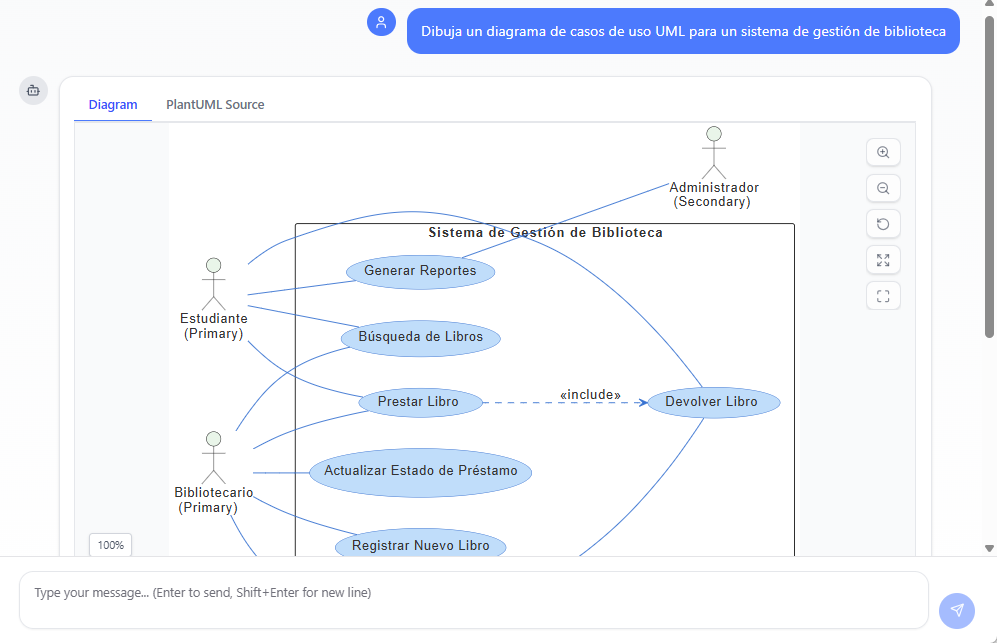
- Input: “Dibuja un diagrama de casos de uso UML para un sistema de gestión de biblioteca.”
- Action: Press Enter to send the prompt.
- Result: The AI will analyze the request and generate a fully formed UML diagram. Crucially, the actors, use cases, and system boundaries within the diagram will be labeled in Spanish.
Step 3: Refining and Analyzing the Model
The multi-language support extends beyond initial generation. You can engage in a back-and-forth conversation to refine the model or ask for explanations.
- Request an Explanation: If you need to understand the logic behind the generated diagram, ask a follow-up question such as “Explica este diagrama” (Explain this diagram).
- Review the Output: The AI will provide a text-based summary and detailed explanation of the diagram’s components in the same language as your question.
- Touch-ups: You can request specific changes, such as “Ajouter un acteur nommé Administrateur” (Add an actor named Administrator), and the diagram will update accordingly.

Step 4: Integration and Export
After creating your diagram in your preferred language, you can integrate it into your broader workflow.
- Edit in Visual Paradigm: Click the import/edit options to bring the diagram into the full Visual Paradigm software (Desktop or Web).
- Generate Reports: Use the diagram as a basis for generating documentation. The AI can draft reports in the language of the conversation, ensuring consistency for local stakeholders.
Tips and Tricks
Maximize your efficiency with these best practices for multilingual visual modeling.
Language Consistency Checks
While the AI is powerful, technical terminology can vary between regions. Always review the labels in generated diagrams (e.g., Class names, Stereotypes) to ensure they match your organization’s specific domain vocabulary. If a term is translated too literally, simply instruct the AI to rename it using a specific term.
Mixed-Language Workflows
You do not strictly need to change the UI language to generate non-English diagrams. If you prefer an English interface for navigation but need to generate a report for a Japanese client, keep the UI in English and simply type your prompt in Japanese. The AI’s content generation is decoupled from the UI language setting.
Leveraging Standard Notations
The AI supports strict industry standards like UML, SysML, ArchiMate, and C4 models. When prompting in a non-English language, try to use the standard English acronyms (e.g., “UML”, “SysML”) alongside your native instructions. This helps the AI anchor the request to the correct modeling standard while processing the structural instructions in your language.
Shareable Sessions
Use the URL sharing feature to collaborate with international teams. You can generate a diagram in German, share the session URL with a colleague, and they can continue the conversation or request modifications, bridging the gap between distributed teams.
-
AI Chatbot Feature – Intelligent Assistance for Visual Paradigm Users: Leverage AI-powered chatbot functionality to get instant guidance, automate tasks, and enhance productivity within Visual Paradigm.
-
Visual Paradigm AI Chatbot Enhances Multi-Language Support …: 7 hours ago · Discover the latest updates to Visual Paradigm ‘s AI -Powered visual modeling software, including multi-language UI and improved chat content localization. Experience seamless AI diagram generation in languages like Spanish, French, Chinese, and more with our AI chatbot for UML and other diagrams.
-
AI Chatbot for Diagramming: How It Works with Visual Paradigm: The Visual Paradigm AI chatbot is an AI -powered modeling assistant that turns natural language into diagrams. It doesn’t require users to learn specific modeling standards or syntax.
-
Case Study: Enhancing System Modeling Efficiency with Visual Paradigm’s AI-Powered Chatbot: This case study demonstrates how Visual Paradigm’s AI chatbot improves productivity and accuracy in system modeling by enabling conversational diagram creation.
-
Visual Paradigm AI Chatbot: The World’s First Purpose-Built AI Assistant for Visual Modeling: Visual Paradigm launches its groundbreaking AI chatbot, designed specifically to assist users in visual modeling tasks with natural language interactions and intelligent guidance.
-
Introducing Visual Paradigm AI Chatbot: Intelligent Design Assistance: Discover how Visual Paradigm’s AI chatbot enhances design workflows by offering real-time suggestions and automating repetitive tasks.
-
Mastering Sequence Diagrams with Visual Paradigm: AI Chatbot Tutorial: A beginner-friendly tutorial using Visual Paradigm to create sequence diagrams, illustrated through a real-world e-commerce chatbot use case.
-
Integrating AI Activity Diagrams into Your Visual Paradigm …: Sep 12, 2025 · Learn how to use AI -powered modeling software to generate and refine activity diagrams with natural language. Discover the benefits of AI chatbot diagram generation in UML workflows.
-
Beginner’s Tutorial: Create Your First Professional Sequence Diagram in Minutes: A beginner-friendly guide to generating professional sequence diagrams quickly using Visual Paradigm’s AI chatbot feature.
-
Comprehensive Tutorial: Generating and Modifying C4 Component …: Dec 16, 2025 · This tutorial is based on the official Visual Paradigm product demo video, demonstrating how to use the AI-powered Chatbot to create and iteratively refine a C4 Component Diagram for a car park booking system. The C4 model (Context, Containers, Components, and Code) is a popular approach for visualizing software architecture, and the Component level focuses on the internal structure of a …
-
SWOT Analysis via AI Chat in Visual Paradigm: This interactive page allows users to generate SWOT analyses through an AI-powered chat interface within the Visual Paradigm environment.
-
Meet the AI SWOT Assistant: How Visual Paradigm’s Chatbot …: Sep 11, 2025 · Discover how the visual paradigm chatbot provides natural language diagram generation for business frameworks like SWOT , PEST, and more—turning ideas into clear strategic models with AI -powered analysis .
-
How to Create SWOT Analysis Instantly with AI-Powered Diagramming: How to Create a SWOT Analysis Instantly Using Visual Paradigm’s AI Chatbot Creating a SWOT analysis traditionally requires time, manual effort, and a clear understanding of business frameworks.
-
Turn SWOT Insights into Action Plans with AI-Powered Modeling: The shift from static SWOT analysis to dynamic, AI -powered modeling for business strategies is already underway. Visual Paradigm leads this transformation by combining deep knowledge of business frameworks with real-time diagram generation. For users looking to turn SWOT insights into action plans, the AI chatbot provides an accessible, accurate, and practical solution. Whether you’re a …
-
How Visual Paradigm’s Chatbot Outperforms Generic AI Tools for SWOT Analysis: Discover how the visual paradigm chatbot delivers accurate swot analysis with AI, enabling natural language to diagram conversion for business & strategic …
-
Visual Paradigm AI Suite: A Comprehensive Guide to Intelligent Modeling Tools – Cybermedian: 6 days ago – Strategic Frameworks: SWOT Analysis, PEST/PESTLE Analysis, Ansoff Matrix, and Blue Ocean Four Actions Framework. Systems Engineering: SysML Block Definition, Internal Block, and Requirement diagrams. Architecture: ArchiMate diagrams and C4 models. General Business: Organization Charts, Mind Maps, and PERT Charts. While the AI Chatbot is a cloud-based feature of VP Online, it is seamlessly integrated into the Visual Paradigm Desktop environment.
-
PESTLE Analysis – AI Chatbot: Get a 360-degree view of your market with an AI PESTLE analysis tool. Analyze Political, Economic, Social, Technological, Legal, and Environmental factors.
-
Launch SaaS with AI-Powered PESTLE Analysis: Visual Paradigm’s AI is not a generic chatbot. It is trained on established business frameworks and real-world industry data. It understands the nuances of SaaS …
-
What Makes Visual Paradigm’s AI Chatbot Different from Other AI Diagram Tools? – Visual Paradigm Blog: October 14, 2025 – Business Frameworks: SWOT, PEST, PESTLE, SOAR, Eisenhower Matrix, Ansoff Matrix, Blue Ocean Four Actions · Data Visualization: Bar, line, area, pie, scatter, radar charts · This coverage enables users to transition seamlessly between technical and strategic modeling—something most ai …
-
Why I’m Ditching Generic AI for Visual Paradigm ’s Modeling Chatbot: The team at Visual Paradigm quietly rolled out one of the most powerful AI modeling assistants I’ve seen yet — and it’s not just another ChatGPT wrapper. This thing actually understands modeling languages, business frameworks, and systems engineering standards at a scary level of…
-
How to Do a PESTLE Analysis with AI: Identify Market Threats …: Sep 19, 2025 · How to Do a PESTLE Analysis with AI : Identify Market Threats & Opportunities Concise Answer for Featured Snippet A PESTLE analysis identifies political, economic, social, technological, legal, and environmental factors affecting a business. With an AI chatbot for visual modeling, you can generate a PESTLE diagram quickly, refine it with context, and understand how each factor impacts strategy.
-
PESTLE Analysis Explained: The Ultimate AI Guide: Sep 10, 2025 · Visual Paradigm ’s AI chatbot supports the generation of diagrams for several key business frameworks, including SWOT, PESTLE , Ansoff, BCG, and C4 models. These are not standalone tools but components of a holistic strategic analysis toolkit.
-
AI Chatbot for Diagram and Model Generation: This page features an AI-powered chatbot that enables users to generate diagrams and models through natural language input.
-
Introducing Visual Paradigm AI Chatbot: A Smarter Way to …: Sep 29, 2025 · Discover how the Visual Paradigm AI Chatbot enables natural language diagram generation, smart editing, and contextual analysis for enterprise modeling and planning.
-
Visual Paradigm AI Chatbot – Intelligent Diagram Generation …: A Visual Paradigm Online Feature: The AI Chatbot is a powerful cloud-based feature from VP Online, made accessible directly within your desktop software. Access for Desktop Users: If you have a VP Desktop license and subscribe to VP Online, you can use the Chatbot without ever leaving your desktop application.
-
Visual Paradigm AI Chatbot: Turn Your Ideas into Diagrams Instantly – Visual Paradigm Blog: October 13, 2025 – The AI Chatbot in Visual Paradigm Online is an advanced assistant that lets you create diagrams using natural language .
-
How to Turn Requirements into Diagrams with an AI Chatbot – Visual Paradigm Blog: October 13, 2025 – The AI chatbot is just the beginning—your diagrams can grow from text into full system designs. Ready to turn your project requirements into clear, visual models? Start your conversation today at https://chat.visual-paradigm.com/.
-
How AI Chatbot Can Help You Learn UML Faster – Visual Paradigm Blog: October 17, 2025 – AI is not just changing how diagrams … Online’s AI Chatbot, you can practice UML interactively, visualize every concept instantly, and receive feedback that helps you improve continuously …
-
Visual Paradigm Desktop Product Updates – Visual Paradigm Product Updates: 1 month ago – We are excited to announce significant improvements to our AI-Powered visual modeling software, the Visual Paradigm AI Chatbot.
-
AI in Architecture Modeling: Keeping Complex Systems Aligned – Visual Paradigm Blog: October 20, 2025 – Instead of redrawing or rebuilding diagrams from scratch, the chatbot examines your current model and interprets your latest instruction in context. When you request changes — for example, “Add a reporting service under the application layer and link it to the data warehouse” — the AI understands your existing diagram and updates it accordingly. It maintains naming consistency, connection logic, and visual organization, ensuring that each revision fits smoothly into the overall architecture.
-
AI Sequence Diagram Example: Video Streaming Playback Initiation | Visual Paradigm: 5 days ago – It started with a straightforward prompt: “Create a sequence diagram that explains how a video streaming platform starts playback when a user clicks play.” The Visual Paradigm AI Chatbot didn’t just generate a diagram—it acted as a modeling partner, interpreting intent, anticipating needs, and refining logic in real time.
-
The Future of Collaborative Modeling: AI as Your Team’s Co-Designer – Visual Paradigm Blog: October 20, 2025 – Visual Paradigm Online’s AI Chatbot empowers you to do just that: create clear, standards-compliant diagrams from natural language, then share your insights with others in a structured, visual way .
-
Visual Paradigm AI-Powered Diagram Generation Tutorial: This YouTube video demonstrates how to use AI-driven features in Visual Paradigm to automatically generate diagrams from natural language input.
-
AI-Powered Chatbot Development Using Visual Paradigm: This video demonstrates how to build an AI-driven chatbot using automated diagramming tools and AI-assisted modeling techniques.
-
Comprehensive Tutorial: Visual Paradigm AI … – Cybermedian: Visual Paradigm’s AI-Powered Visual Modeling Chatbot (accessible at https://chat.visual-paradigm.com) lets you go from a simple text prompt to a complete …
-
AI Diagram Examples – AI Chatbot: Security Overview. Report Abuse. ©2025 by Visual Paradigm .
-
Chart: A Complete Guide to AI-Powered Data Visualization – AI Chatbot: Discover how AI transforms data into ready-to-use charts—making visualization effortless for business, learning, and decision-making.
-
C4 Model AI Generator: Automate Context … – Ez Knowledge –: Visual Paradigm’s new AI Chatbot is purpose-built to automate the full C4 modeling lifecycle using conversational prompts, guaranteeing consistency across all …
-
How to Generate Diagrams in Your Native Language with Visual Paradigm …: Visual Paradigm has addressed this challenge head-on with significant updates to its AI-Powered visual modeling software. The Visual Paradigm AI Chatbot now boasts enhanced multi-language support, allowing users to create, refine, and analyze diagrams in their native languages.
-
UML Component Diagram and AI-Powered Diagram Generation Guide: This page provides a technical overview of creating UML component diagrams using AI-assisted tools and automated modeling techniques.
Related posts:
 Learn-by-Example: Case Study of an Internship Management System
Master Root Cause Analysis: A Comprehensive Review of the 5 Whys AI Tool
Review: Streamlining Strategy with the AI-Powered Business Model Canvas Builder
Revolutionizing Slide Design: A Comprehensive Guide to Visual Paradigm’s AI Markdown Presentation Maker
Learn-by-Example: Case Study of an Internship Management System
Master Root Cause Analysis: A Comprehensive Review of the 5 Whys AI Tool
Review: Streamlining Strategy with the AI-Powered Business Model Canvas Builder
Revolutionizing Slide Design: A Comprehensive Guide to Visual Paradigm’s AI Markdown Presentation Maker