
Mastering BPMN Process Animation with Visual Paradigm
In the world of business process modeling, a static diagram is often just a picture of what a process should look like. However, to truly validate complex workflows, understand data flow, and identify bottlenecks before implementation, you need to see the process in motion. This is where BPMN Process Animation becomes a critical skill. By using Visual Paradigm, you can transform static models into dynamic simulations, effectively clearing the barriers between abstract concepts and real-world operational reality.
The Power of Visualization in BPMN
Business Process Model and Notation (BPMN) is designed to be a universal language for business processes. Yet, even the most skilled modelers can struggle to visualize the flow of information between different organizational units. This is typically represented using Swimlanes (or Pools and Lanes).
When you look at a static BPMN diagram, you see the logic—the sequence of events, gateways, and tasks. But you do not see the timing or the interaction. Process animation solves this by:
- Validating Logic: It helps you verify that the process flows from the start event to the end event without deadlocks.
- Visualizing Handovers: It clearly shows when a task is passed from one actor (e.g., Client) to another (e.g., Inspector).
- Highlighting Exceptions: It allows you to simulate different scenarios to see how the process handles errors or different conditions.
Visual Paradigm: The Essential Tooling
For this tutorial, we will focus exclusively on Visual Paradigm, the industry-leading modeling tool. Visual Paradigm offers a robust BPMN engine that integrates seamlessly with its animation features. Unlike basic diagramming tools, Visual Paradigm allows you to not only draw the model but also to execute it.
Setting Up Your Environment
To begin the animation, ensure you have a BPMN 2.0 diagram open in Visual Paradigm. The interface is divided into the modeling canvas and the animation controls. The animation capabilities in Visual Paradigm are designed to be intuitive, allowing you to control the flow of execution just like a media player.
Understanding the Animation Interface
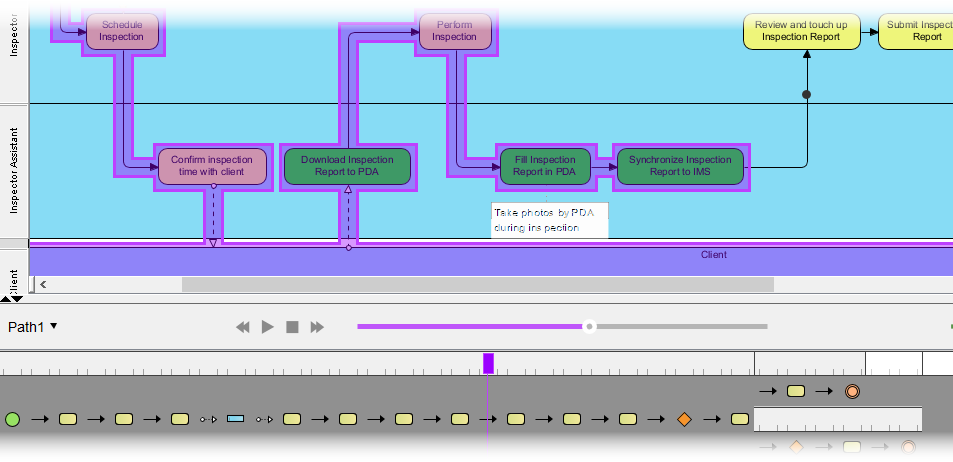
When you initiate the process simulation in Visual Paradigm, a control panel appears. This panel is your dashboard for the simulation. Based on the provided context, here is how the interface components function:
- The Timeline (Path1): At the bottom of the animation window, you will see a timeline bar (often labeled as “Path1”). This represents the execution path of the process. It visualizes the progress of the token as it moves through the diagram.
- Playback Controls: Standard media controls are available.
- Play: Starts the automatic execution of the process.
- Pause: Freezes the process at the current step, allowing you to inspect the state.
- Step Forward/Backward: Allows for granular debugging, moving the process one step at a time to analyze specific logic gates.
- Swimlane Highlighting: As the process animates, the active swimlane is highlighted. This makes it easy to see which actor is responsible for the current task.
Step-by-Step: Animating an Inspection Workflow
Let’s walk through a practical example: an “Inspection Process.” This is a common scenario where a Client initiates a request, and an Inspector performs a check using various tools.
Step 1: Define the Swimlanes
First, ensure your diagram is structured correctly. You should have distinct lanes for the actors involved. In our example, the diagram features:
- Inspector: The primary actor responsible for the physical inspection.
- Inspector Assistant: A supporting role, perhaps handling documentation or initial data entry.
- Client: The entity requesting the service.
Step 2: Configure Tasks and Flows
In Visual Paradigm, you define the tasks within these lanes. For the inspection process, the flow typically looks like this:
graph TD
    subgraph "Inspector"
        A[Schedule Inspection] --> B[Perform Inspection]
    end
    subgraph "Inspector Assistant"
        C[Confirm inspection time with client] --> D[Download Inspection Report to PDA]
        D --> E[Fill Inspection Report in PDA]
        E --> F[Synchronize Inspection Report to IMS]
    end
    subgraph "Client"
        G[Review and touch up Inspection Report]
        H[Submit Inspection Report]
    end
    B --> C
    F --> G
    G --> H
Step 3: Executing the Animation
Once your model is built, you can run the simulation. In Visual Paradigm, you typically select the Run or Animate button from the toolbar. The system will instantiate the start event and begin moving tokens along the sequence flows.
As the animation plays:
- The Inspector lane activates, showing the “Schedule Inspection” task.
- The flow moves to the Inspector Assistant lane to “Confirm inspection time.”
- The diagram highlights the PDA (Personal Digital Assistant) integration. You can see the flow moving from “Download Inspection Report” to “Fill Inspection Report,” simulating the use of a mobile device in the field.
- Finally, the data is synchronized to the IMS (Information Management System), and the flow returns to the Client for review.
The visual feedback is immediate. The active path is highlighted, and the timeline at the bottom (Path1) advances, giving you a precise view of the process duration and complexity.
Advanced Modeling Concepts: Interaction and Timing
When animating a process like the one shown, it is crucial to understand the underlying BPMN semantics. For instance, notice the dashed lines in the diagram. These often represent Message Flows or Data Associations.
In the context of the “Take photos by PDA” note:
- External Data: The annotation “Take photos by PDA during inspection” implies an external event or data capture that influences the process state. In Visual Paradigm, you can attach annotations or use Events to trigger these specific actions.
- Synchronization: The “Synchronize Inspection Report to IMS” task indicates a system-to-system interaction. When animated, this should show a clear transition from the local PDA environment to the central IMS environment.
Conclusion
Process animation is not just a visual gimmick; it is a powerful analysis tool. By using Visual Paradigm to animate your BPMN diagrams, you can:
- Identify logical errors before deployment.
- Communicate process expectations clearly to stakeholders.
- Optimize workflows by analyzing the timing and interaction between different roles.
Whether you are scheduling an inspection, reviewing a report, or synchronizing data, the ability to see your process in motion ensures that your software projects are built on a solid, validated foundation.