
Mastering Visual Paradigm OpenDocs: Architecting Tabbed Folders
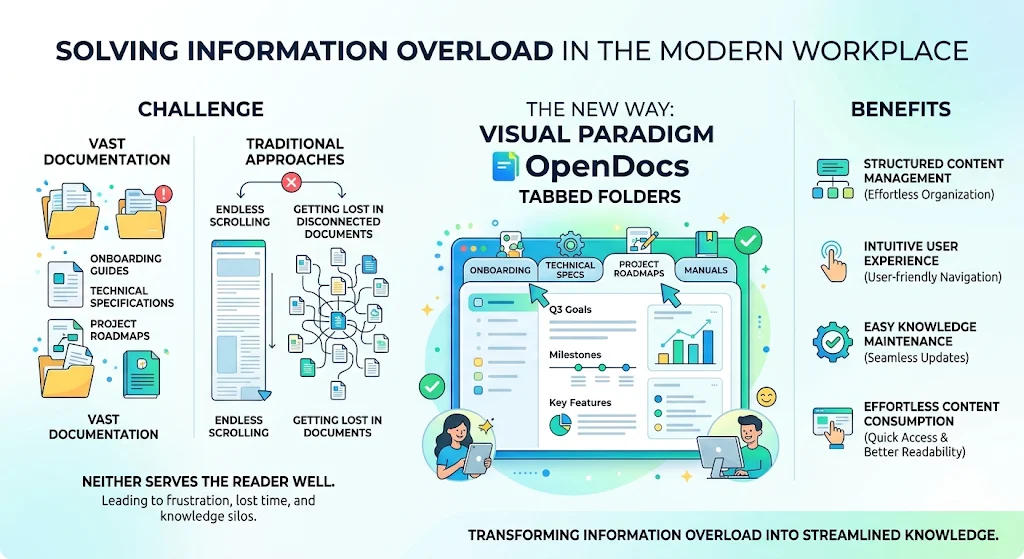
In the modern enterprise ecosystem, information overload is not just a nuisance; it is a critical bottleneck. Teams accumulate vast quantities of documentation, ranging from onboarding guides to complex technical specifications. The traditional approach to organizing this data has historically resulted in two extremes: monolithic, endless scrolling pages or a labyrinth of disconnected documents where knowledge is siloed.
Visual Paradigm OpenDocs introduces a paradigm shift with Tabbed Folders. This feature bridges the gap between structured content management and an intuitive user experience. This tutorial explores the underlying logic of this feature, how to implement it, and why it is essential for modern technical communication.
1. The Architecture of Information Overload
To understand the solution, we must first analyze the problem. In a standard documentation environment without advanced grouping tools, the information hierarchy is often flat or deeply nested.
The Two Extremes of Traditional Organization
- Endless Scrolling: When all documentation is merged into a single “Master Guide,” users face a UI where the content is physically present but cognitively inaccessible due to length. This leads to “scroll fatigue.”
- Disconnected Documents: When content is fragmented into dozens of individual files, users lose context. Navigating from a “Project Roadmap” to a specific “Troubleshooting Manual” requires multiple clicks and often results in the user getting lost in the directory structure.
2. Introducing the Tabbed Folder Model
Visual Paradigm OpenDocs addresses these pain points by implementing a Tabbed Folder structure. This is not merely a visual gimmick; it is a logical grouping mechanism that changes how content is rendered and consumed.
The Core Concept: A Tabbed Folder acts as a container that holds related pages. Instead of presenting a long list of files, the system renders a navigation bar (the tabs) at the top of the view. Clicking a tab instantly swaps the content pane without reloading the entire application context.
Key Components of the Tabbed Interface
- The Container (Tabbed Folder): The logical grouping unit. It represents a specific domain of knowledge (e.g., “Q3 Goals” or “Technical Specs”).
- The Navigation (Tabs): The visible headers that allow users to switch between the documents contained within the folder.
- The Content Pane: The area where the specific selected document is rendered.
3. Implementation Guide: Structuring Your Content
To leverage this tool effectively, authors must rethink their content hierarchy. Instead of organizing by “File Size” or “Date Created,” you must organize by “Topic” or “User Persona.”
Step 1: Define the Context
Identify the logical boundaries of your information. For example, a Product Manager might group “Roadmaps” and “Specs” together, while a Developer might group “API Docs” and “Troubleshooting.”
Step 2: Create the Tabbed Folder
In Visual Paradigm OpenDocs, you create a new container and name it according to the context. This establishes the root for your tabbed navigation.
Step 3: Populate with Related Pages
Drag and drop relevant pages into this folder. The system will automatically generate a tab for each page. You can rename these tabs to be more user-friendly than the default file names.
Example: A Logical Hierarchy
Project Alpha Documentation
├── [Tabbed Folder: Onboarding]
│   ├── Tab: Welcome Guide
│   ├── Tab: Environment Setup
│   └── Tab: Team Roles
├── [Tabbed Folder: Technical Specs]
│   ├── Tab: API Definitions
│   ├── Tab: Database Schema
│   └── Tab: Security Protocols
└── [Tabbed Folder: Project Roadmaps]
    ├── Tab: Q3 Milestones
    └── Tab: Release Schedule
4. Benefits for the Modern Workplace
The implementation of Tabbed Folders transforms the documentation strategy in three distinct ways:
A. Effortless Organization
Authors can maintain a clean structure. Instead of managing hundreds of loose files, you manage logical buckets. Updates to the structure are centralized, ensuring that the “Table of Contents” remains accurate.
B. Intuitive User Experience
Users can scan the available topics quickly. The visual cue of a tab indicates that the content is related. This reduces the cognitive load required to decide where to click next.
C. Effortless Content Consumption
Because the transition between tabs is seamless, users can reference multiple documents simultaneously (e.g., reading the “Security Protocols” while looking at the “API Definitions”) without losing their place in the application.
Conclusion
By utilizing the Tabbed Folders feature, Visual Paradigm OpenDocs allows teams to transform information overload into streamlined knowledge. Whether you are a technical writer managing a massive API reference or a product manager coordinating a release, this tool ensures that your knowledge is not only easy to maintain but also effortless to consume.