
VPasCode AI Chatbot: Mastering Custom Endpoint Configuration for Enterprise
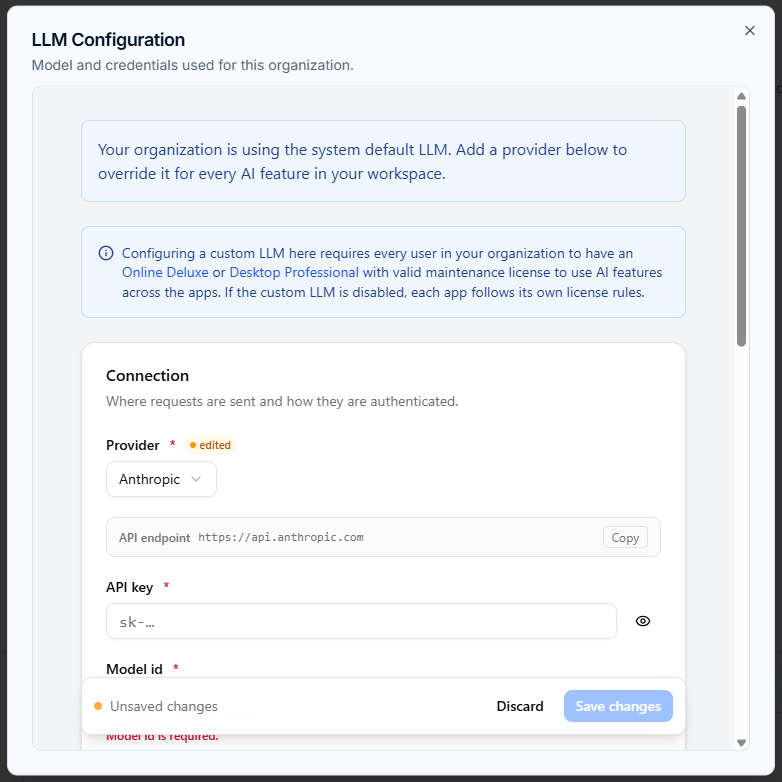
Visual Paradigm VPasCode is designed with the enterprise in mind, offering robust capabilities for organizations that prioritize data sovereignty and strict cost controls. The interface shown in the screenshot represents the LLM Configuration module, a critical component of the tooling architecture that bridges the gap between standard AI services and an organization’s specific infrastructure needs.
This tutorial will guide you through the architecture of custom AI endpoints, explaining how to configure your organization to route AI requests through preferred services like Anthropic, OpenAI, or Google, and how to manage the associated authentication credentials securely.
The Architecture of Custom AI Endpoints
By default, AI modeling tools often rely on a “system default” Large Language Model (LLM) to generate insights, summarize diagrams, or assist with coding tasks. However, for enterprise environments, this default setup presents two major challenges:
- Data Privacy: Enterprises often require that AI-generated content and input data do not leave their internal networks or must be processed by specific, approved vendors.
- Cost Management: Using public APIs can lead to unpredictable costs. Organizations may want to consolidate usage through a single billing account or utilize internal models.
The Custom AI Endpoint Support feature allows you to override the system defaults. Instead of using the platform’s pre-configured model, VPasCode acts as a client that sends requests to an API endpoint you specify. This architecture transforms the tool from a simple consumer of AI services into a flexible orchestrator of enterprise-grade AI workflows.
Key Components of the Configuration
When you access the LLM Configuration dialog, you are presented with three critical parameters that define the connection to your AI provider:
- Provider Selection: This dropdown allows you to select the specific vendor or service (e.g., Anthropic, OpenAI, DeepSeek, Groq, Qwen). Selecting a provider often pre-fills known default endpoints, but these can be overridden.
- API Endpoint: This is the URL where the AI requests are sent. In enterprise setups, this might point to a proxy server, a private cloud instance, or a specific region’s API gateway (e.g.,
https://api.anthropic.com). - API Key: The authentication token required to access the service. VPasCode encrypts and manages these credentials securely, ensuring they are passed only to the authorized endpoint.
- Model ID: This specifies the exact version of the AI model to be used (e.g.,
claude-3-opusorgpt-4), allowing for fine-tuned control over model capabilities.
Step-by-Step: Configuring a Custom Endpoint
Follow these steps to configure your VPasCode instance to use a custom LLM provider, ensuring that your AI features align with your organization’s licensing and security policies.
Step 1: Accessing the Configuration
Navigate to the settings or configuration menu within VPasCode. Look for the section labeled LLM Configuration or AI Settings. You will see a notification indicating that your organization is currently using the system default LLM. To customize this, you must add a provider.
Step 2: Defining the Connection
Click to add a new configuration. You will see the Connection panel. This panel is where you define the “where” and “how” of your AI requests.
- Select your Provider from the dropdown list. The screenshot shows Anthropic selected. If your organization uses a non-standard provider, you may need to select “Custom” or enter the endpoint manually.
- Verify or enter the API endpoint. This URL dictates the network path the request takes.
Step 3: Authenticating the Session
To ensure that only authorized personnel can configure AI access, you must provide the API key. This field is mandatory (indicated by the red asterisk).
Security Best Practice: Never hardcode API keys directly into your model files or scripts. Instead, use the configuration UI to inject them into the VPasCode runtime environment. This ensures that if a key is compromised, you can revoke it from the provider’s dashboard without needing to change source code.
Step 4: Selecting the Model
Finally, enter the Model ID. This identifies the specific AI brain you are connecting to. For example, if you are using Anthropic, you might select claude-3-sonnet. If you are using a local model via an OpenAI-compatible API, you might select llama-3.
Licensing Implications
It is crucial to understand the licensing rules associated with custom LLMs. The informational notice in the screenshot highlights a specific constraint: “Configuring a custom LLM here requires every user in your organization to have an Online Deluxe or Desktop Professional with valid maintenance license.”
This means that while you can route requests through a custom, potentially cheaper endpoint, the usage of the AI features within VPasCode is gated behind specific high-tier licenses. This architecture ensures that the tool remains a premium enterprise offering while allowing flexibility in backend costs.
Supported Ecosystems
VPasCode supports a wide variety of providers to ensure compatibility with your existing tech stack. The system allows you to route requests through:
- OpenAI
- Anthropic
- DeepSeek
- Mistral
- Qwen
- Groq
By mastering the LLM Configuration interface, you gain full control over your organization’s AI strategy, balancing performance, privacy, and cost effectively.