


Introduction
In today’s fast-paced work environment, knowledge fragmentation is a silent productivity killer. Notes scattered across apps, diagrams trapped in separate tools, and documentation that’s hard to share—these friction points slow down teams and obscure insights. Enter OpenDocs by Visual Paradigm: a unified, AI-enhanced knowledge base designed to bring your text, visuals, and structure together in one intuitive workspace. This comprehensive review explores OpenDocs’ core capabilities, new Breakdown Structure support, and practical workflows to help you decide if it’s the right hub for your personal or team documentation needs.
What Is OpenDocs?
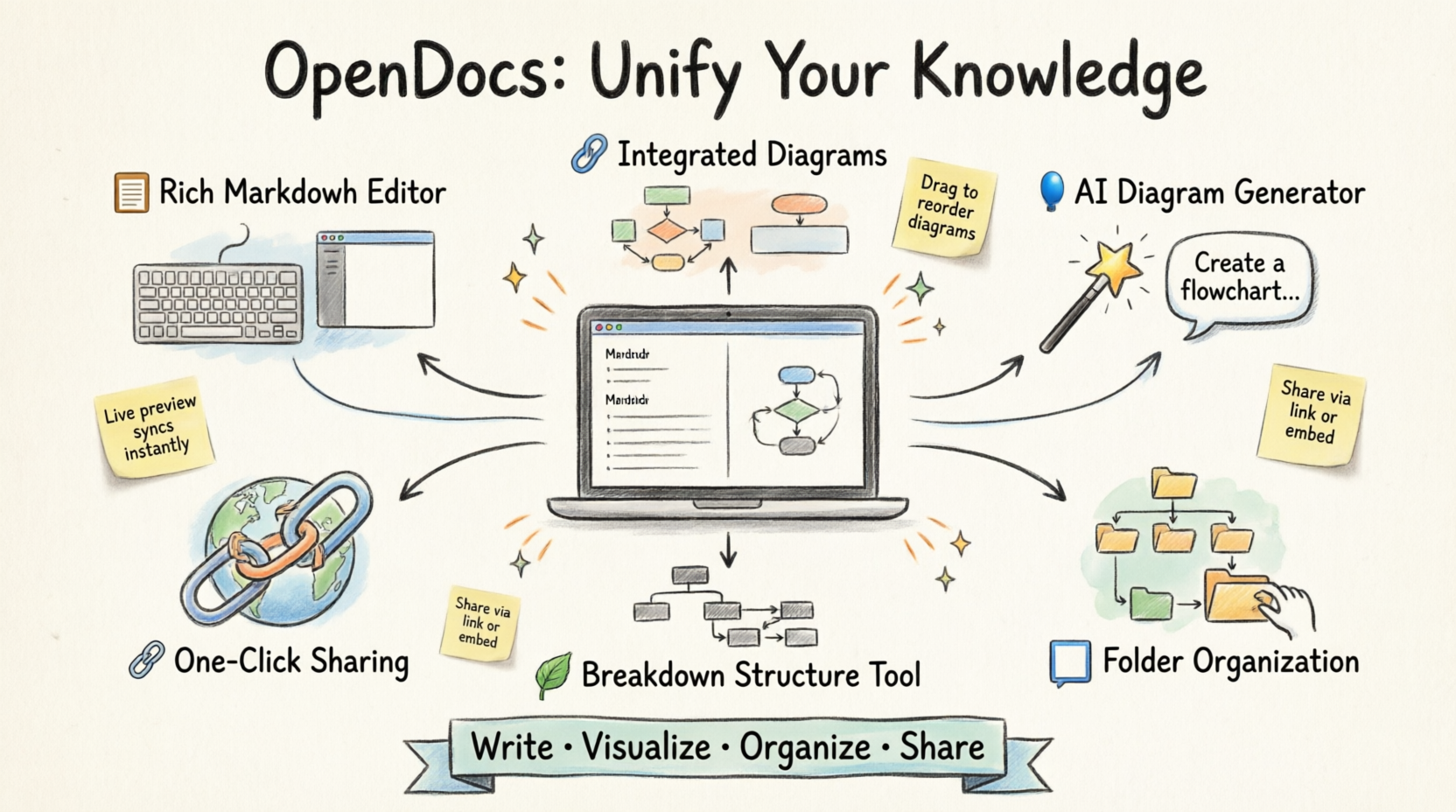
OpenDocs is a powerful knowledge base and documentation hub developed by Visual Paradigm. It provides an intuitive platform to create, organize, and share rich content—including rich text documents and professional diagrams—making it ideal for individuals, project teams, and organizations seeking to structure information effectively. Whether you’re building a personal knowledge repository, documenting a software project, or collaborating on business processes, OpenDocs combines writing, visual modeling, and AI assistance in a single, web-accessible environment.
Core Features Review
✍️ Rich Text Editor
OpenDocs features a full-featured text editor designed for speed and clarity:
- Live Preview: See your formatted document in real-time as you type—no more guessing how headers, lists, or code blocks will render.
- Keyboard-First Workflow: Format text efficiently using rich formatting tools.
- Technical Documentation Ready: Easily embed code blocks, tables, and structured lists for developer-friendly documentation.
🎨 Integrated Diagram Editor
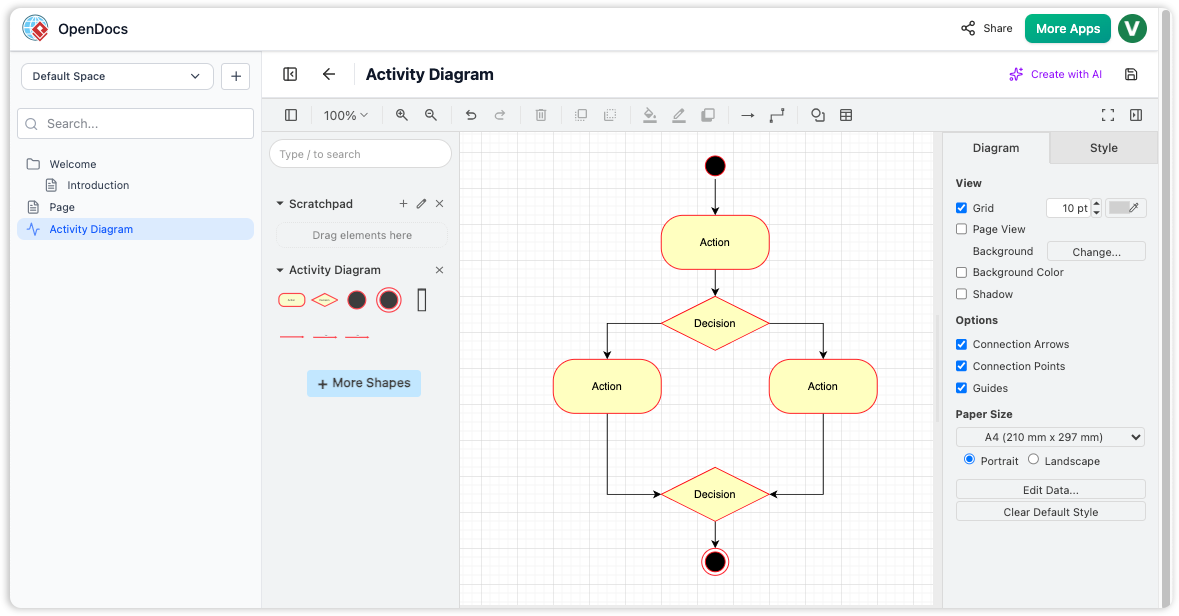
One of OpenDocs’ standout features is its built-in diagramming capability—no tab-switching required:
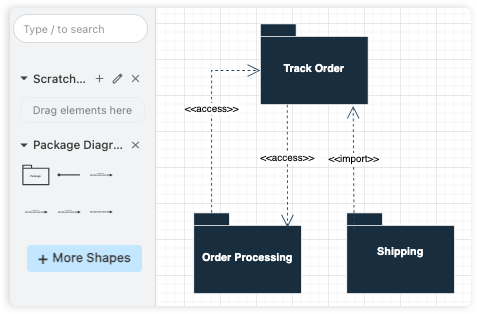
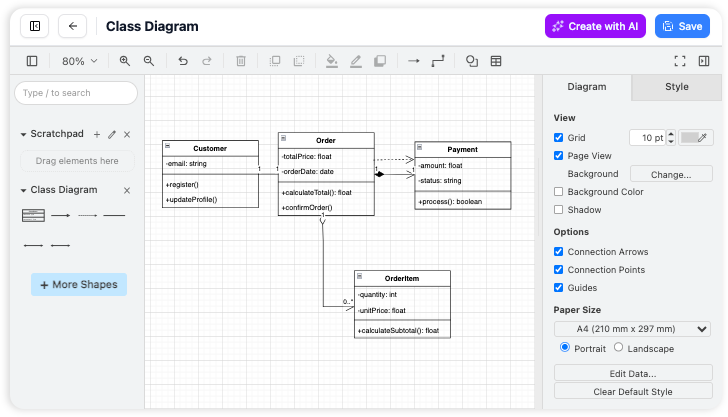
- Create Visuals In-Place: Insert flowcharts, UML diagrams, mind maps, and more directly into your pages.
- Professional Shape Library: Access hundreds of pre-built shapes, connectors, and stencils for polished visuals.
- Seamless Editing: Customize colors, labels, and layouts using an intuitive drag-and-drop interface.
🤖 AI-Powered Diagram Generation
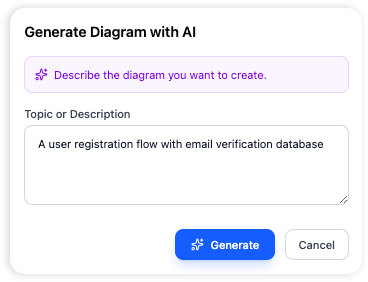
Stop manually aligning boxes. OpenDocs’ AI-Powered Diagram Generator transforms plain English into professional visuals instantly:
- Prompt-to-Diagram: Type a sentence like “Create a flowchart for our refund process” and watch the AI build the diagram.
- Rapid Prototyping: Ideal for brainstorming sessions, process documentation, or quick visual explanations.
- Editable Output: AI-generated diagrams are fully customizable using the integrated editor.
📁 Hierarchical Folder Organization
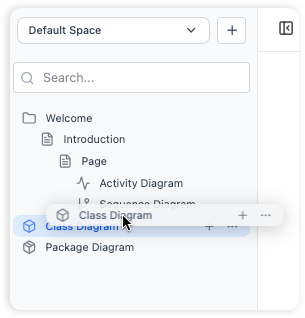
Keep your knowledge base logically structured with OpenDocs’ tree-like folder system:
- Nested Folders: Create subfolders within folders to mirror your project hierarchy or team structure.
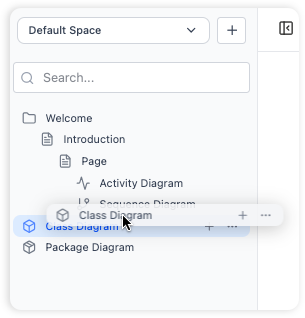
- Drag-and-Drop Simplicity: Reorganize documents and diagrams intuitively, just like your desktop file manager.
- Scalable Organization: Perfect for managing large documentation repositories without clutter.
🆕 New Feature: Breakdown Structure Tool
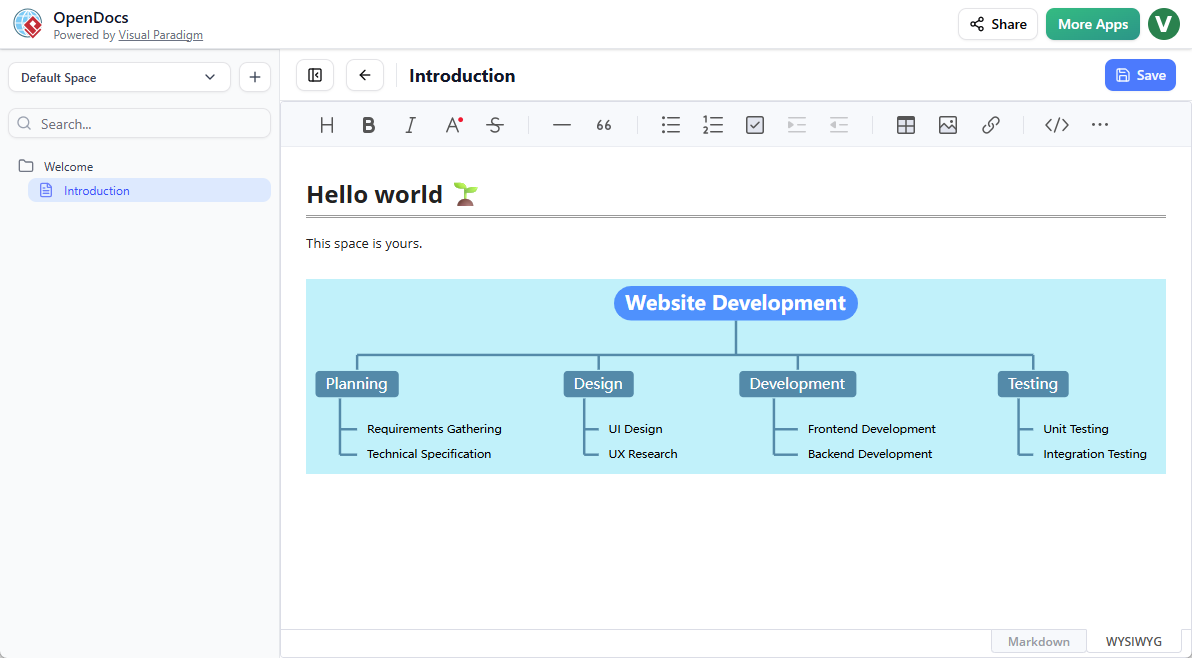
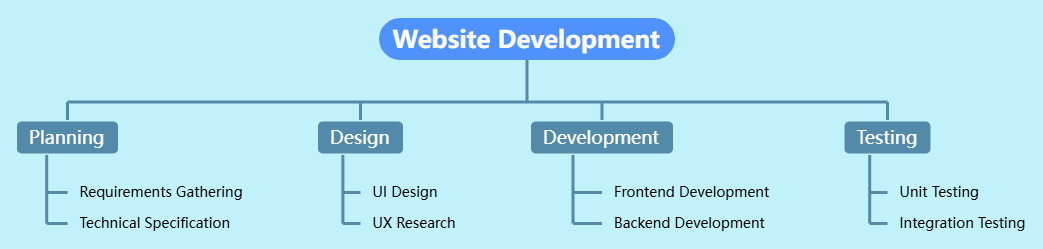
Visual Paradigm recently enhanced OpenDocs with native Breakdown Structure chart support—ideal for Work Breakdown Structures (WBS), functional decomposition, or organizational hierarchies.
Key Capabilities:
- Two Integration Modes:
- Embeddable: Insert breakdown charts directly into documents for contextual visuals.
- Standalone: Create dedicated diagram pages for high-level overviews within your Space.
- Full Customization: Edit shapes, colors, connectors, and labels to align with your branding or methodology.
- AI-Assisted Creation: Generate initial structures from text prompts, then refine manually.
How to Create a Breakdown Structure:
As part of a document page:
- Open your page and click Edit.
- Position your cursor where the chart should appear.
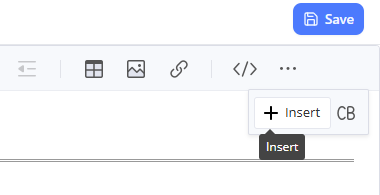
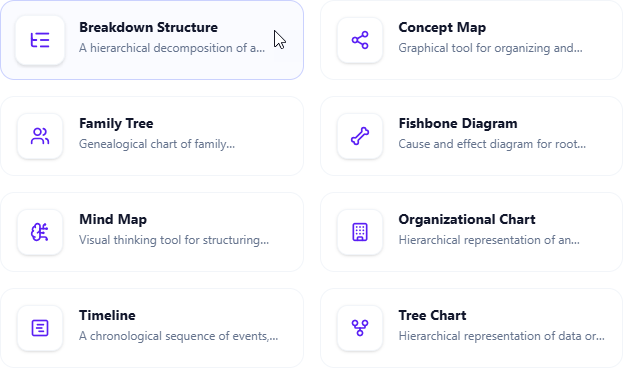
- Click Insert → Mind Maps > Breakdown Structure.
- Edit your chart using the visual editor.
- Save and return to your document.
As an independent component:
- In the sidebar, click + → New Component Page.
- Select Mind Maps > Breakdown Structure.
- Build and customize your diagram, then save.
How to Use OpenDocs – Core Workflows
Master these essential workflows to maximize your OpenDocs productivity:
1️⃣ Structure Knowledge
Build a robust hierarchy using top-level folders and sub-folders. Drag and drop to restructure as projects evolve.
2️⃣ Writing
Create rich documents with headers, code blocks, and lists. Leverage the split-pane live preview for instant formatting feedback.
3️⃣ Visual Diagrams
Complement text with visual models. Use professional shape libraries and connectors to illustrate processes, systems, or relationships.
4️⃣ Generate with AI
Use plain-language prompts to auto-generate diagrams, then refine as needed—dramatically reducing manual drafting time.
5️⃣ Share Instantly
Generate a unique, secure URL to share your entire knowledge base with stakeholders—no login required for viewers.
Key Benefits at a Glance
| Benefit | Description |
|---|---|
| All-in-One Hub | Combine text and diagrams in a single platform—no more app-switching. |
| Hierarchical Organization | Nested folders keep large knowledge bases navigable and scalable. |
| Effortless Collaboration | Share your entire workspace via a secure, read-only link with one click. |
| Visually Rich Documentation | Go beyond plain text with professional diagrams that clarify complex ideas. |
| Rich Text Power | Format documents quickly using lightweight, rich editing tools. |
| Web-Accessible | Access from any device with a modern browser—no installation needed. |
| AI Acceleration | Generate diagrams from text prompts to jumpstart documentation. |
| Breakdown Structure Support | New native tool for WBS, functional decomposition, and hierarchical planning. |
Getting Started: 5 Simple Steps
- Launch & Initialize
Open OpenDocs in your browser. You’ll see a welcome screen with recent projects and setup options. - Create Your First Page
Click “New Page” in the sidebar, then give it a descriptive name to stay organized. - Write & Format
Use the rich text editor to draft content. Apply headers, lists, code blocks, and tables easily. - Add Visuals
Click “New Diagram” or use the Insert menu to embed flowcharts, UML diagrams, or AI-generated visuals. - Organize with Folders
Create folders via the sidebar and drag-and-drop pages or diagrams to build your structured knowledge base.
Frequently Asked Questions
Q: Can I import existing documents into OpenDocs?
A: OpenDocs is optimized for creating content within the application. Currently, there is no direct import feature for existing files.
Q: What types of diagrams can I create?
A: The integrated editor supports flowcharts, UML diagrams, network diagrams, mind maps, breakdown structures, fishbone diagrams, timelines, and more.
Q: Can I export my documents to PDF or Word?
A: The platform focuses on in-app sharing. Direct export to external formats like PDF or Word is not currently available.
Q: Is there version history for documents?
A: OpenDocs does not yet include built-in version history. We recommend maintaining regular backups of critical documentation.
Q: Can I share a single page instead of the entire knowledge base?
A: Sharing is designed at the knowledge base level to preserve context. Individual page or folder sharing is not currently supported.
Q: Is OpenDocs available as a desktop app?
A: OpenDocs is a web-based application accessible via any modern browser—no desktop installation required.
Q: Who develops OpenDocs?
A: OpenDocs is developed and maintained by Visual Paradigm, a leading provider of professional modeling, diagramming, and collaboration software.
Conclusion
OpenDocs represents a thoughtful evolution in knowledge management, the clarity of visual diagramming, and the speed of AI assistance into one cohesive workspace. Its hierarchical organization, real-time previews, and new Breakdown Structure tool make it particularly valuable for project managers, business analysts, engineers, and teams who need to document complex systems without juggling multiple tools. While it currently lacks features like version history or external export, its strengths in unification, accessibility, and AI-powered visualization position it as a compelling choice for anyone building a living, visual knowledge base. If you’re ready to stop losing notes and start connecting ideas visually, OpenDocs offers a streamlined path forward.
References
- OpenDocs | All-in-One Knowledge Base & Diagramming Tool: This resource describes OpenDocs as a powerful hub for documentation and knowledge management, featuring integrated diagramming and AI-powered generation capabilities.
- OpenDocs – AI-Powered Knowledge Platform: A feature overview highlighting OpenDocs as a unified platform for teams to create, organize, and share text and diagrams seamlessly using AI assistance.
- Visual Paradigm Unveils AI-Powered UML Profile Diagrams in OpenDocs: This article explains how OpenDocs serves engineering and product teams, specifically focusing on support for AI-generated UML Profile Diagrams.
- AI Profile Diagram Generation in OpenDocs: An official release announcement that provides instructions for utilizing the Generative AI engine to create UML Profile Diagrams within the platform.
- AI-Powered PERT Chart Support in OpenDocs: This resource introduces AI-driven PERT chart generation, allowing project managers to visualize complex timelines and dependencies automatically.
- AI-Powered Data Flow Diagram (DFD) Support in OpenDocs: A feature update detailing how users can perform information flow analysis by generating AI-driven Data Flow Diagrams directly within their documents.
- Breakdown Structure Tool: Visualizing Complex Data with OpenDocs: An overview of how to use the Breakdown Structure chart in OpenDocs to visualize hierarchical data and work decomposition efficiently.
- Comprehensive Guide to AI-Generated Entity Relationship Diagrams in OpenDocs: A guide focused on intelligent database design, demonstrating how to use AI to build and manage Entity Relationship Diagrams (ERD) within OpenDocs.
- Professional Mind Map Tool for Knowledge Organization in OpenDocs: This article details the integration of mind map tools in OpenDocs, designed to support visual brainstorming and structured knowledge organization.
- AI Deployment Diagram Generator in OpenDocs: An introduction to using the AI-powered UML Deployment Diagram generator to document physical architecture and system infrastructure within technical documents.
Related posts:
 My Hands-On Review: Creating Professional UML Diagrams with Visual Paradigm Online
Visual Paradigm Pipeline & OpenDocs: The Ultimate Guide to Seamless Concept-to-Docs Workflow
From Static Models to Living Knowledge: A Hands-On Review of Visual Paradigm’s Desktop-to-OpenDocs Pipeline
Mastering UML Architecture: A Practical Review of Component and Deployment Diagrams for System Design
My Hands-On Review: Creating Professional UML Diagrams with Visual Paradigm Online
Visual Paradigm Pipeline & OpenDocs: The Ultimate Guide to Seamless Concept-to-Docs Workflow
From Static Models to Living Knowledge: A Hands-On Review of Visual Paradigm’s Desktop-to-OpenDocs Pipeline
Mastering UML Architecture: A Practical Review of Component and Deployment Diagrams for System Design