


Introduction
In the fast-paced world of software development and business process re-engineering, the ability to visualize workflows is crucial. However, the traditional method of manually drawing UML Activity Diagrams often feels counterintuitive. It involves tedious whiteboard sessions, clunky drag-and-drop interfaces, and hours spent realigning arrows rather than analyzing logic. We are moving past the era where painstaking manual effort equates to quality. Today, AI-powered modeling software transforms this chore into an insightful, rapid experience.
This tutorial will guide you through the process of generating, refining, and analyzing UML Activity Diagrams using Artificial Intelligence. By leveraging tools like Visual Paradigm, you can shift from merely drawing lines to architecting intelligent systems.
Key Concepts
Before diving into the tutorial, it is essential to understand the core components we will be working with.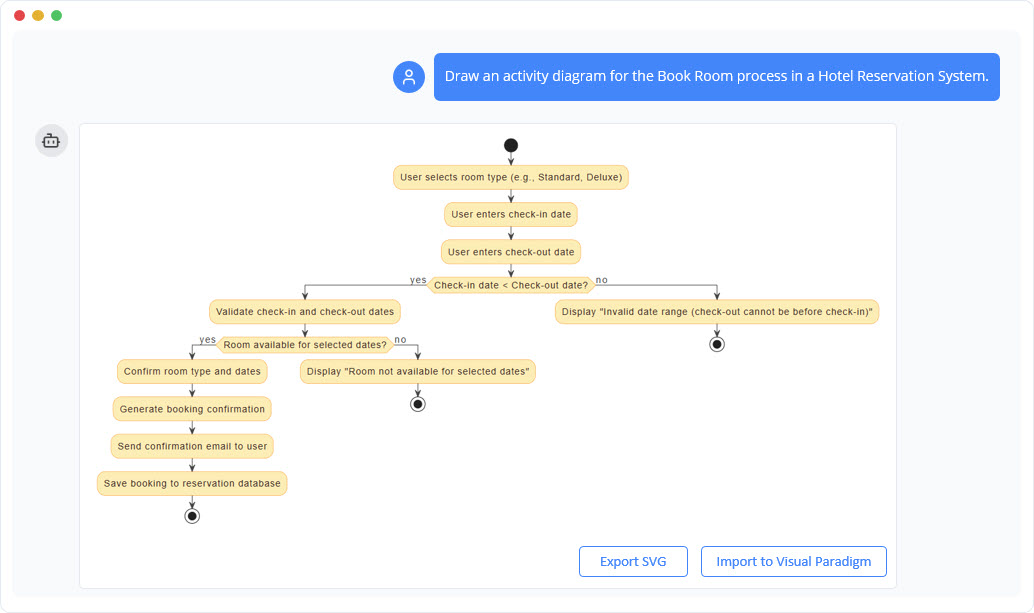
- UML Activity Diagram: A behavioral diagram that visually represents a step-by-step workflow. It illustrates the flow of control from one activity to another, showcasing actions, decisions, parallel paths (concurrency), and swimlanes within a system.
- AI-Powered Modeling: The use of natural language processing (NLP) to interpret textual descriptions of processes and automatically generate standard-compliant visual diagrams. This eliminates manual layout tasks and ensures adherence to UML syntax.
- Swimlanes: A visual element used in activity diagrams to group activities into specific categories, usually representing the actor or department responsible for those activities.
Step-by-Step Guidelines: Generating Your Diagram
Follow these steps to transform a complex process requirement into a professional UML Activity Diagram using AI.
Step 1: Define the Process Scope
Before interacting with the AI, clearly outline the process you intend to model. Identify the starting point, the specific actors involved, and the desired end state. For this tutorial, we will use an E-commerce Order Fulfillment Process.
Step 2: Construct the Initial Prompt
Open your AI-powered modeling tool (such as Visual Paradigm). Instead of selecting shapes, you will act as a prompt engineer. Input a natural language description of the workflow. Be specific about the sequence of events.
Example Prompt: “Draw a UML Activity Diagram for an e-commerce order fulfillment process. Start with the customer placing an order. Include steps for payment processing, inventory check, order picking, packaging, and shipment. Ensure decisions for failed payments and out-of-stock items are present, leading to customer notification.”
Step 3: Analyze the Initial Generation
The AI will process your request and generate a diagram instantly. At this stage, verify the following:
- Flow Logic: Does the diagram correctly branch at decision points (e.g., Payment Failed vs. Success)?
- Completeness: Are all requested steps (Picking, Packaging, Shipment) present?
- Standard Compliance: Are the start and end nodes correctly depicted?
Step 4: Refine with Iterative Commands
Rarely is a process static. You may realize you missed a step or need to add complexity. Instead of manually redrawing, issue a modification command.
Refinement Prompt: “Add a parallel activity for sending a confirmation email to the customer immediately after successful payment, independent of the physical fulfillment steps.”
The AI will introduce a Fork Node and a Join Node to represent this concurrent processing, ensuring the UML syntax remains correct.
Step 5: Query the Context
One of the distinct advantages of AI modeling is contextual understanding. If a specific logic flow is unclear, you can ask the AI to explain it. For example, ask: “Explain the logic behind the ‘out-of-stock’ decision and how it impacts subsequent activities.” This turns the diagramming tool into a documentation assistant.
Best Practices
To maximize the effectiveness of AI-generated UML diagrams, adhere to these industry standards.
- Use Specific Terminology: When prompting, use standard UML terms like “Fork,” “Join,” “Decision Node,” and “Swimlane.” This helps the AI map your request to the correct visual notation.
- Iterative Design: Do not try to generate a massive enterprise system in a single prompt. Start with the “Happy Path” (the ideal flow) and then add exception handling (errors, rejections) in subsequent prompts.
- Validate Against Standards: While tools like Visual Paradigm are trained on UML standards, always conduct a human review to ensure the business logic aligns with your specific domain requirements.
- Keep Explanations Handy: Utilize the chat history features to save the AI’s textual explanations alongside the visual diagram. This serves as auto-generated documentation for developers.
Tips and Tricks
Here are some optimizations to speed up your workflow and enhance collaboration.
- Seamless Import: After generating a diagram in the AI chat interface, use the Import feature to bring it into the desktop environment. This allows for granular graphical tweaking if necessary.
- Share the Session: Instead of exporting a static image, share the URL of the chat session. This allows stakeholders to see the evolution of the diagram and the logic behind the decisions.
- Ask Implementation Questions: Don’t stop at the diagram. Ask the AI, “How do I implement this decision point in code?” to bridge the gap between design and development.
Manual vs. AI-Powered Diagramming
Understanding the efficiency gains is critical for adoption. The table below outlines the operational shifts.
| Feature | Manual Diagramming Pain Point | AI-Powered Solution |
|---|---|---|
| Diagram Generation | Tedious setup and drag-and-drop | Instant generation from natural language |
| Adherence to Standards | Requires deep memorization of UML rules | AI trained on official UML specifications |
| Modifications | Painstaking manual adjustments and layout fixes | Instant text-based refinement and auto-layout |
| Context | Static image with no metadata | Interactive, query-able knowledge base |
Conclusion
Transitioning from manual sketching to AI-powered modeling is not just a technological upgrade; it is a fundamental shift in how we approach system design. by following this step-by-step tutorial, you can eliminate the administrative burden of drawing and focus on what truly matters: optimizing logic, solving business problems, and delivering precise technical blueprints. Start describing your process needs today and let the AI handle the syntax.
-
AI-Powered Visual Modeling and Design Solutions by Visual Paradigm: Explore cutting-edge AI-driven tools for visual modeling, diagramming, and software design, enabling faster, smarter development workflows.
-
AI Chatbot Feature – Intelligent Assistance for Visual Paradigm Users: Leverage AI-powered chatbot functionality to get instant guidance, automate tasks, and enhance productivity within Visual Paradigm.
-
Visual Paradigm Chat – AI-Powered Interactive Design Assistant: An interactive AI chat interface that helps users generate diagrams, write code, and solve design challenges in real time.
-
AI Textual Analysis – Transform Text into Visual Models Automatically: Use AI to analyze text documents and automatically generate diagrams such as UML, BPMN, and ERD for faster modeling and documentation.
-
Visual Paradigm AI Chatbot Enhances Multi-Language Support …: 7 hours ago · Discover the latest updates to Visual Paradigm ‘s AI -Powered visual modeling software, including multi-language UI and improved chat content localization. Experience seamless AI diagram generation in languages like Spanish, French, Chinese, and more with our AI chatbot for UML and other diagrams.
-
AI Chatbot for Diagramming: How It Works with Visual Paradigm: The Visual Paradigm AI chatbot is an AI -powered modeling assistant that turns natural language into diagrams. It doesn’t require users to learn specific modeling standards or syntax.
-
AI-Powered Use Case Diagram Refinement Tool – Smart Diagram Enhancement: Leverage AI to automatically refine and optimize your use case diagrams for clarity, consistency, and completeness.
-
Convert Use Case to Activity Diagram – AI-Powered Transformation: Automatically convert use case diagrams into detailed activity diagrams using AI to visualize system workflows.
-
AI-Assisted UML Class Diagram Generator – Visual Paradigm: An interactive, step-by-step tool to help users create UML class diagrams with AI-powered suggestions, validation, PlantUML export, and design analysis.
-
Mastering UML Activity Diagrams with AI | Visual Paradigm Blog: A blog post exploring how AI-powered features in Visual Paradigm enhance the creation and optimization of UML activity diagrams for developers and analysts.
-
Visual Paradigm AI Diagram Generation Guide: A comprehensive step-by-step guide to using Visual Paradigm’s AI-powered tools for generating diagrams quickly and accurately.
-
AI Diagram Generation Features in Visual Paradigm: Explore the advanced AI capabilities in Visual Paradigm that enable users to generate diagrams from natural language descriptions.
-
Visual Paradigm AI Diagram Generator Release Notes: Official release notes detailing the latest updates and enhancements to the AI Diagram Generator in Visual Paradigm.
-
Visual Paradigm’s AI Diagram Generator Expands Instant Creation Capabilities: Coverage of how Visual Paradigm’s AI diagram generator now supports instant creation of DFDs, ERDs, mind maps, and more.
-
New Diagram Types Added to AI Diagram Generator: DFD & ERD: Announcement of expanded AI diagram generation support for Data Flow Diagrams (DFD) and Entity Relationship Diagrams (ERD).
-
AI Diagram Generator Now Supports Package Diagrams in Visual Paradigm: New release enabling AI-generated package diagrams for better software architecture visualization.
-
AI Diagram Generator Adds Radar Chart Support: Visual Paradigm introduces AI-powered radar chart generation for visualizing complex performance and capability metrics.
-
Comprehensive Tutorial: Generating ArchiMate Diagrams with AI: In-depth tutorial showing how to use Visual Paradigm’s AI diagram generator to create ArchiMate diagrams and viewpoints efficiently.
-
From Problem Description to Class Diagram: AI-Powered Textual Analysis: Explore how Visual Paradigm uses AI to convert natural language problem descriptions into accurate class diagrams for software modeling.
-
How to Translate Text in Images for UML, BPMN, and Flowcharts: Step-by-step guide on using AI-powered tools to extract and translate text in technical diagrams for global collaboration and localization.
Related posts:
 Visual Modeling in 2026: The AI-Driven Renaissance of UML, BPMN, and ArchiMate
Comprehensive Guide to Understanding & Working with Swimlane Activity Diagrams: The Pizza Delivery Process
AI-Powered UML Diagrams: A Modern Approach to Software Modeling
The Complete Guide to AI-Powered UML Modeling with Visual Paradigm
Visual Modeling in 2026: The AI-Driven Renaissance of UML, BPMN, and ArchiMate
Comprehensive Guide to Understanding & Working with Swimlane Activity Diagrams: The Pizza Delivery Process
AI-Powered UML Diagrams: A Modern Approach to Software Modeling
The Complete Guide to AI-Powered UML Modeling with Visual Paradigm