


Introduction to UML
Unified Modeling Language (UML) is a standardized modeling language used in software engineering to visualize, specify, construct, and document the artifacts of software systems. Developed in the 1990s and now maintained by the Object Management Group (OMG), UML provides a set of graphical notation techniques to create visual models of object-oriented software-intensive systems. It includes structural diagrams (e.g., class, component) that describe the static structure and behavioral diagrams (e.g., use case, sequence) that show dynamic interactions.
UML is essential for communicating design ideas among stakeholders, reducing misunderstandings, and facilitating agile development. Common diagram types include:
- Class Diagrams: Represent classes, attributes, operations, and relationships.
- Use Case Diagrams: Illustrate system functionality from a user’s perspective.
- Sequence Diagrams: Depict interactions between objects over time.
- Activity Diagrams: Model workflows and business processes.
- State Machine Diagrams: Show states and transitions of objects.
Visual Paradigm is a powerful tool that supports all UML 2.x diagrams, making it ideal for creating, editing, and managing these models.
Overview of Visual Paradigm
Visual Paradigm is an AI-powered visual modeling platform that supports UML, BPMN, SysML, and more. It offers desktop and online versions, with features like diagram editing, code generation, team collaboration, and integration with tools like Jira and GitHub. For UML specifically, it provides intuitive editors for all diagram types, including class, use case, sequence, activity, state machine, component, deployment, package, object, composite structure, timing, interaction overview, and profile diagrams.
To get started:
- Download and install Visual Paradigm from their official website.
- Create a new project and select UML as the modeling language.
- Use the diagram palette to drag and drop elements like classes, actors, or lifelines.
Visual Paradigm also supports round-trip engineering, allowing code generation from diagrams and reverse engineering from code.
Creating UML Diagrams in Visual Paradigm (Traditional Approach)
Before diving into AI enhancements, let’s cover the basics of manual UML creation in Visual Paradigm.
Class Diagrams
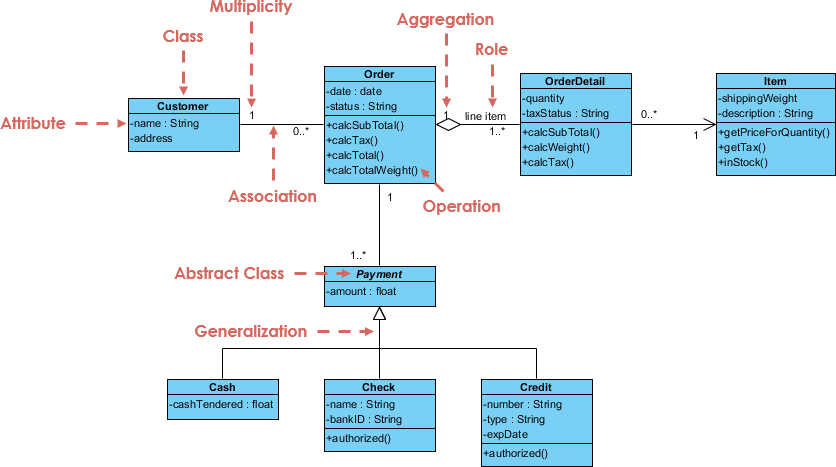
Class diagrams model the static structure of a system. To create one:
- Open a new Class Diagram.
- Drag “Class” from the toolbar and name it (e.g., “Customer”).
- Add attributes (e.g., name: String) and operations (e.g., placeOrder()).
- Connect classes with associations, generalizations, or aggregations.
Example of a class diagram for an order system:
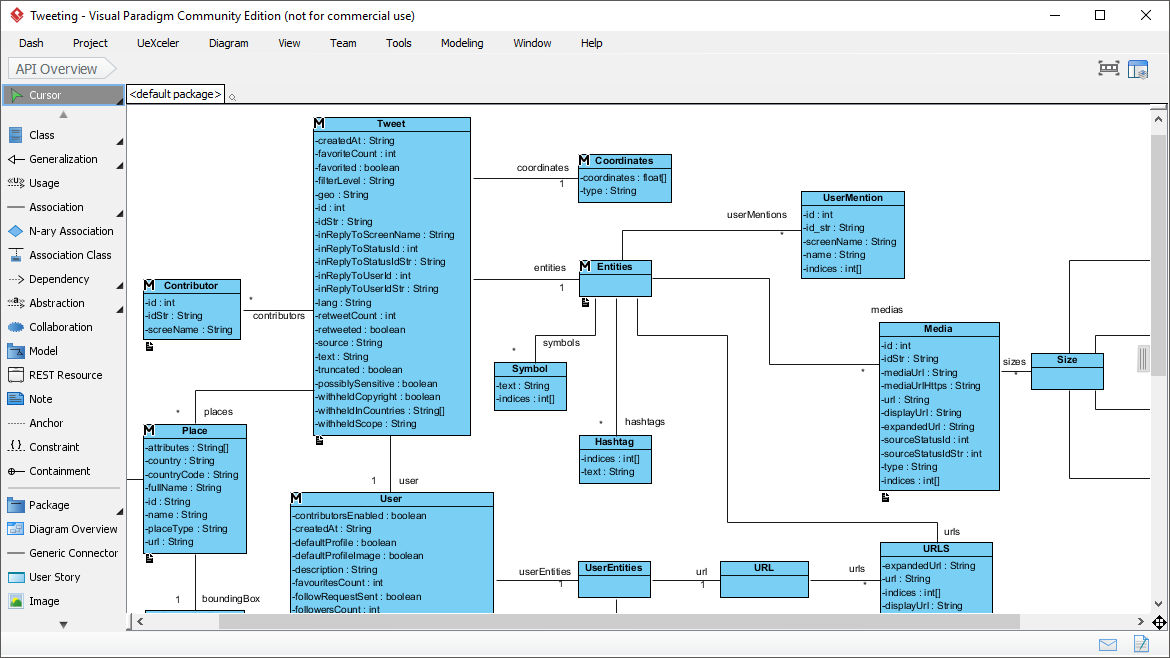
Another example showing a more complex structure:
Use Case Diagrams
These capture functional requirements. Steps:
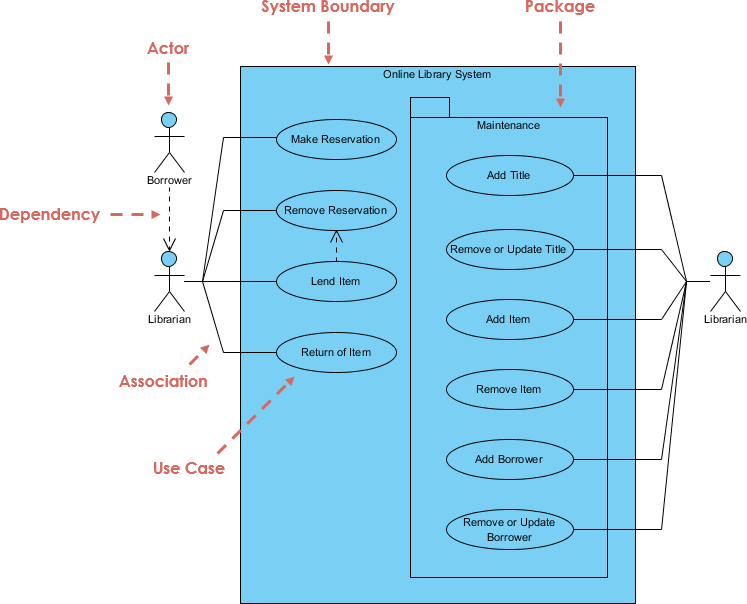
- Add actors (e.g., “User”) and use cases (e.g., “Login”).
- Draw associations between actors and use cases.
- Use include/extend relationships for reuse.
Example for an online library system:
Sequence Diagrams
Sequence diagrams show object interactions. Process:
- Add lifelines for objects (e.g., “User”, “System”).
- Draw messages between lifelines (e.g., synchronous calls).
- Use combined fragments for loops, alternatives, etc.
Example of a place order scenario:

Visual Paradigm’s interface makes these steps intuitive, with auto-layout and validation tools to ensure UML compliance.
AI Features in Visual Paradigm
Visual Paradigm integrates advanced AI to automate and enhance UML modeling. Key features include:
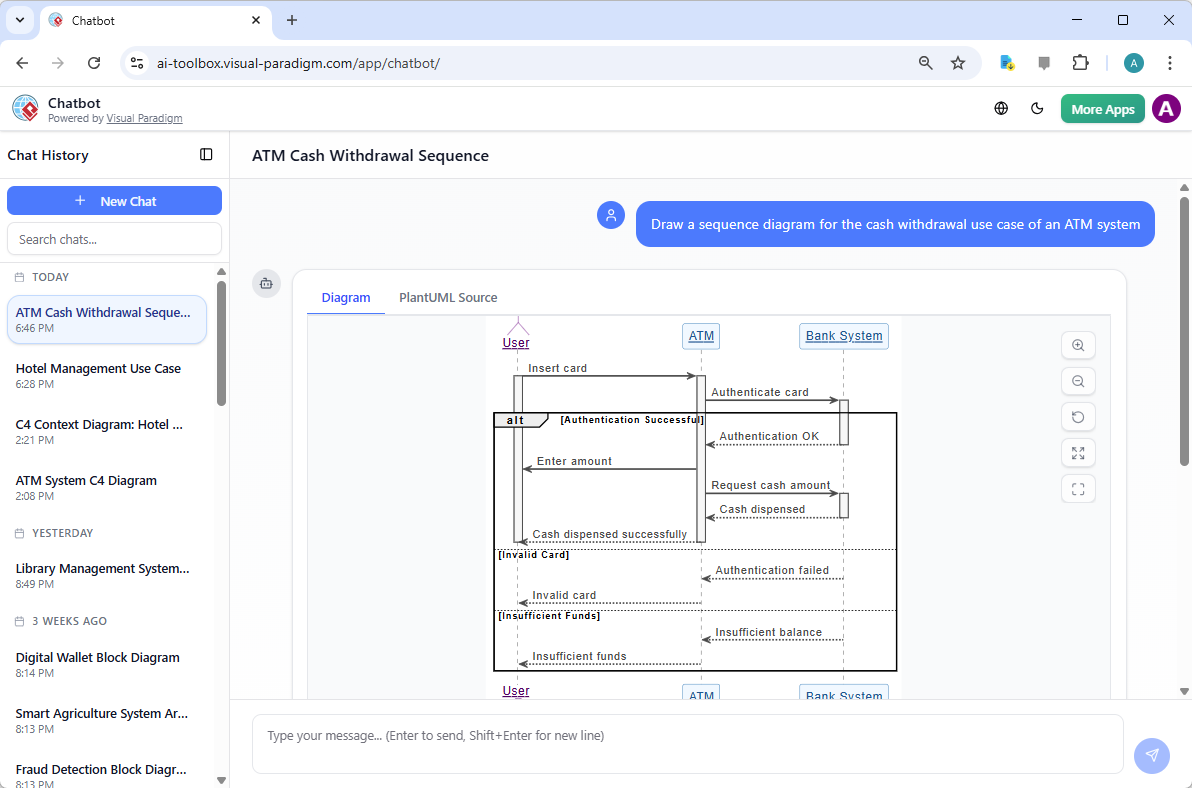
- AI Diagram Generator: Converts natural language descriptions into UML diagrams instantly. For example, input “A user logs into the system and places an order” to generate a sequence or use case diagram.
- AI-Assisted UML Class Diagram Generator: A 10-step wizard that uses AI for suggestions, validation, and analysis. It generates scopes, notes, and reports.
- AI Chatbot (Just Ask): A conversational tool for generating, refining, and updating diagrams via prompts. Supports UML state machine, deployment, and more.
- AI App Library: Over 50 specialized apps, such as AI Class Diagram Wizard, Use Case to Activity Diagram Converter, and Sequence Diagram Refiner.
- Textual Analysis: AI identifies keywords from descriptions and creates model elements on-the-fly.
To enable AI: Go to Tools > AI Features in the desktop app and activate.
Example of the AI interface generating a sequence diagram:
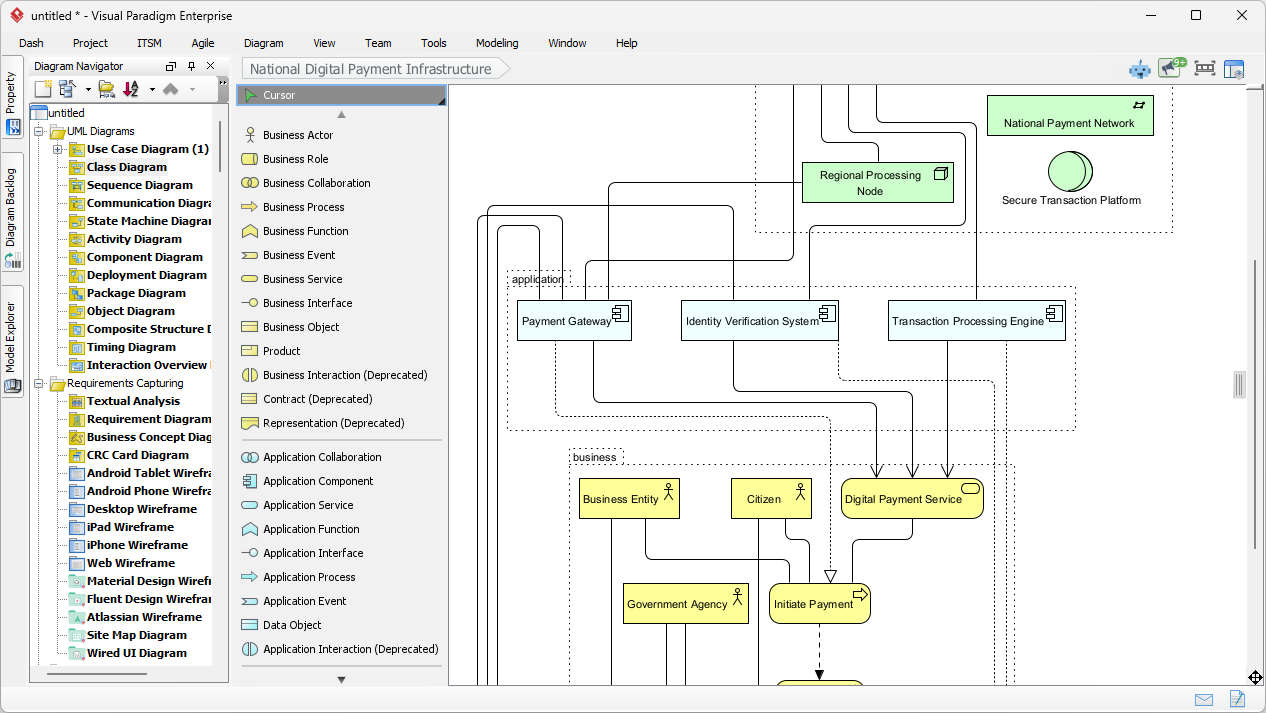
Another view of AI-generated architecture:
Improving Efficiency with AI Features
AI in Visual Paradigm transforms UML modeling by reducing manual work, ensuring accuracy, and accelerating iterations. Here’s how:
Speed and Automation
- Traditional diagramming can take hours; AI generates diagrams in seconds from text prompts, ideal for rapid prototyping.
- The chatbot allows real-time refinements, e.g., “Add error handling to this sequence diagram,” without redrawing.
Accuracy and Compliance
- AI enforces UML notation, semantics, and best practices, minimizing errors.
- Tools like the Refinement Apps validate and suggest improvements, e.g., optimizing relationships in class diagrams.
Collaboration and Integration
- Generate diagrams from requirements documents or user stories, bridging agile planning to design.
- AI apps convert between diagram types (e.g., use case to activity), streamlining workflows.
Use Case-Driven Development
- Start with textual use cases; AI identifies classes and generates diagrams, reducing the gap from requirements to implementation.
Overall, AI can cut modeling time by 50-80%, allowing focus on logic rather than drawing.
Step-by-Step Guide: Creating UML with AI in Visual Paradigm
Let’s walk through creating a UML model for a simple e-commerce system using AI.
- Enable AI: In Visual Paradigm Desktop, enable AI features.
- Generate Use Case Diagram: Use the AI Chatbot: Prompt “Generate a use case diagram for an e-commerce system with actors Customer and Admin, including browse products, add to cart, checkout, and manage inventory.”
- Refine with AI: Ask “Refine this use case to include payment processing.”
- Convert to Sequence Diagram: Use the AI App to transform the use case into a sequence diagram.
- Generate Class Diagram: Prompt “From the use case, generate a class diagram with classes like Product, Cart, Order.”
- Analyze and Export: Use AI for validation reports, then export to code or PDF.
This AI-driven approach is faster and more iterative than manual methods.
Best Practices and Tips
- Start with Text: Always begin with natural language descriptions for AI to maximize efficiency.
- Iterate Incrementally: Use the chatbot for small changes to avoid overwhelming the AI.
- Combine Manual and AI: Use AI for initial drafts, then fine-tune manually for custom needs.
- Leverage Apps: Explore the AI App Library for specific tasks, like bridging Agile to UML.
- Stay Updated: Visual Paradigm frequently adds AI features; check their blog for tutorials.
- Handle Limitations: AI may not handle highly complex or ambiguous prompts perfectly—clarify inputs.
Conclusion
Visual Paradigm makes UML modeling accessible and efficient, especially with its AI features that automate generation, refinement, and analysis. By integrating natural language processing, it reduces barriers for beginners while boosting productivity for experts. Whether you’re designing simple systems or complex architectures, leveraging these tools can significantly improve your workflow.
For more, visit Visual Paradigm’s resources or try their free community edition.
-
AI-Powered UML Class Diagram Generator by Visual Paradigm: This advanced AI-assisted tool automatically generates UML class diagrams from natural language descriptions, significantly streamlining the software design and modeling process.
-
Visual Paradigm – AI-Powered UML Sequence Diagrams: This resource explains how to generate professional UML sequence diagrams directly from text prompts using an advanced AI modeling suite.
-
Real-Life Case Study: Generating UML Class Diagrams with Visual Paradigm AI: A detailed case study demonstrating how an AI assistant successfully transformed textual requirements into accurate UML class diagrams for a real-world project.
-
How AI Chatbot Can Help You Learn UML Faster: This article details how users can practice UML interactively, visualize concepts instantly, and receive feedback to improve their modeling skills.
-
AI-Powered Sequence Diagram Refinement Tool | Visual Paradigm: Discover how this tool enhances software design by automatically improving and optimizing sequence diagrams with intelligent suggestions.
-
UML Package Diagram: A Definitive Guide to Structuring Your Codebase with AI: This guide explores how AI helps structure systems and manage dependencies using UML package diagrams for clean, scalable architecture.
-
AI-Powered Use Case to Activity Diagram Tutorial with Visual Paradigm: A step-by-step guide demonstrating how AI features can automatically convert use case descriptions into detailed activity diagrams.
-
How AI Enhances Class Diagram Creation in Visual Paradigm: This blog post explores how Visual Paradigm leverages AI to automate and improve the accuracy of creating class diagrams, making software design faster.
-
AI-Powered UML Diagramming Using Visual Paradigm: This resource highlights how AI-driven platforms can streamline the creation of various UML diagrams through intelligent modeling features.
-
Generate Activity Diagrams from Use Cases Instantly with Visual Paradigm’s AI: Learn how the AI engine enables rapid and accurate conversion of use case descriptions into professional activity diagrams with minimal effort.