


Visual Paradigm provides robust support for the C4 model (created by Simon Brown), which is a hierarchical approach to visualizing software architecture at different levels of abstraction: System Context (Level 1), Containers (Level 2), Components (Level 3), and Code (Level 4), along with supplementary views like Deployment, Dynamic, and System Landscape.
In late 2025, Visual Paradigm introduced full native support for C4 models in its Desktop edition (starting with Standard edition or higher), followed shortly by powerful AI integrations that automate diagram creation. This makes it one of the most comprehensive tools for C4 modeling, combining manual diagramming with generative AI to accelerate architecture documentation.
Overview of C4 Support in Visual Paradigm
Visual Paradigm Desktop offers dedicated C4 diagram types with built-in shapes, templates, and connectors that enforce C4 notation standards (e.g., proper box styles, relationship arrows, and technology annotations). The supported diagrams include all six key views:
-
C4 System Context Diagram — High-level overview showing the system as a black box and its external actors/relationships.
-
C4 System Landscape Diagram — Broader ecosystem view across multiple systems.
-
C4 Container Diagram — Zooms into the system’s major deployable/runnable units (applications, databases, services, etc.) and their interactions.
-
C4 Component Diagram — Details the internal structure of a container (modules, libraries, etc.).
-
C4 Dynamic Diagram — Shows runtime behavior (e.g., sequence-like flows).
-
C4 Deployment Diagram — Infrastructure mapping (servers, nodes, cloud resources).
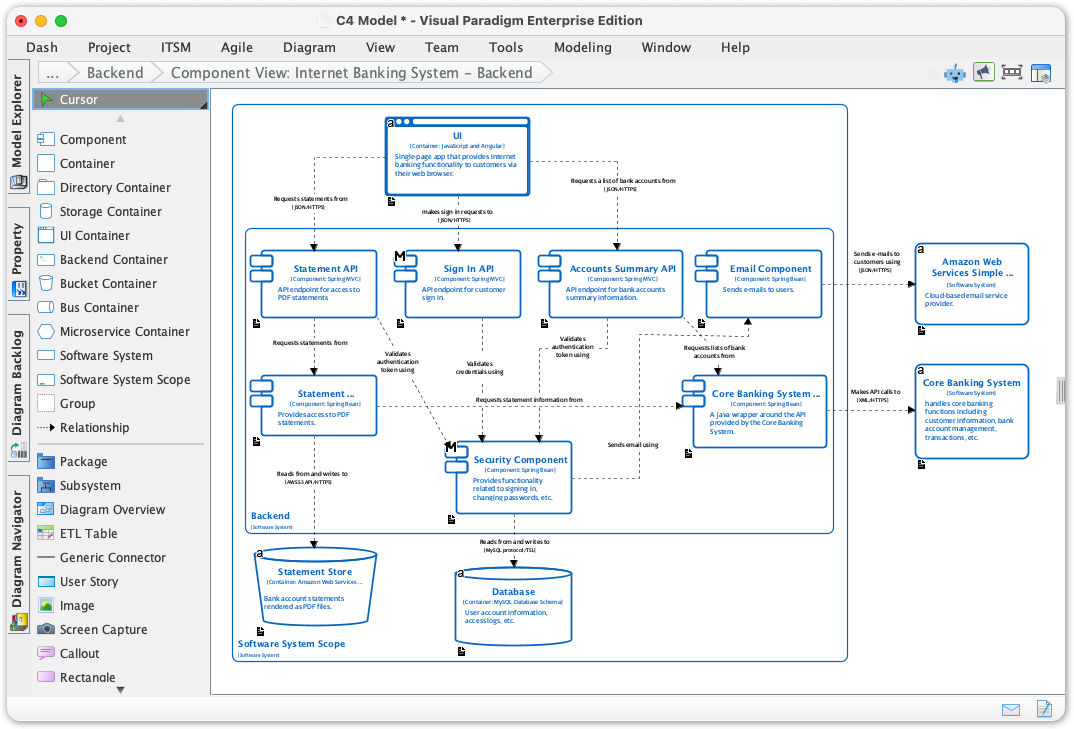
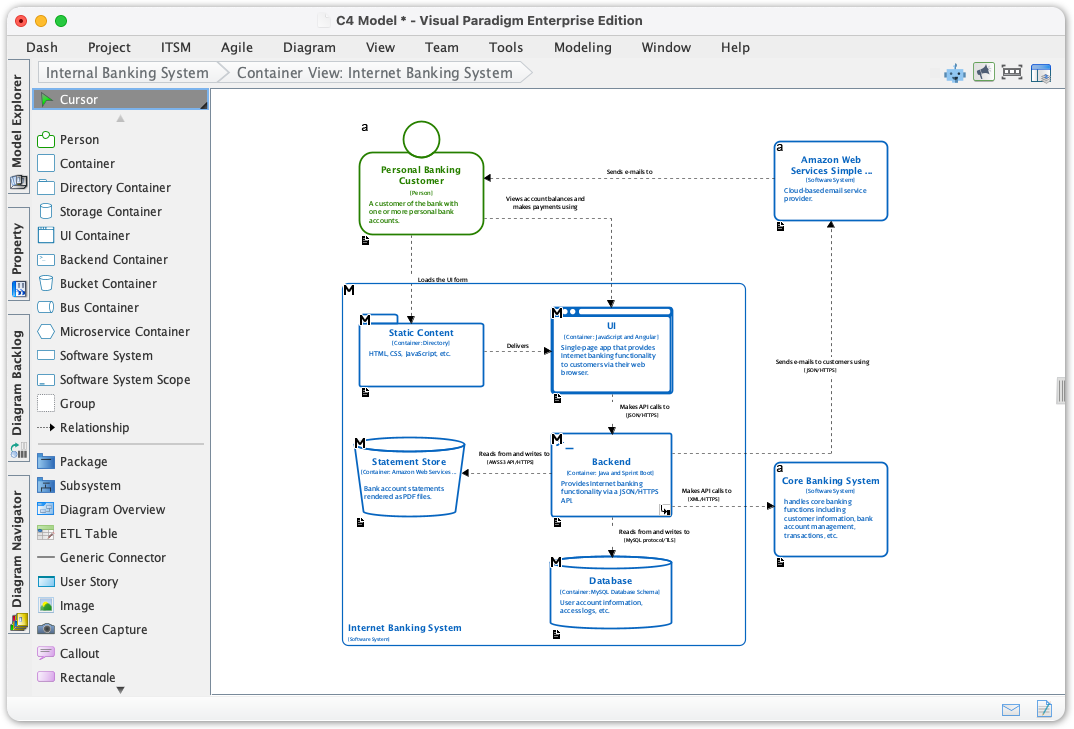
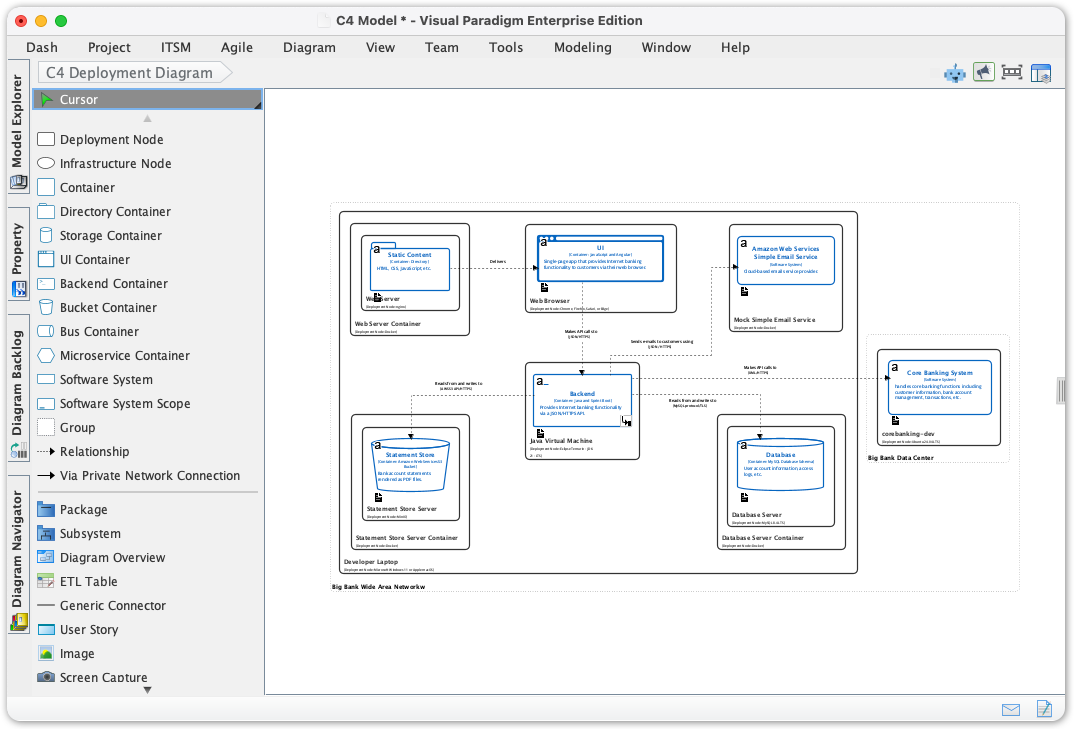
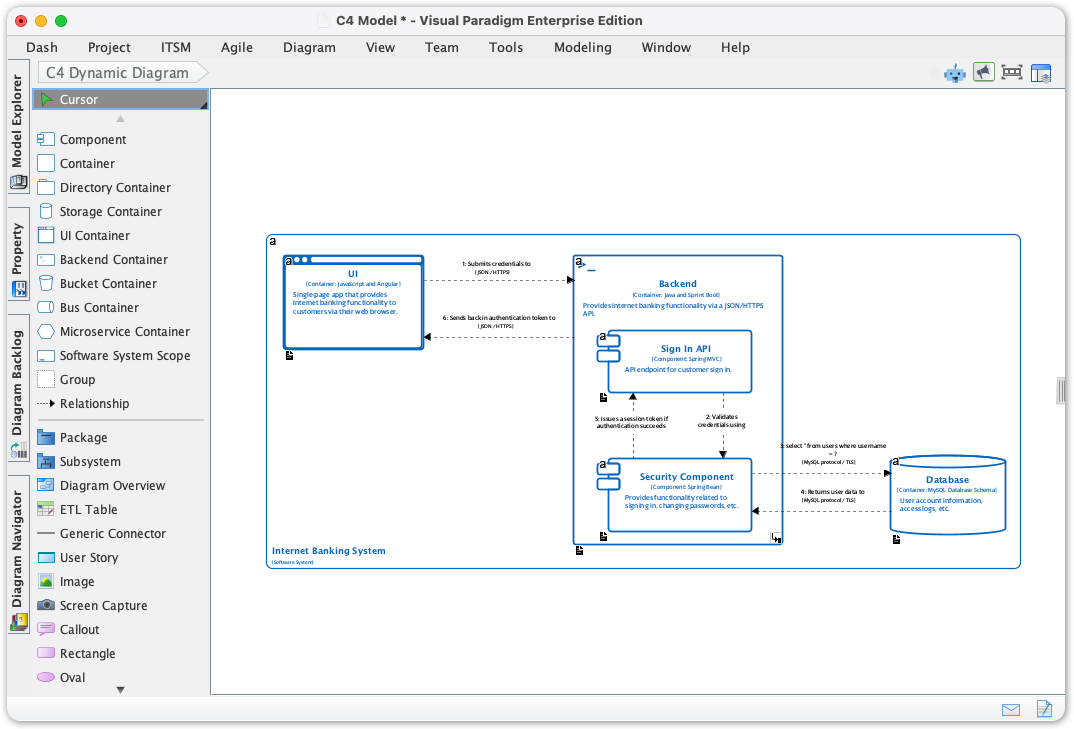
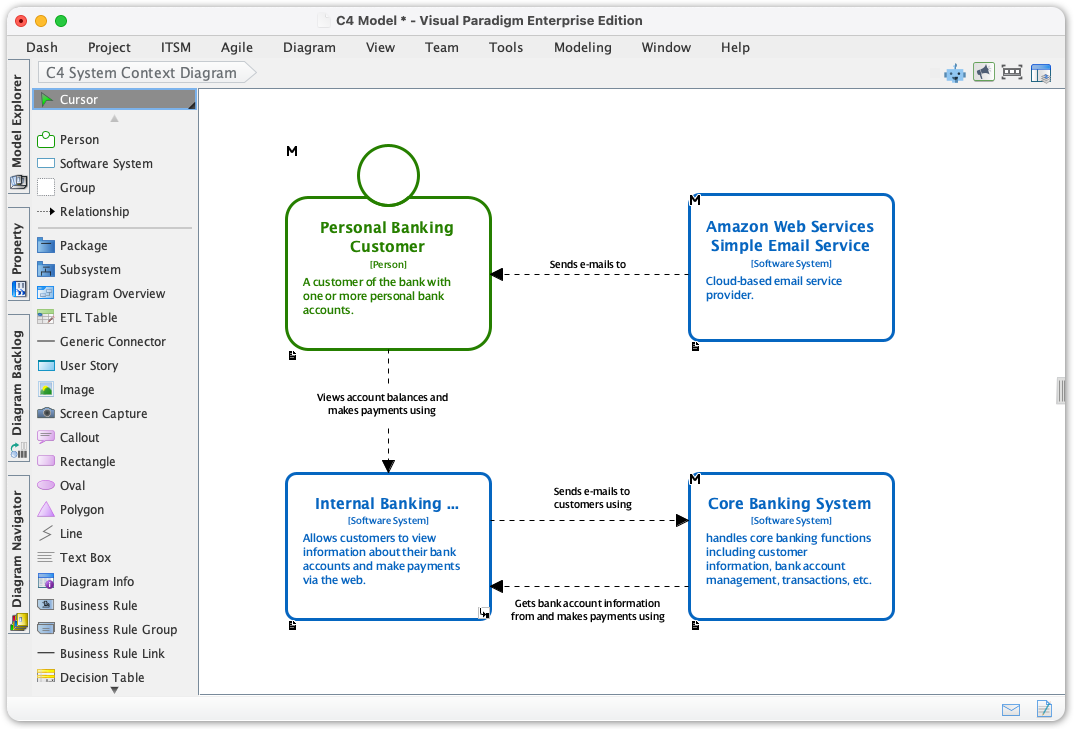
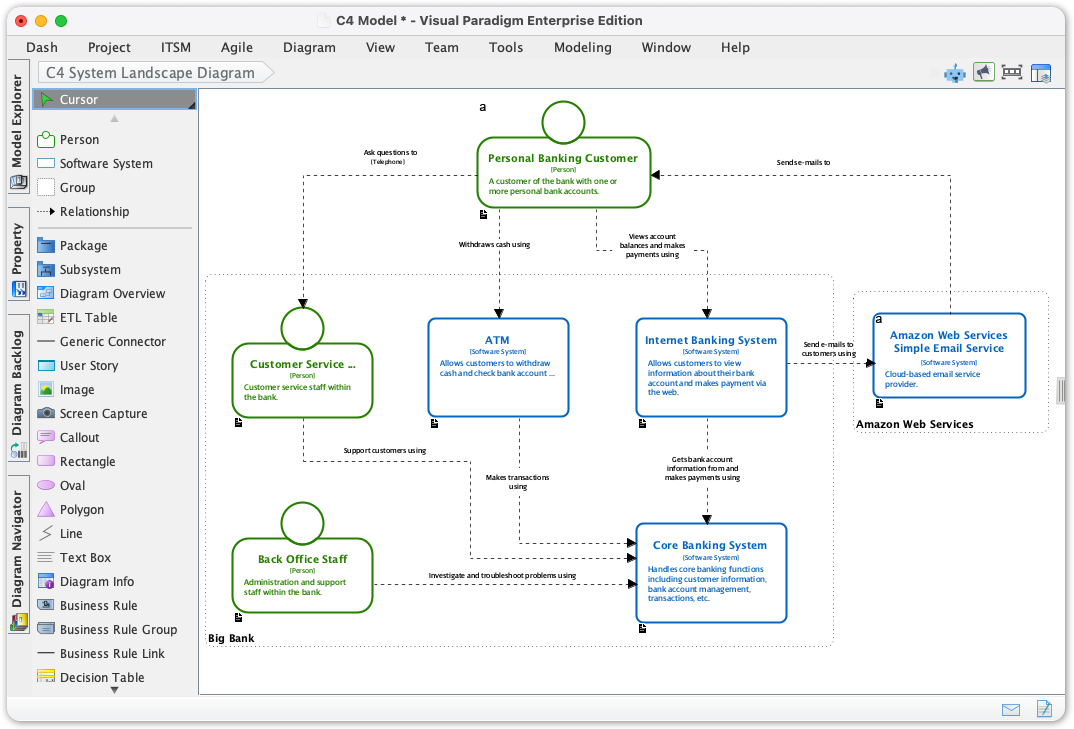
These are accessible natively in the desktop app for precise, editable modeling.
How AI Enhances C4 Modeling in Visual Paradigm
Visual Paradigm’s AI features (introduced/expanded around December 2025) transform text descriptions into complete, standards-compliant C4 diagrams, solving the “blank canvas” problem and reducing manual effort dramatically. Key AI tools include:
-
AI Diagram Generator (integrated in Visual Paradigm Desktop) — Generates any or all of the six C4 views instantly from a natural language prompt.
-
AI-Powered C4 PlantUML Studio (browser-based/online tool, often integrated or accessible to Desktop users with maintenance) — Uses PlantUML rendering for interactive, code-backed diagrams generated from text; supports hierarchical C4 generation (Context → Containers → Components + supporting views like Deployment/Sequence).
-
AI Diagramming Chatbot (conversational interface, e.g., at chat.visual-paradigm.com or integrated) — Allows iterative prompting, refinements, explanations, or generation of specific C4 diagrams via chat.
-
Additional helpers like AI-assisted refinements, suggestions, or explanations of C4 concepts.
The AI understands C4 standards deeply, ensuring accurate notation, relationships, technology labels, and hierarchy.
Comprehensive Step-by-Step Guide: Using AI for C4 Models in Visual Paradigm
1. Get Started (Prerequisites)
-
Download and install Visual Paradigm Desktop (Standard edition or higher) from https://www.visual-paradigm.com/download/.
-
Ensure an active license/maintenance for full AI access (some advanced AI features may require Professional/Enterprise + maintenance for cloud integrations).
-
For online/cloud variants: Use https://online.visual-paradigm.com/ or https://ai.visual-paradigm.com/ for browser-based tools like AI-Powered C4 PlantUML Studio.
2. Manual C4 Diagram Creation (Baseline Without AI)
-
Open Visual Paradigm Desktop.
-
Go to Diagram > New.
-
Search for “C4” in the diagram selector.
-
Choose the desired type (e.g., C4 Container Diagram).
-
Use the dedicated C4 toolbox/palette: Drag shapes (Person, Software System, Container, Component, Database, etc.), add relationships, and annotate with technologies.
-
Build hierarchy: Link diagrams (e.g., drill from Context to Container via model elements).
3. Generate C4 Diagrams Using AI Diagram Generator (Desktop)
This is the primary AI entry point for most users.
-
Open Visual Paradigm Desktop.
-
Click Tools in the toolbar.
-
Select AI Diagram Generation (or similar AI-assisted feature).
-
In the dialog/prompt area, choose C4 Model from the diagram type menu.
-
Enter a clear description, e.g.:
-
“Generate the full C4 model for an online banking system: mobile app, web app, backend API, PostgreSQL database, external payment gateway, authentication service.”
-
Or target one view: “Create a C4 Container Diagram for a microservices-based e-commerce platform with frontend SPA, order service, inventory service, payment service, and MongoDB.”
-
-
Specify details like technologies (e.g., React, Spring Boot, AWS) or relationships.
-
Submit → AI generates the diagram(s) automatically.
-
Review/edit: Refine shapes, add notes, adjust layout, or generate additional levels (e.g., zoom into a container for Components).
-
Save/export: As VP project, images (PNG/SVG), PDF, or integrate with other models.
4. Using AI-Powered C4 PlantUML Studio (Online/Integrated)
Ideal for quick prototyping or PlantUML fans.
-
Visit https://ai.visual-paradigm.com/tool/ai-powered-c4-plantuml-studio/ or access via Desktop integration.
-
Describe your system in the input field, e.g., “An online food delivery platform with customer mobile app, restaurant portal, delivery driver app, backend services in Node.js, MySQL database, and third-party map API.”
-
Select target views or request full suite (Context + Containers + Components + Deployment).
-
AI generates PlantUML code + rendered diagram.
-
Edit the generated PlantUML code if needed, regenerate, navigate hierarchy interactively.
-
Export or copy to Desktop for further work.
5. Conversational Generation with AI Chatbot
Great for iterative work or learning.
-
Go to https://chat.visual-paradigm.com/ or open integrated chatbot.
-
Prompt examples:
-
“Generate a C4 Component Diagram for the payment service in an e-commerce system.”
-
“Explain the differences between C4 Container and Component levels, then create a Container diagram for a weather forecasting app.”
-
“Refine this C4 Deployment Diagram to include Kubernetes pods and AWS RDS.”
-
-
Chatbot responds with generated diagram (viewable/embeddable), explanations, or suggestions.
-
Iterate: Ask to “add relationships,” “change technology to AWS Lambda,” or “generate Dynamic view for order processing flow.”
6. Best Practices and Tips
-
Prompt effectively: Be specific about scope, technologies, actors, and relationships. Start broad (Context), then drill down.
-
Hierarchy management: Use model elements to link levels (e.g., a Container in Level 2 becomes parent for Level 3 Components).
-
Refinement: AI outputs are strong starting points—always review for accuracy and customize.
-
Collaboration: Export/share diagrams; use cloud version for team real-time work.
-
Integration: Combine with other VP features (UML, ArchiMate, requirements, code engineering).
-
Limitations: AI excels at Levels 1-3 + supporting views; Level 4 (Code) typically uses class/sequence diagrams separately.
Visual Paradigm’s AI turns C4 modeling from a tedious task into a fast, intelligent process—ideal for architects, developers, and teams documenting microservices, enterprise systems, or cloud architectures.
-
The Ultimate Guide to C4-PlantUML Studio: Revolutionizing Software Architecture Design: This resource explains how the studio combines AI-driven automation, the structural clarity of the C4 model, and the flexibility of PlantUML (an open-source UML tool) to solve documentation bottlenecks.
-
Ultimate Guide to C4 Model Visualization Using Visual Paradigm’s AI Tools: A comprehensive guide on leveraging specialized AI features to automate and enhance the creation of hierarchical C4 model diagrams for faster system design.
-
AI-Powered UML Class Diagram Generator by Visual Paradigm: This page details an advanced tool that automatically generates UML class diagrams from natural language descriptions, significantly streamlining the software design process.
-
Visual Paradigm – AI-Powered UML Sequence Diagrams: This article demonstrates how to produce professional UML sequence diagrams directly from text prompts using an integrated AI modeling suite.
-
Comprehensive Tutorial: Generating and Modifying C4 Component Diagrams with AI Chatbot: A step-by-step guide illustrating how to use a conversational assistant to create and refine the internal structure of software systems through the C4 model’s component level.
-
Major Upgrade to AI UML Component Diagram Generation in Visual Paradigm AI Chatbot: An official update detailing enhancements that make the AI chatbot an indispensable tool for generating modular UML component structures.
-
AI-Powered Sequence Diagram Refinement Tool | Visual Paradigm: This resource discusses how AI can automatically optimize and suggest improvements for existing sequence diagrams, ensuring structural correctness and clarity.
-
Beyond the Code: How AI Automates C4 Model Diagrams for DevOps and Cloud Teams: A detailed guide on using an AI assistant to automate the full C4 modeling lifecycle through simple conversational prompts, ensuring consistency across all abstraction levels.
-
AI Diagram Generator: Complete C4 Model Support: An announcement regarding the release of a specialized AI engine capable of automated creation of C4 model diagrams to support complex architectural documentation.
-
How AI Enhances Class Diagram Creation in Visual Paradigm: This blog post explores how the integration of AI automates and improves the accuracy of creating UML class diagrams, making software design faster for development teams.