


Introduction
In the fast-paced world of product management and enterprise architecture, documentation often becomes the bottleneck. We’ve all been there: spending hours refining a complex UML diagram in a desktop tool, only to export it as a static PNG, upload it to a wiki, and then realize a stakeholder requested a minor change. The cycle repeats, leading to “documentation debt”—where your knowledge base is perpetually out of sync with your actual system design.
As a Product Manager with over seven years of experience bridging the gap between technical teams and business stakeholders, I’ve tested countless tools promising to solve this friction. Recently, I put Visual Paradigm’s new integration between Visual Paradigm Desktop and OpenDocs to the test. This isn’t just another export feature; it’s a unified pipeline designed to keep your diagrams live, editable, and version-controlled within your documentation. After several weeks of daily use, here is my comprehensive review of how this workflow holds up in a real-world professional environment.
What Is Visual Paradigm OpenDocs?
Before diving into the mechanics, it’s important to understand the destination: OpenDocs. Unlike generic documentation platforms like Confluence or Google Docs, OpenDocs is built specifically for teams that rely heavily on visual modeling. Its standout feature is native support for interactive diagrams. You don’t just paste an image; you embed a live model that can be re-edited directly from the document interface.
With the new integration supporting exports from Visual Paradigm Desktop, OpenDocs has evolved into a central hub for professional modeling. For enterprise architects, business analysts, and product managers who need to maintain “living documentation,” this shift from static snapshots to dynamic models is significant.
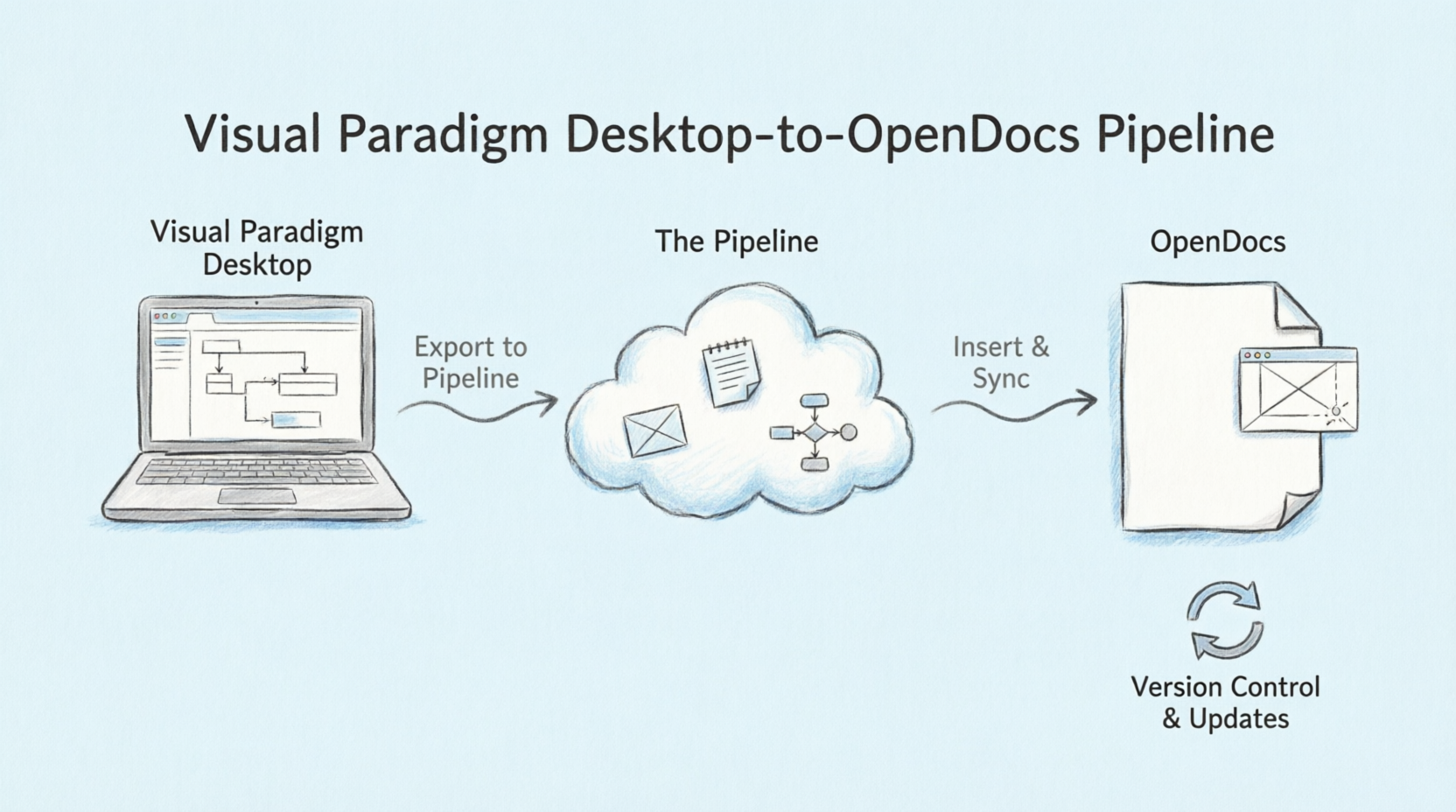
Understanding the Pipeline: The Central Nervous System
The secret sauce behind this integration is the Pipeline. Think of the Pipeline as a secure, cloud-based repository for all your modeling artifacts. Since Visual Paradigm’s ecosystem covers everything from enterprise architecture (ArchiMate) to agile development (User Stories), the Pipeline acts as the bridge that transfers these assets between tools.
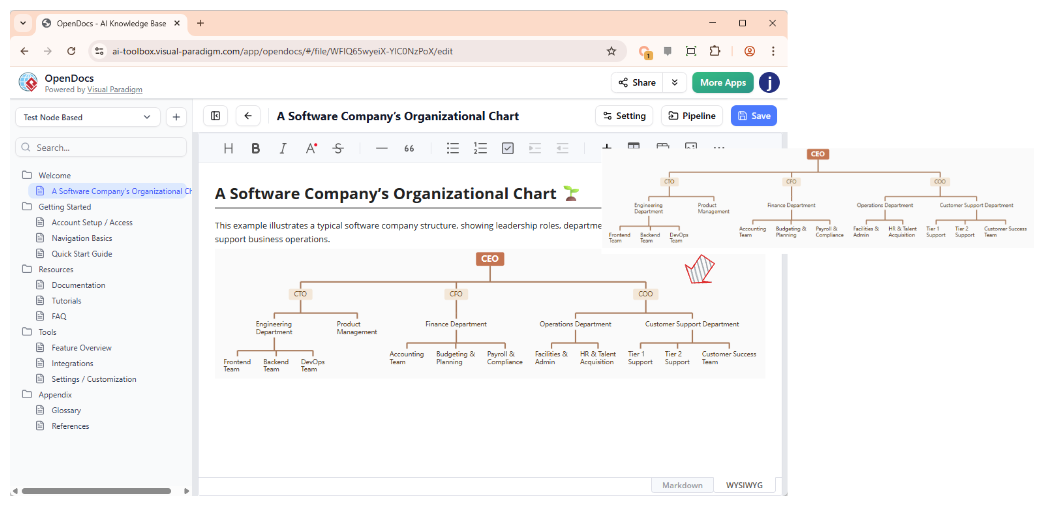
This architecture allows for a seamless handoff. An AI-generated prototype in the chatbot, a refined UML diagram in Desktop, or a process flow in Online can all feed into the same documentation stream. It eliminates the need for manual file management, ensuring that the output of one tool becomes the immediate input for another.
My Workflow: Exporting Diagrams from Desktop to OpenDocs
Whether you are manually crafting a detailed architecture diagram or using Visual Paradigm’s AI generation tool for quick prototyping, the export process is remarkably streamlined. Here is the step-by-step workflow I used during my testing phase.
Step 1: Prepare Your Diagram
I started in Visual Paradigm Desktop with a use case diagram for a customer management system I had been modeling. The diagram was complete, with all actors and relationships defined.
Step 2: Initiate the Export
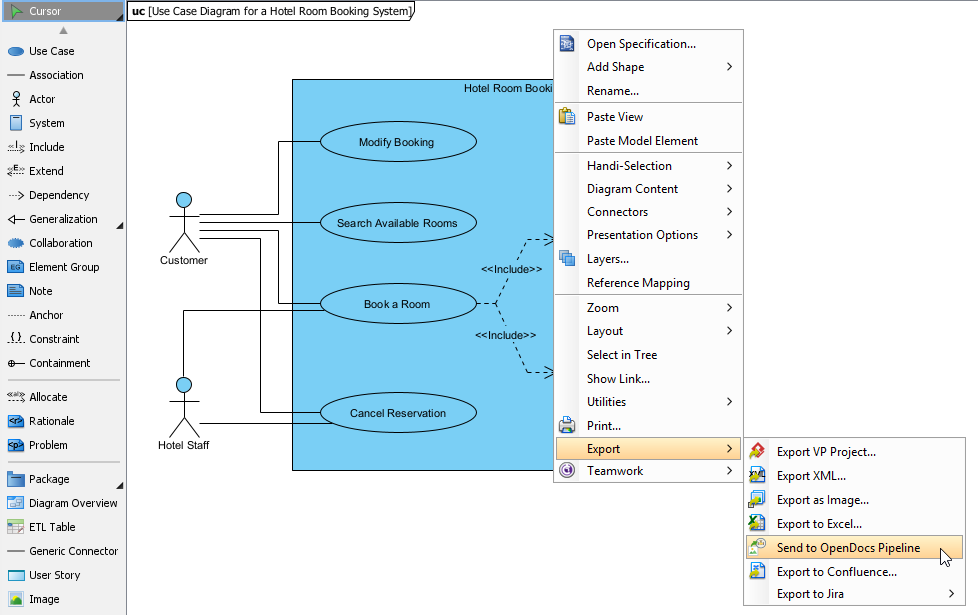
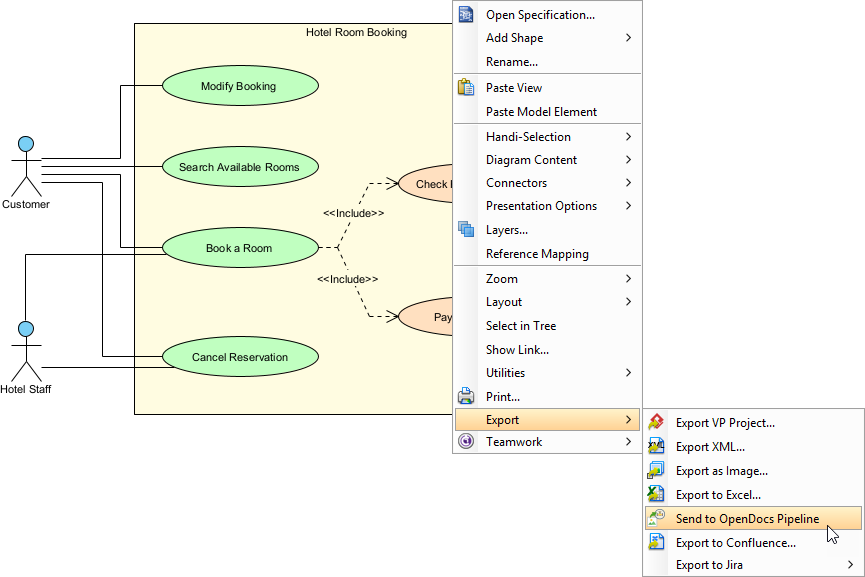
To send the artifact to the cloud, I right-clicked on the diagram canvas and selected Export > Send to OpenDocs Pipeline from the context menu.
Step 3: Save and Add Context
The system prompted me to save my local project first, which I did by clicking OK. Crucially, it then provided an optional field to enter a comment. This comment appears in the Pipeline pane within OpenDocs and serves as a version note. I highly recommend using this feature—adding notes like “Initial Draft for Stakeholder Review” helps future-you identify the purpose of specific artifacts quickly.
Step 4: Confirm and Upload
After confirming the export, the diagram was uploaded to the cloud. The entire process, including saving and uploading, took less than 30 seconds.
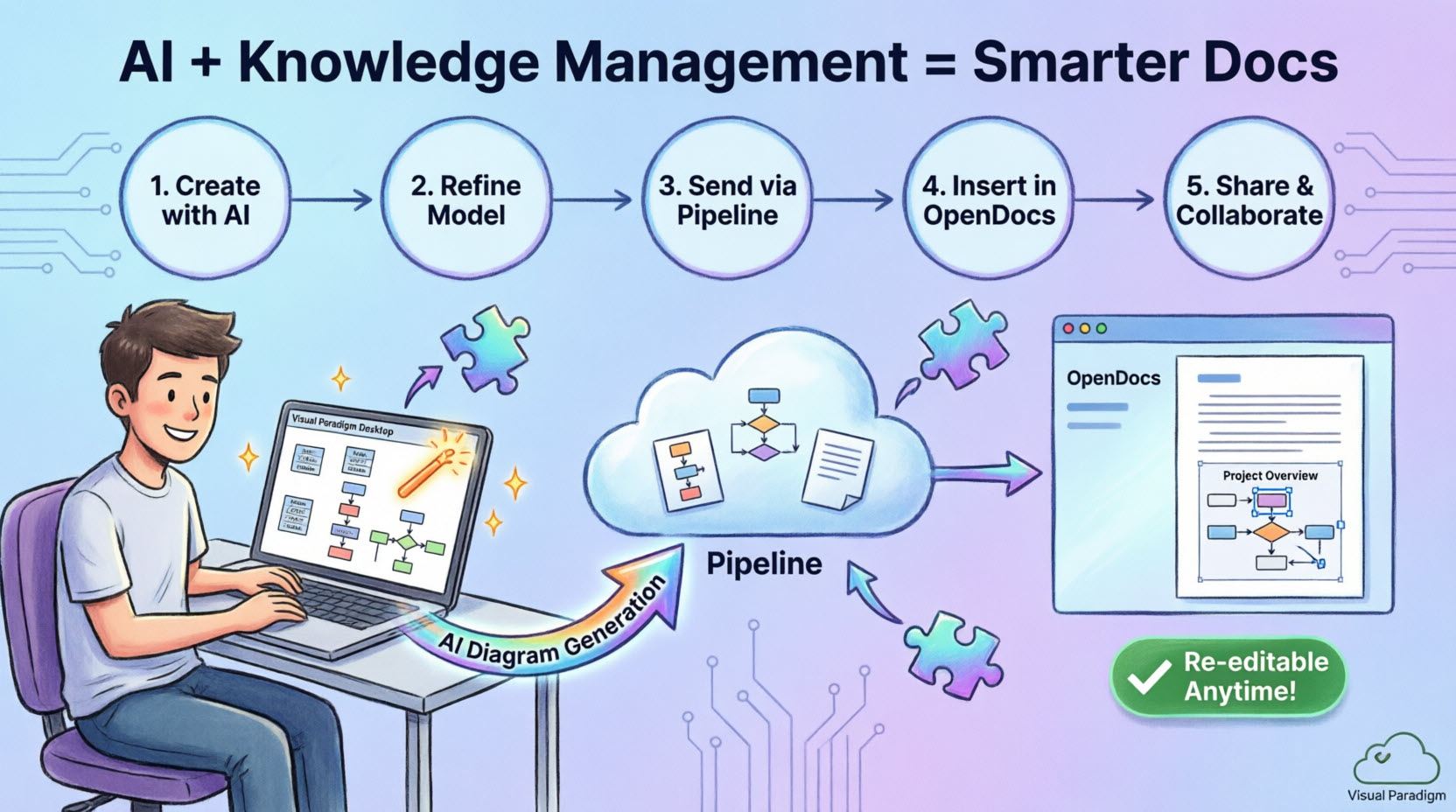
Inserting Artifacts Into Your Documentation
Once the diagram resides in the Pipeline, embedding it into your knowledge base is intuitive. Here is how I placed the diagram into my OpenDocs page.
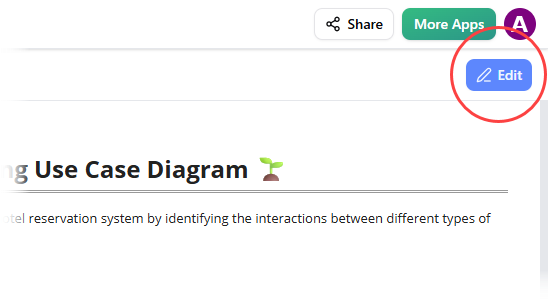
Step 1: Enter Edit Mode
I opened the target document page in OpenDocs and clicked the Edit button located at the top right corner of the interface.
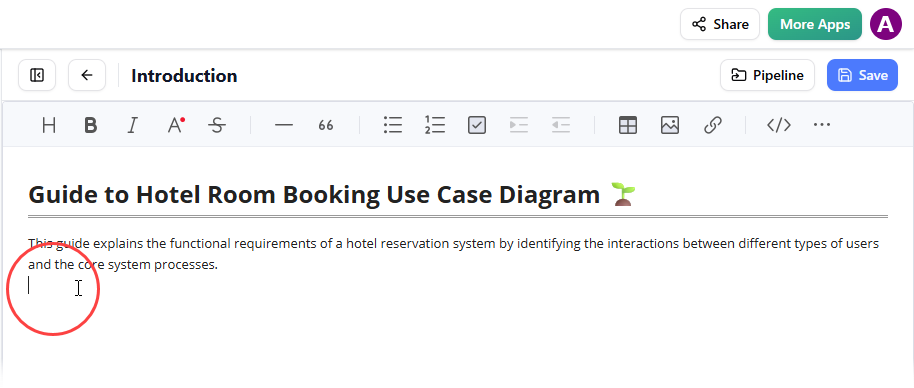
Step 2: Position Your Cursor
Precision matters in documentation. I clicked on the exact spot in the text where I wanted the diagram to appear, ensuring the flow of the document remained logical.
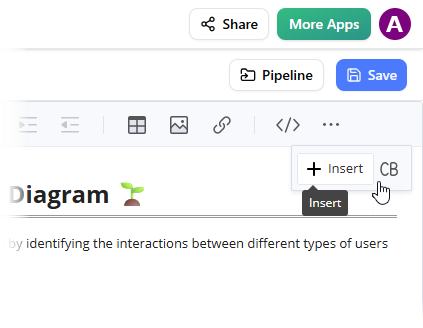
Step 3: Access the Insert Menu
On the editor toolbar, I clicked the Insert button to reveal the various insertion options available.
Step 4: Select from Pipeline
In the Insert window, I selected Pipeline from the left-hand sidebar. This opened a view of all artifacts I had previously sent to the cloud.
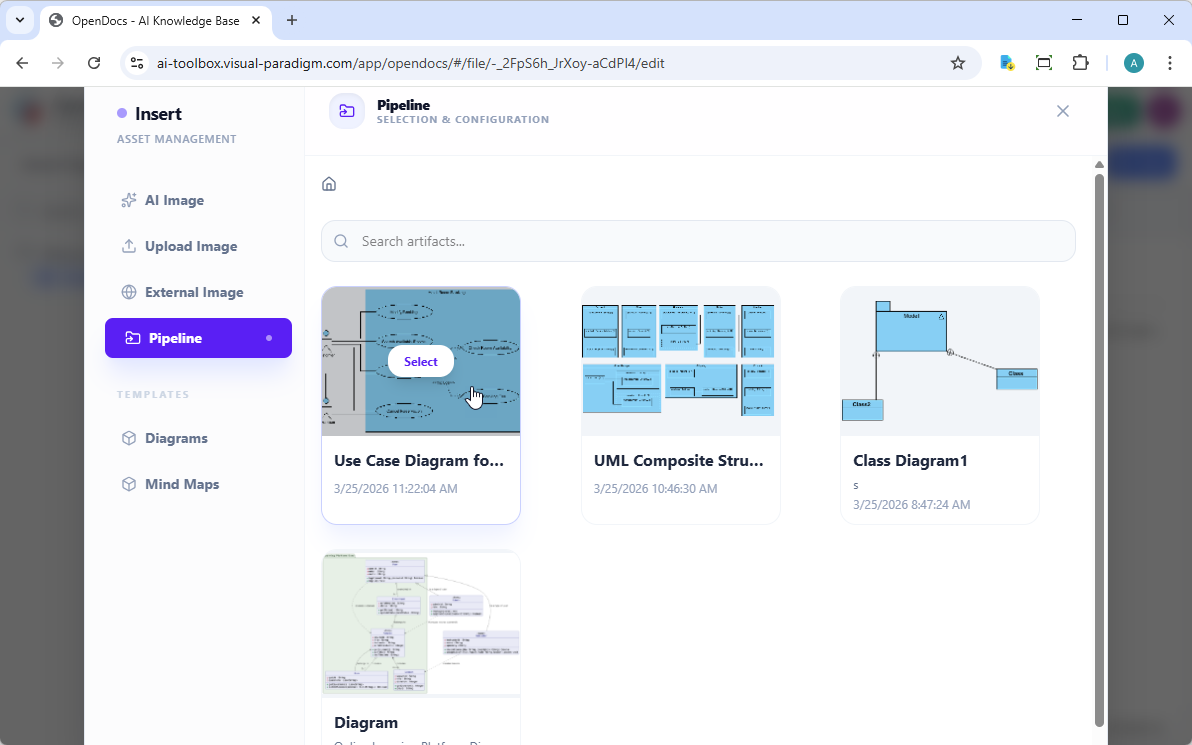
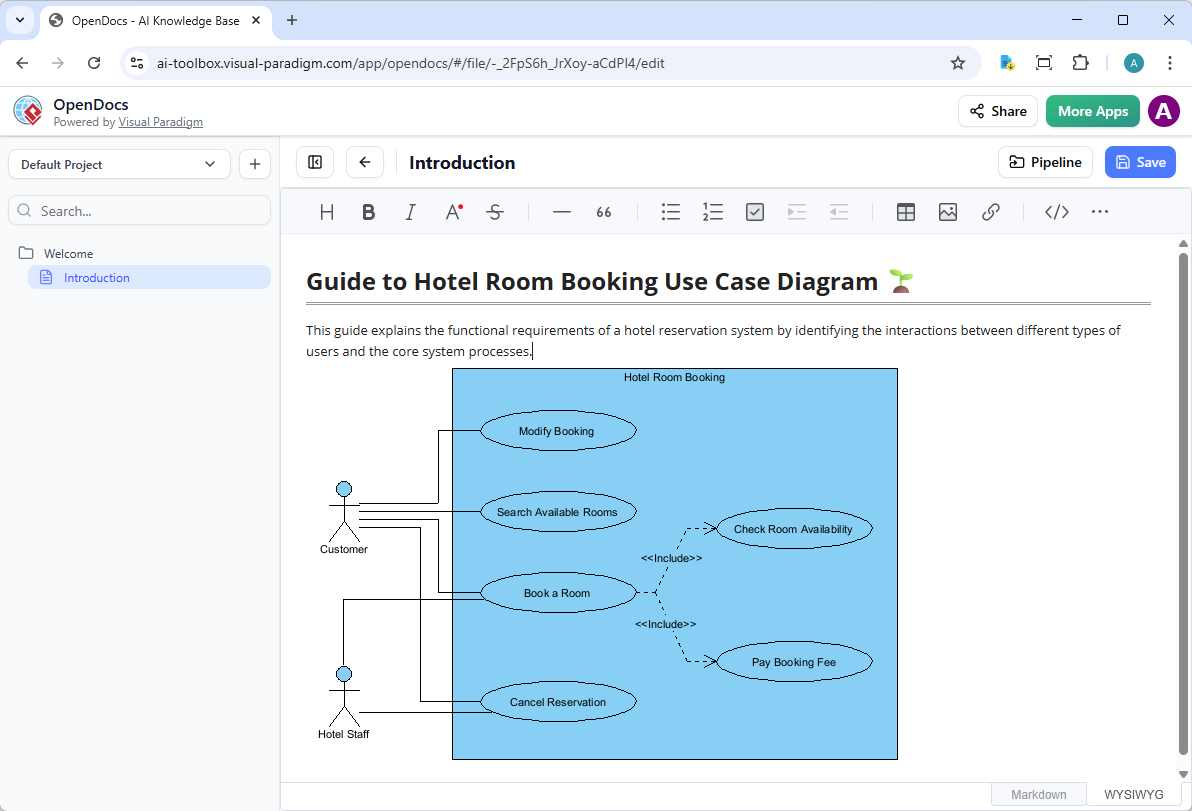
Step 5: Insert the Diagram
I clicked on my use case diagram, and it was instantly inserted at my cursor position. The result was crisp, vector-quality, and fully interactive—not a pixelated screenshot.
The Game-Changer: Keeping Documentation in Sync
The true value of this integration shines when requirements change. In traditional workflows, updating a diagram means repeating the entire export-upload-replace cycle. With the Pipeline, synchronization is seamless.
Step 1: Open the Source Diagram
When I needed to update the model, I didn’t hunt for the original .vpp file. Instead, in OpenDocs, I clicked the Edit icon at the top right of the embedded diagram. This opened the Edit Diagram window and provided a direct link to the source model.
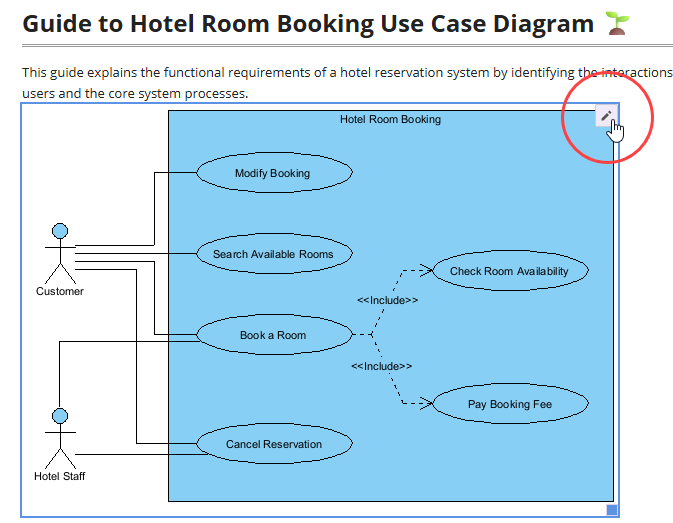
I copied this link and pasted it into Visual Paradigm Desktop (Project > Open), which automatically loaded the correct project and diagram. If the project was already open, this step would be skipped entirely.
Step 2: Edit and Re-send
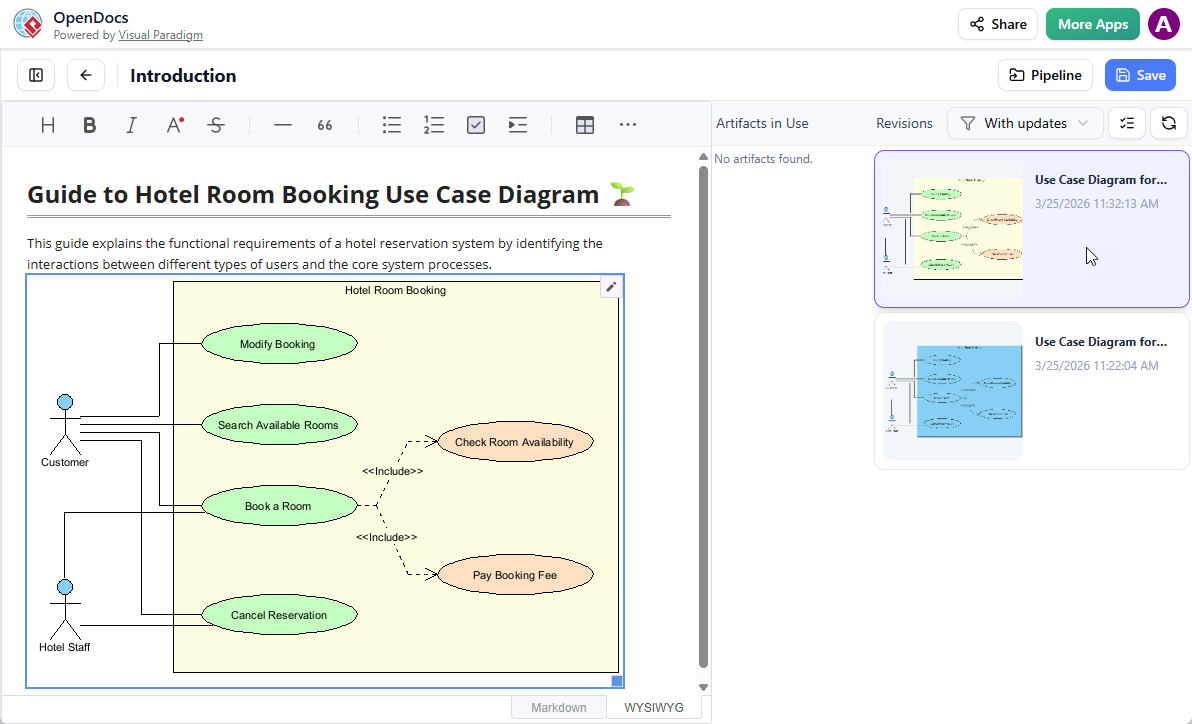
I made the necessary modifications to the use case diagram in Desktop. Once finished, I right-clicked the diagram and selected Export > Send to OpenDocs Pipeline again. This action created a new revision in the cloud without disturbing the existing document structure.
Step 3: Swap to the Latest Revision
Back in the OpenDocs editor, I clicked Pipeline at the top right to access the artifact manager.
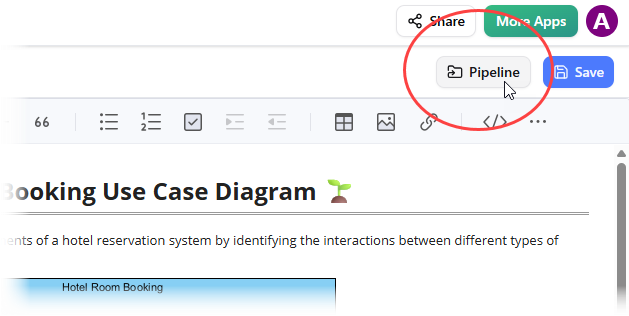
The system highlighted that a new revision was available. With a single click on the latest revision, the old diagram was instantly swapped for the updated version, maintaining all formatting and positioning.
My Honest Review: The Good, The Great, and The Considerations
After integrating this workflow into my daily routine, here is my balanced assessment.
What I Loved
1. Significant Time Savings:
What previously took 15–20 minutes of exporting, uploading, and reformatting now takes under a minute. Over the lifecycle of a complex product roadmap, this adds up to dozens of hours saved.
2. Robust Version Control:
The revision system in the Pipeline is intuitive and transparent. I can view the history of changes and roll back if necessary. This has saved me from publishing outdated diagrams to stakeholders more than once.
3. Seamless AI Integration:
Using Visual Paradigm’s AI diagram generation to quickly prototype concepts, then sending them directly to OpenDocs for stakeholder review, has significantly streamlined my initial design phases. It bridges the gap between ideation and formal documentation.
4. Zero Quality Loss:
Unlike screenshot-based workflows, the diagrams maintain their vector quality. They remain sharp at any zoom level and, most importantly, remain editable. This is crucial for professional, client-facing documentation.
Areas for Improvement
1. Learning Curve for Teams:
While the workflow is logical, team members unfamiliar with the Visual Paradigm ecosystem needed about a week to become comfortable with the concept of the Pipeline and artifact management.
2. Professional Edition Requirement:
This feature is exclusively available to Visual Paradigm Professional Edition users and above. This may be a barrier for smaller teams, startups, or individual consultants operating on tighter budgets.
3. Internet Dependency:
Since the Pipeline is cloud-based, a stable internet connection is required for syncing. Offline work requires a different, more manual workflow, which can be disruptive for travelers or those in low-connectivity areas.
Who Should Use This?
This integration is ideal for:
-
Enterprise Architecture Teams: Maintaining living documentation that reflects current system states.
-
Agile Development Teams: Keeping technical specifications and user stories synchronized with evolving codebases.
-
Business Analysts: Creating process documentation that needs frequent updates based on stakeholder feedback.
-
Consultants: Delivering professional, high-quality modeling artifacts to clients without manual formatting overhead.
Conclusion
Visual Paradigm’s Desktop-to-OpenDocs integration successfully delivers on its promise to bridge the gap between modeling and documentation. The “Concept-to-Docs” workflow is not merely a marketing slogan; it is a genuine productivity enhancer that eliminates the manual friction that has plagued modelers for years.
For professionals already invested in the Visual Paradigm ecosystem, this integration is a no-brainer. The ability to leverage AI for rapid prototyping, refine models in a professional desktop environment, and publish them to a knowledge base with full editability and version control is transformative. While the requirement for the Professional Edition may limit accessibility for some, the value proposition for teams serious about maintaining accurate, living documentation is undeniable.
My documentation is now more accurate, more current, and significantly easier to maintain. In an industry where technical debt often includes outdated diagrams, this tool helps ensure your knowledge base evolves alongside your systems. If you are looking to streamline your modeling workflow and reduce documentation overhead, this integration is worth exploring.
Final Verdict: 4.5/5 stars. A powerful, time-saving integration that delivers real value to professional modeling teams.
References
-
A Case Study on Streamlining Knowledge Management with Visual Paradigm OpenDocs Pipeline: An in-depth look at how organizations utilize the Pipeline to enhance knowledge management efficiency.
-
From Static Diagrams to Living Knowledge: A Case Study on Visual Paradigm’s Unified AI-Driven Documentation Ecosystem: Explores the transition from static images to dynamic, AI-enhanced documentation systems.
-
Bridging Design and Documentation: How Visual Paradigm’s Pipeline Transforms Technical Knowledge Management: Discusses the role of the Pipeline in connecting design tools with documentation platforms.
-
Visual Paradigm Pipeline Tutorial Video: A video guide demonstrating the setup and usage of the Pipeline feature.
-
Mastering Visual Paradigm OpenDocs: The Ultimate Guide to AI-Powered Knowledge Management and the Pipeline Ecosystem: A comprehensive guide covering AI features and Pipeline integration.
-
Visual Paradigm OpenDocs Integration Demo: A demonstration video showcasing the integration capabilities between Desktop and OpenDocs.
-
From Concept to Knowledge Base: How the Visual Paradigm Pipeline Eliminates Documentation Debt: Details how the Pipeline helps reduce the burden of maintaining outdated documentation.
-
AI Diagram to OpenDocs Pipeline Release Notes: Official release information regarding the AI diagram export features.
-
My Journey to Seamless Documentation: Sending Visual Paradigm Creations Directly to OpenDocs: A personal account of adopting the direct export workflow.
-
Mastering the Pipeline in Visual Paradigm OpenDocs: A Complete Guide to Streamlined Knowledge Management: A detailed tutorial on managing artifacts and revisions within the Pipeline.
-
Visual Paradigm OpenDocs Platform: The official landing page for the OpenDocs knowledge management platform.
-
From Diagrams to Documentation: A Hands-On Review of Visual Paradigm’s Pipeline and OpenDocs Share History: A review focusing on the sharing and history features of the integration.
Related posts:
 OpenDocs Features Review: The All-in-One AI-Powered Knowledge Base for Visual Documentation
 My Hands-On Review: Creating Professional UML Diagrams with Visual Paradigm Online
Visual Paradigm Pipeline & OpenDocs: The Ultimate Guide to Seamless Concept-to-Docs Workflow
My Hands-On Review: Creating Professional UML Diagrams with Visual Paradigm Online
Visual Paradigm Pipeline & OpenDocs: The Ultimate Guide to Seamless Concept-to-Docs Workflow
 Modularize, Reuse, and Scale: The Role of