


Introduction
For years, technical documentation has suffered from a persistent disconnect: the gap between dynamic system modeling and static written records. As product managers and architects, we often find ourselves trapped in a cycle of exporting diagrams as PNGs or JPEGs, uploading them to wikis, and then repeating the entire process every time a requirement changes. This manual friction not only slows down delivery but also leads to “documentation drift,” where the diagrams in our knowledge bases no longer reflect the actual system architecture.
Having spent over seven years in product management, working with complex cloud infrastructures and agile teams, I’ve seen firsthand how outdated visuals can derail stakeholder alignment. Recently, I had the opportunity to test the new integration between Visual Paradigm Desktop and Visual Paradigm OpenDocs. This feature promises to bridge that gap by introducing a centralized “Pipeline” for asset transit. In this review, I’ll walk you through my experience with this workflow, exploring how it transforms the way we manage technical knowledge and whether it truly delivers on its promise of a seamless “Concept-to-Docs” experience.
The Ultimate “Concept-to-Docs” Workflow
The core value proposition of this integration is the elimination of manual file handling. We are now able to combine the power of AI-assisted modeling with professional knowledge management for a faster, smarter documentation workflow.
We are excited to announce a powerful new integration between Visual Paradigm Desktop and Visual Paradigm OpenDocs. You can now bridge the gap between your modeling environment and your online document management platform. This feature allows teams to move from initial ideas to comprehensive, shared knowledge bases without the manual friction of exporting and uploading image files.
Imagine the possibilities: use the AI diagram generation in Visual Paradigm Desktop to instantly visualize a business process or system architecture. Refine the model using our professional suite of tools, and then send it directly to OpenDocs via the Pipeline to provide the necessary context and descriptions for your stakeholders.
Note: This integration is available to users of Visual Paradigm Professional Edition and above.
Ready to experience it? Access OpenDocs directly, or download the latest Visual Paradigm Desktop.
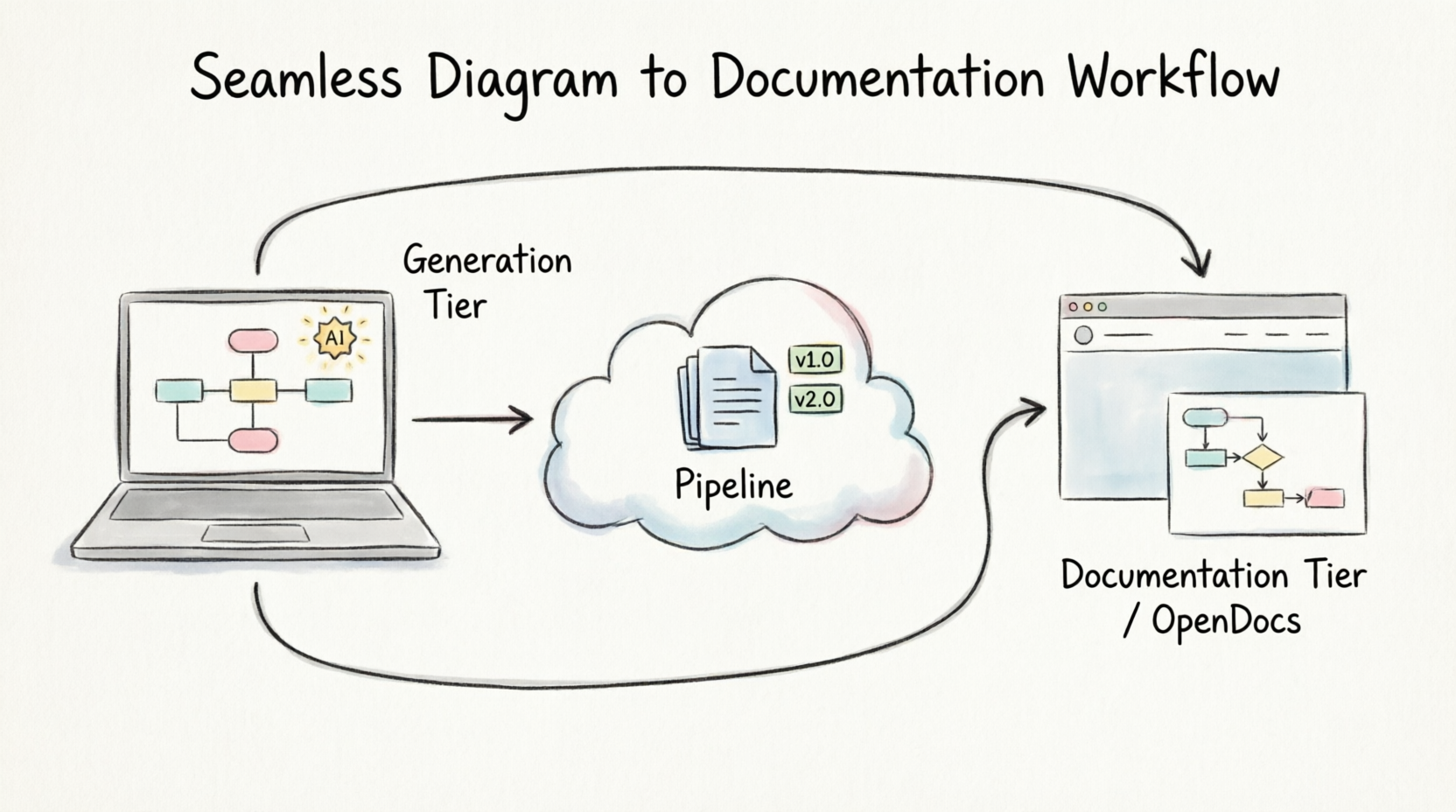
What is Visual Paradigm OpenDocs?
Before diving into the mechanics, it’s important to understand the destination of our artifacts. OpenDocs is a specialized knowledge and document management platform built for modern teams. Unlike conventional tools, OpenDocs integrates directly with a robust diagram editor. This means you can insert diagrams into your pages and re-edit them later without leaving the document. By supporting exports from Visual Paradigm Desktop, OpenDocs now becomes the central hub for all your professional modeling and documentation needs.
Understanding the Pipeline
The magic behind this integration is the Pipeline. The Pipeline is a secure, centralized repository for “artifacts”—the assets you create across the Visual Paradigm ecosystem. Since our tools cover everything from enterprise architecture to agile development, the Pipeline serves as the essential space to hold and transfer these artifacts. It allows the output from one tool, like an AI-generated UML diagram, to become the input for another, such as a technical manual in OpenDocs.
From my perspective, the Pipeline acts as the single source of truth. It tracks asset modifications, archives revisions, handles version histories, and processes metadata and team comments, ensuring that everyone is looking at the most current version of a design.
How to Export Your Diagrams to OpenDocs
Whether you created your diagram manually or used our AI generation tool, exporting it to your documentation is simple. Here is how the process felt during my testing:
- In Visual Paradigm Desktop, open the diagram you wish to send.
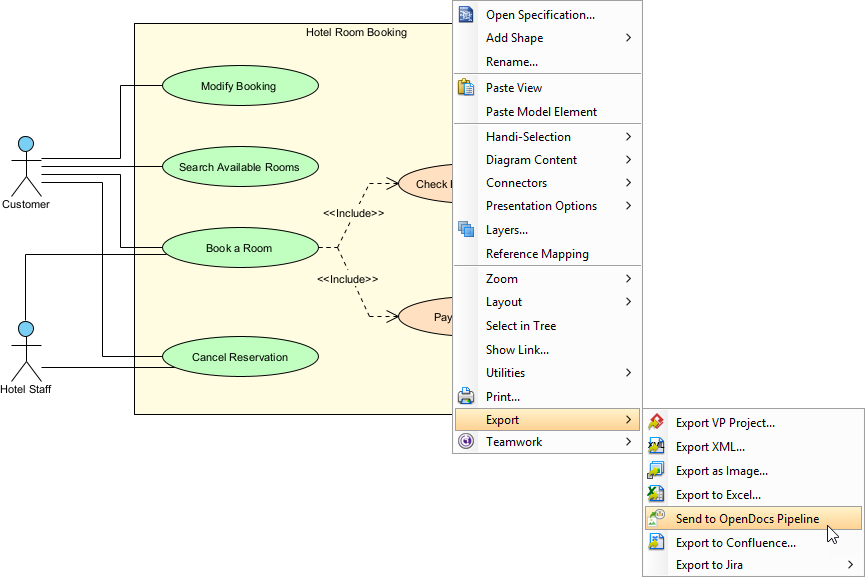
- Right-click on the diagram and select Export > Send to OpenDocs Pipeline.
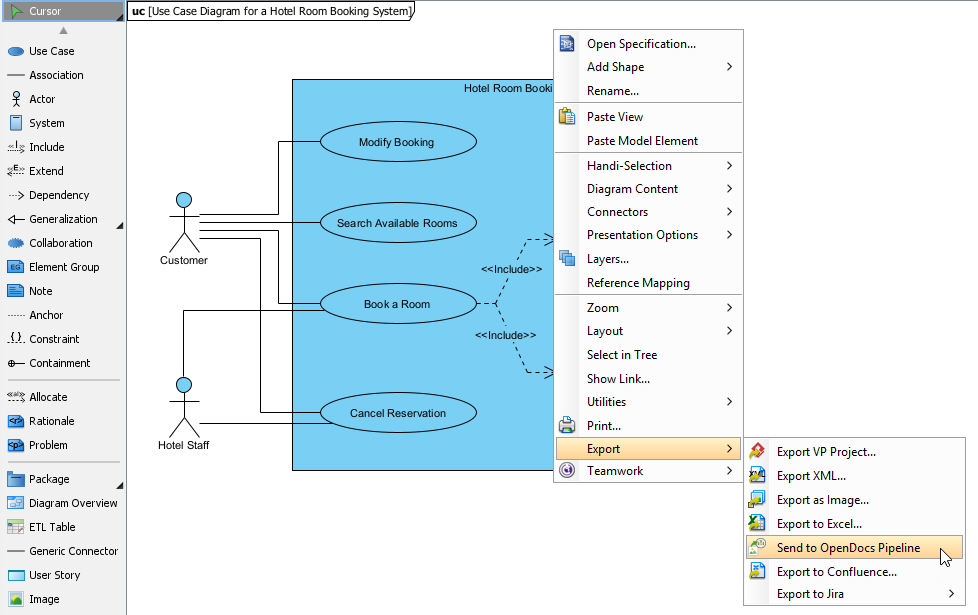
- When prompted, save your project by clicking OK.
- (Optional) Enter a comment. This will be visible in the Pipeline pane within OpenDocs to help you identify the version or purpose of the artifact.
- Confirm the export to output your diagram to the cloud.
Inserting Artifacts into Your Document
Once your diagram is in the Pipeline, you can place it anywhere in your knowledge base.
- Open any document page in OpenDocs and click Edit.
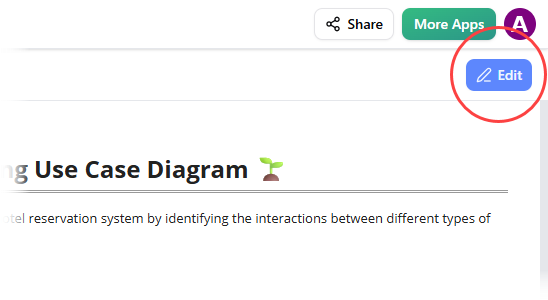
- Click on the page where you want to insert the diagram.
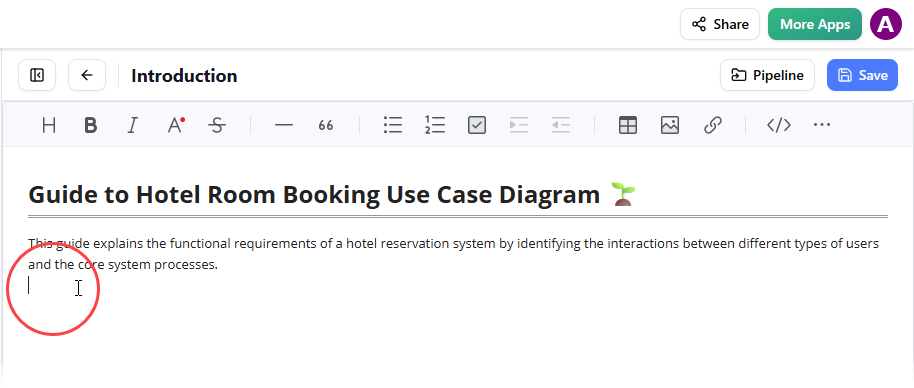
- On the toolbar, click Insert.
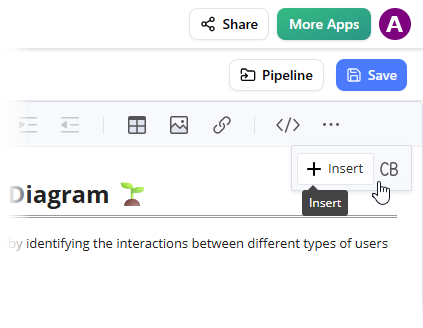
- In the Insert window, select Pipeline from the left-hand sidebar. Your sent diagrams will appear here.
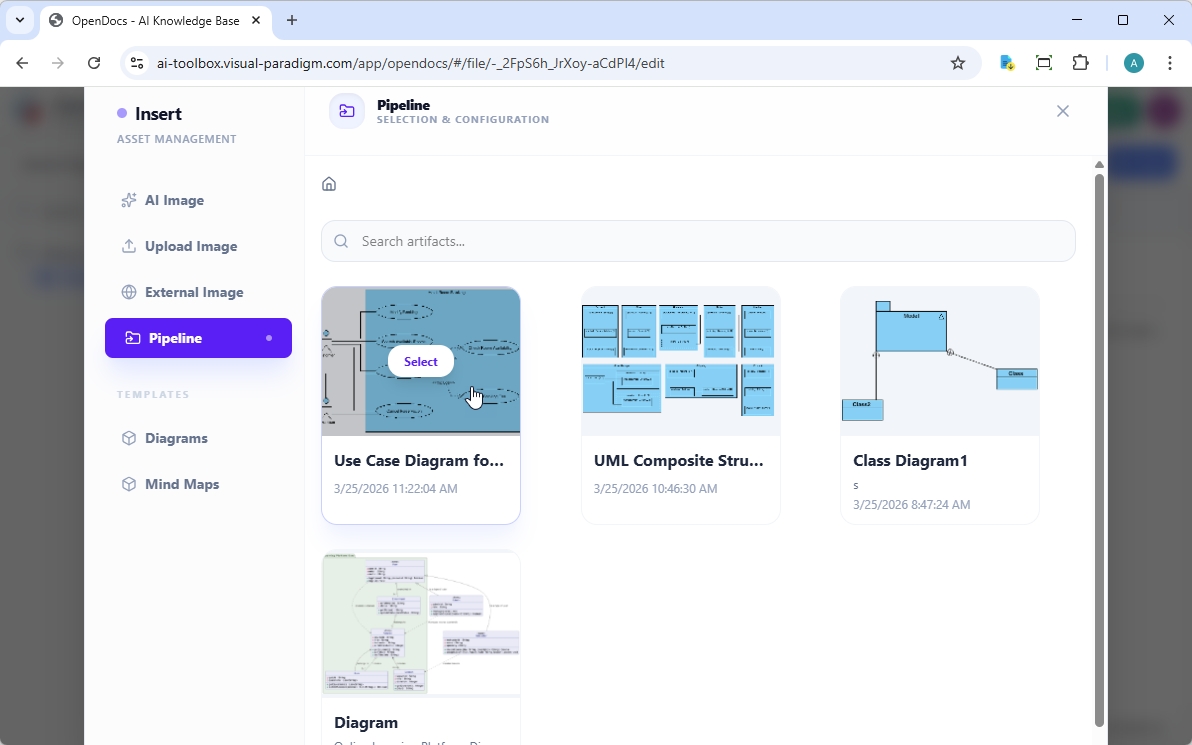
- Click on the diagram to insert the image directly at your cursor position.
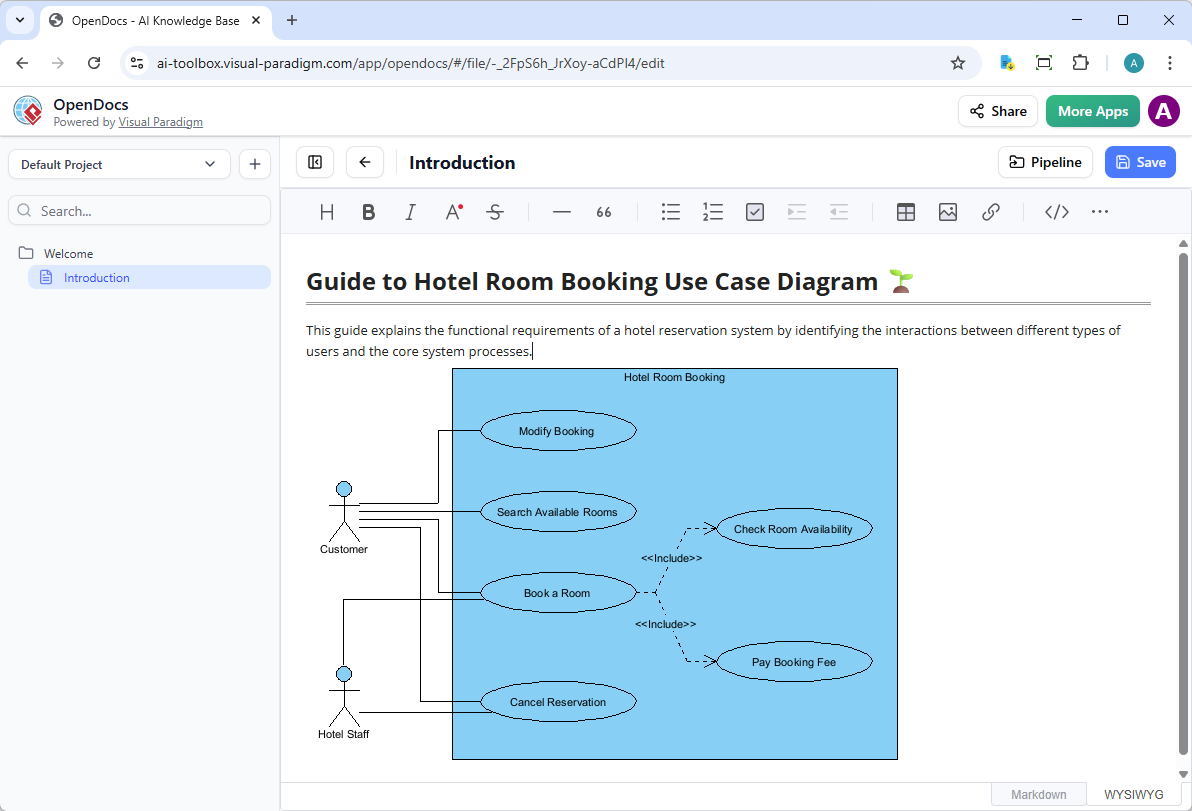
Keeping Your Documentation in Sync: Updating Artifacts
One of the most powerful aspects of this integration is the ability to update your documentation as your models evolve. In traditional workflows, updating a diagram meant finding the original file, making changes, re-exporting, and manually replacing the image in the wiki. With the Pipeline, this process is streamlined significantly.
If you need to make changes to a diagram already in OpenDocs, follow these steps:
1. Open the Source Diagram
In OpenDocs, click the Edit icon at the top right of the diagram image to open the Edit Diagram window.
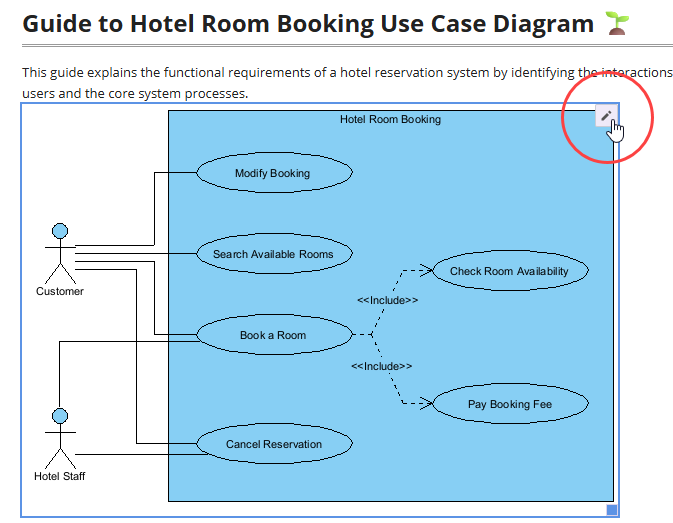
Copy the diagram link provided. In Visual Paradigm Desktop, go to Project > Open, paste the link, and the software will open the source model for you. (Alternatively, if you already have the project open, you can skip this step.)
2. Edit and Re-send
Modify your diagram in Visual Paradigm Desktop. Once finished, right-click the diagram and select Export > Send to OpenDocs Pipeline again. You can also simply commit your changes to VP Online, which automatically creates a new revision of the artifact.
3. Swap to the Latest Revision
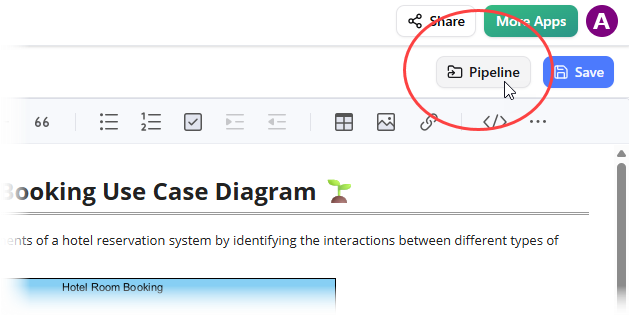
Back in the OpenDocs editor, click Pipeline at the top right.
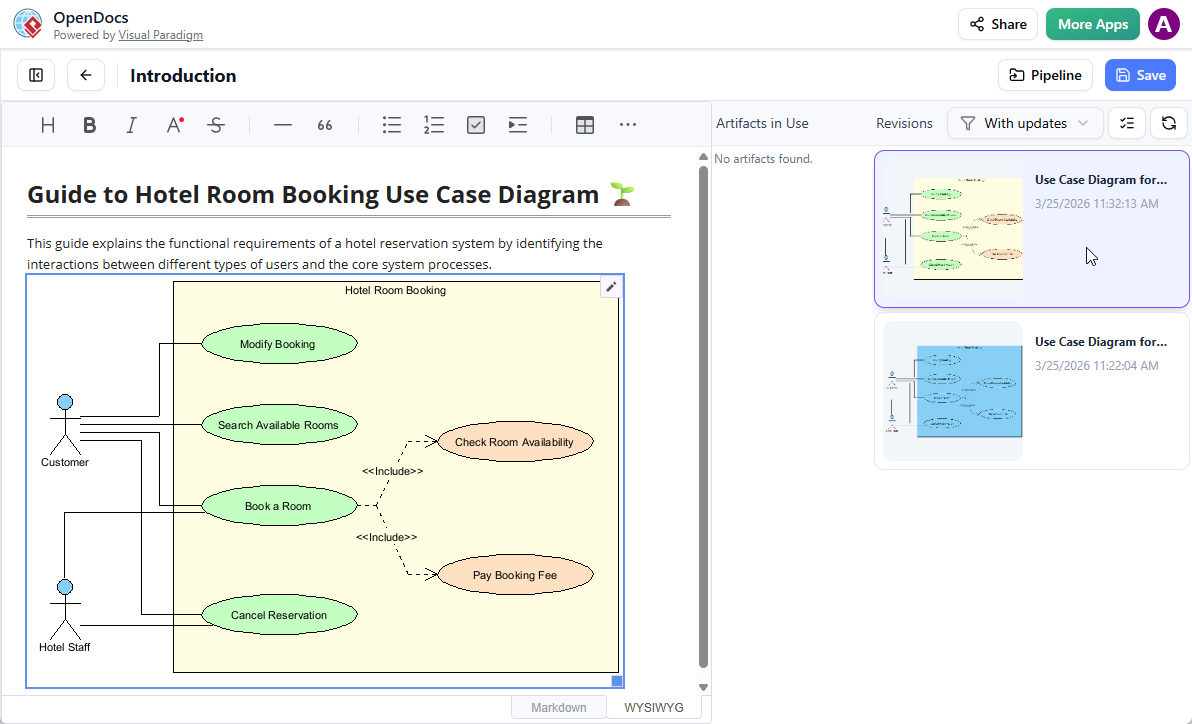
You will see the artifacts currently used on that page. Select the diagram to see a list of revisions. Simply click on the latest revision to instantly swap the old diagram for the updated version.
Core Architecture Tiers
To better understand how this ecosystem functions, it helps to look at its three interconnected functional layers:
- The Generation Tier: This is where diagrams originate. It supports Visual Paradigm Desktop for complex software designs, Visual Paradigm Online for web collaboration, VPasCode for text-to-diagram generation, and an integrated AI Chatbot.
- The Transit Tier (The Pipeline): This secure cloud space serves as the central nervous system. It tracks asset modifications, archives revisions, handles version histories, and processes metadata and team comments.
- The Documentation Tier (OpenDocs): This main web hub features a rich text editor. Teams structure information using a hierarchical “Knowledge Tree” system.
Standard Workflow Integration
Connecting assets to live technical manuals operates through a straightforward procedure:
- Trigger the Export: Open a source model layout inside your creation tier app. Select Export > Send to OpenDocs Pipeline.
- Add Context: Input brief version tracking comments or tags for your engineering peers. Click confirm to store it in the cloud hub.
- Embed Visuals: Move to the web interface editor in OpenDocs. Click Insert > Pipeline from the action menu.
- Select Revision: Browse the shared pipeline asset drawer and pick your diagram. The asset places instantly at your active text cursor.
Diagram Maintenance and Synchronization
When design requirements change, the Pipeline keeps documentation current through a simple loop:
[Edit Source Diagram] ➔ [Send to Pipeline] ➔ [Select Latest Revision in OpenDocs]
Users can click the edit link on any diagram within OpenDocs to locate and open the source file inside Visual Paradigm Desktop or Online. Once the design revisions are sent back into the Pipeline, an update indicator alerts the documentation writers. Authors can then access the workspace pipeline panel, view all available version entries, and swap older visuals for the newest system revision in one click.
Conclusion
After putting the Visual Paradigm Desktop-to-OpenDocs integration through its paces, I am convinced that this is a significant leap forward for technical documentation. The ability to treat diagrams as living assets rather than static snapshots addresses one of the most painful bottlenecks in product development.
For product managers and architects who rely on accurate, up-to-date visuals to communicate complex systems, the Pipeline removes the administrative overhead that often leads to neglected documentation. The seamless sync between the modeling environment and the knowledge base ensures that stakeholders always have access to the latest design decisions. While it requires a commitment to the Visual Paradigm ecosystem, the efficiency gains in maintaining a “single source of truth” make it a compelling tool for modern engineering teams. If you are looking to streamline your concept-to-documentation workflow, this integration is certainly worth exploring.
References
- From Diagram to Documentation: A Beginner’s Guide to the Visual Paradigm Pipeline: A comprehensive guide introducing the Visual Paradigm Pipeline and its role in connecting diagram creation with documentation.
- Bridging Design and Documentation: How Visual Paradigm’s Pipeline Transforms Technical Knowledge Management: An analysis of how the Pipeline feature improves technical knowledge management by linking design and documentation.
- Mastering the Pipeline in Visual Paradigm OpenDocs: A Complete Guide to Streamlined Knowledge Management: A detailed guide on using the Pipeline within OpenDocs for efficient knowledge management.
- From Code to Clarity: A Beginner’s Guide to Seamless Diagramming with VPasCode and OpenDocs: Explains how to use VPasCode for text-to-diagram generation and integrate it with OpenDocs.
- From Concept to Documentation: How Visual Paradigm OpenDocs Unifies AI-Powered Modeling and Knowledge Management: Discusses the unification of AI modeling and knowledge management in Visual Paradigm OpenDocs.
- From Model to Manual: A Software Engineer’s Guide to Syncing Visual Paradigm Desktop Diagrams with OpenDocs: A practical guide for software engineers on syncing desktop diagrams with OpenDocs.
- From Concept to Knowledge Base: A Third-Party Review of Visual Paradigm’s OpenDocs Workflow: A third-party review evaluating the workflow efficiency of Visual Paradigm OpenDocs.
- Visual Paradigm OpenDocs: The Complete Developer’s Guide to AI-Powered Technical Documentation: A developer-focused guide to using AI features in Visual Paradigm OpenDocs for technical documentation.
- Visual Paradigm OpenDocs: The Complete Guide to AI-Powered Knowledge Management and Diagram Generation: A comprehensive guide covering AI-powered knowledge management and diagram generation in OpenDocs.
- Visual Paradigm’s Pipeline: Hands-On Review of Visual Paradigm’s Desktop to OpenDocs Integration: A hands-on review of the integration between Visual Paradigm Desktop and OpenDocs via the Pipeline.
- My Journey to Seamless Documentation: Sending Visual Paradigm Creations Directly to OpenDocs: A personal account of using the direct export feature from Visual Paradigm to OpenDocs.
- Sync AI Diagram to OpenDocs Pipeline Guide: A release guide detailing how to sync AI-generated diagrams to the OpenDocs Pipeline.
- From Static Snapshots to Living Knowledge: Unifying Documentation and Modeling with Visual Paradigm OpenDocs: Discusses the shift from static images to living, synchronized knowledge in OpenDocs.
- My Journey with Visual Paradigm Pipeline: How This Asset Transit Hub Transformed My Documentation Workflow: A user story highlighting the transformation of documentation workflows using the Pipeline.
- Visual Paradigm Pipeline Tutorial: A video tutorial demonstrating the use of the Visual Paradigm Pipeline.
- A Case Study on Streamlining Knowledge Management with Visual Paradigm OpenDocs Pipeline: A case study illustrating the benefits of using the OpenDocs Pipeline for knowledge management.
Related posts:
 Transforming Visual Modeling: How Visual Paradigm’s AI Diagram Generation Revolutionizes UML Design
 Modularize, Reuse, and Scale: The Role of Introduction: Why I Switched to AI-Assisted UML Modeling